VRX Ground Unit Quick Start Guide
Connect the VRX ground unit to goggles and a Stinger for first use.
Table of contents
Quick Start Videos
VTX/VRX Out of Box Experience
VTX/VRX Changing Encryption Keys
Example Video Stream
Using Orqa FPV.One to pilot a Stinger Vision FPV using RA01 antenna option, eg. X2-AIR 5.8 MKII.
Hardware Overview
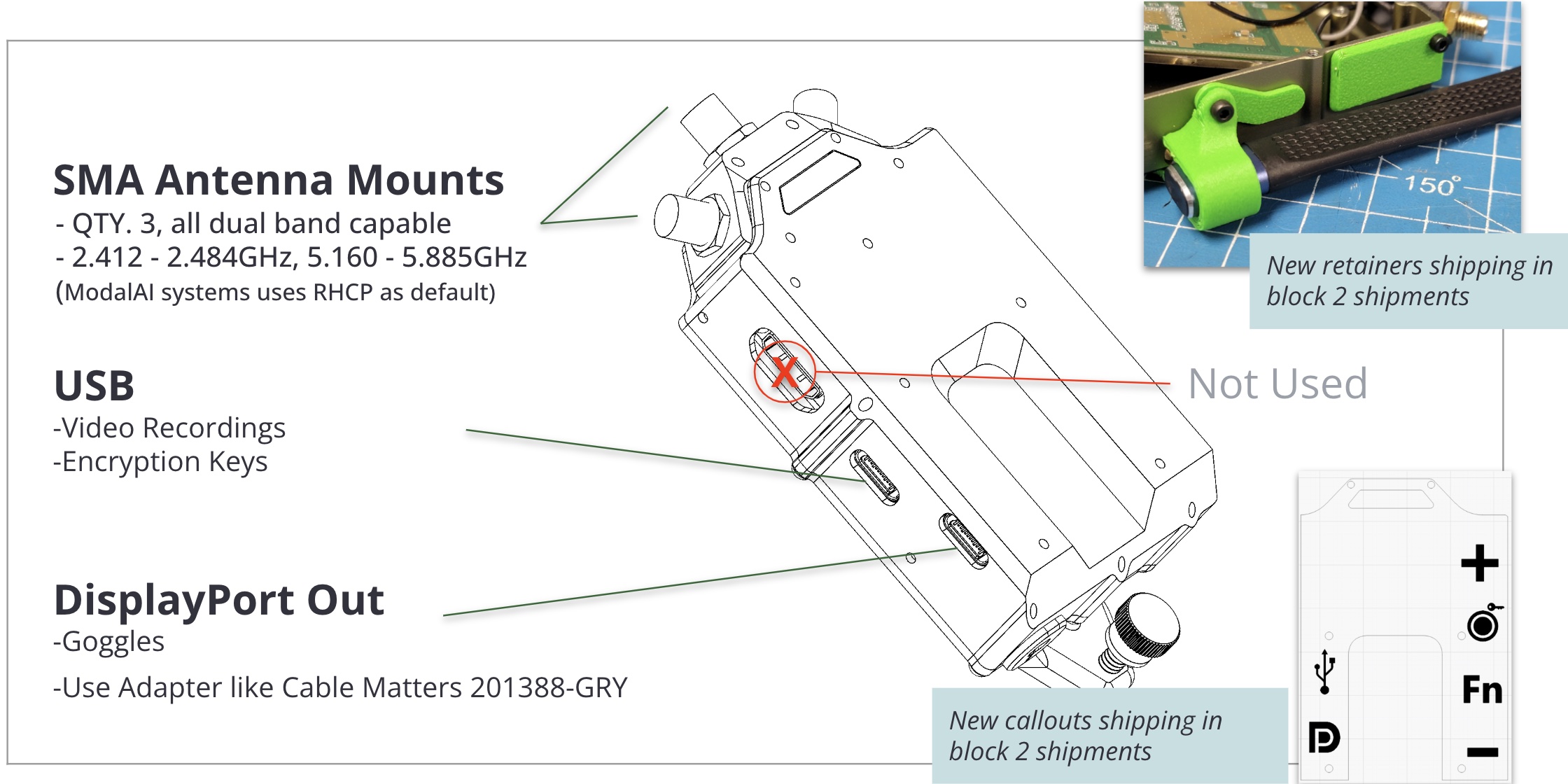
Interfaces
| Interface | Description |
|---|---|
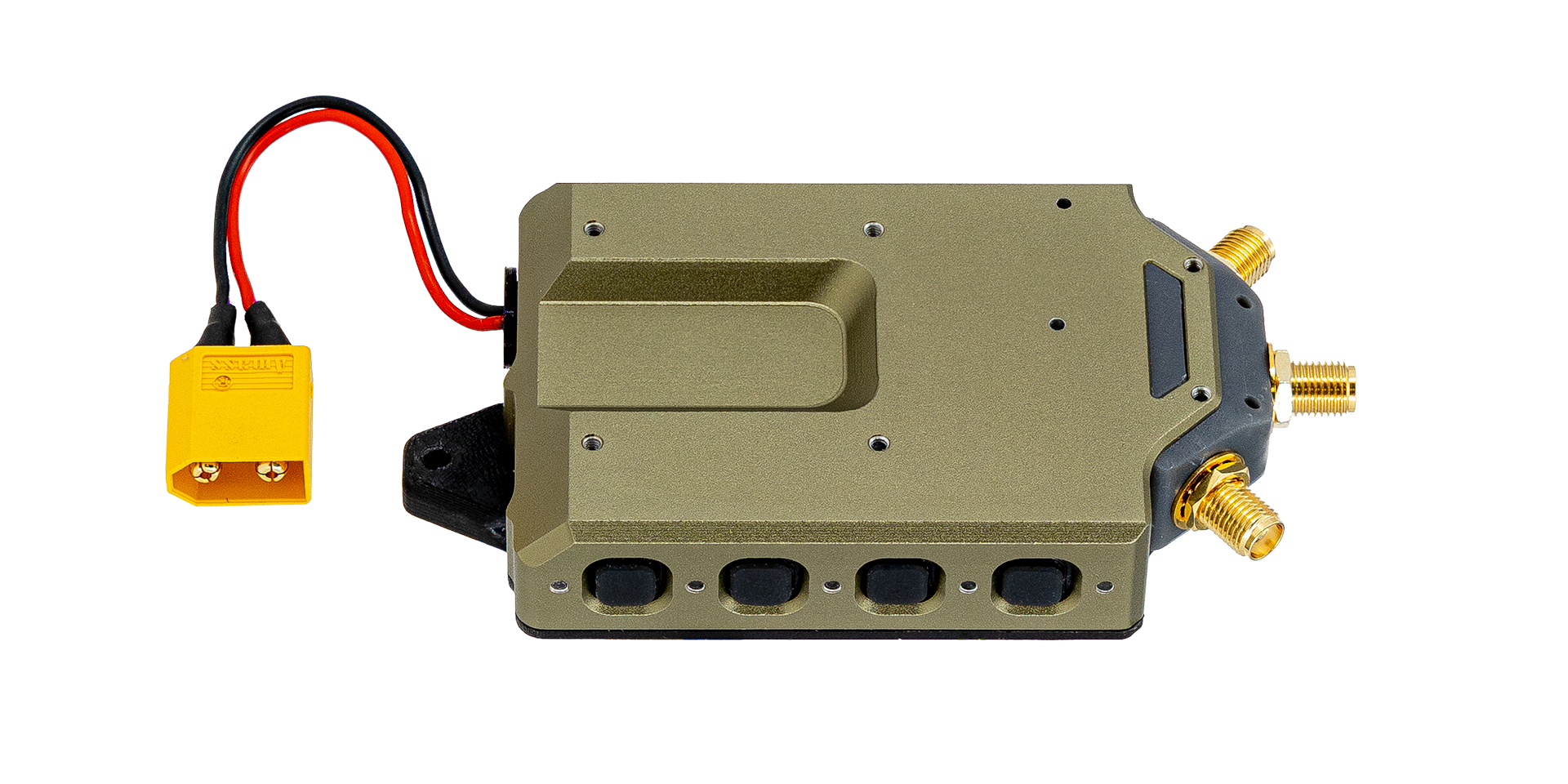
| SMA Antennas | 2.412-2.484GHz or 5.180-5.865GHz, RHCP recommended |
| USB | Video Recordings, Encryption Key Generation/Updates |
| DisplayPort Out | Use USBC to HDMI adapter listed below to get HDMI output |
| HDMI (not active) | Note: the HDMI port is not active in this hardware version. Instead, use USBC to HDMI adapter like below |
Buttons
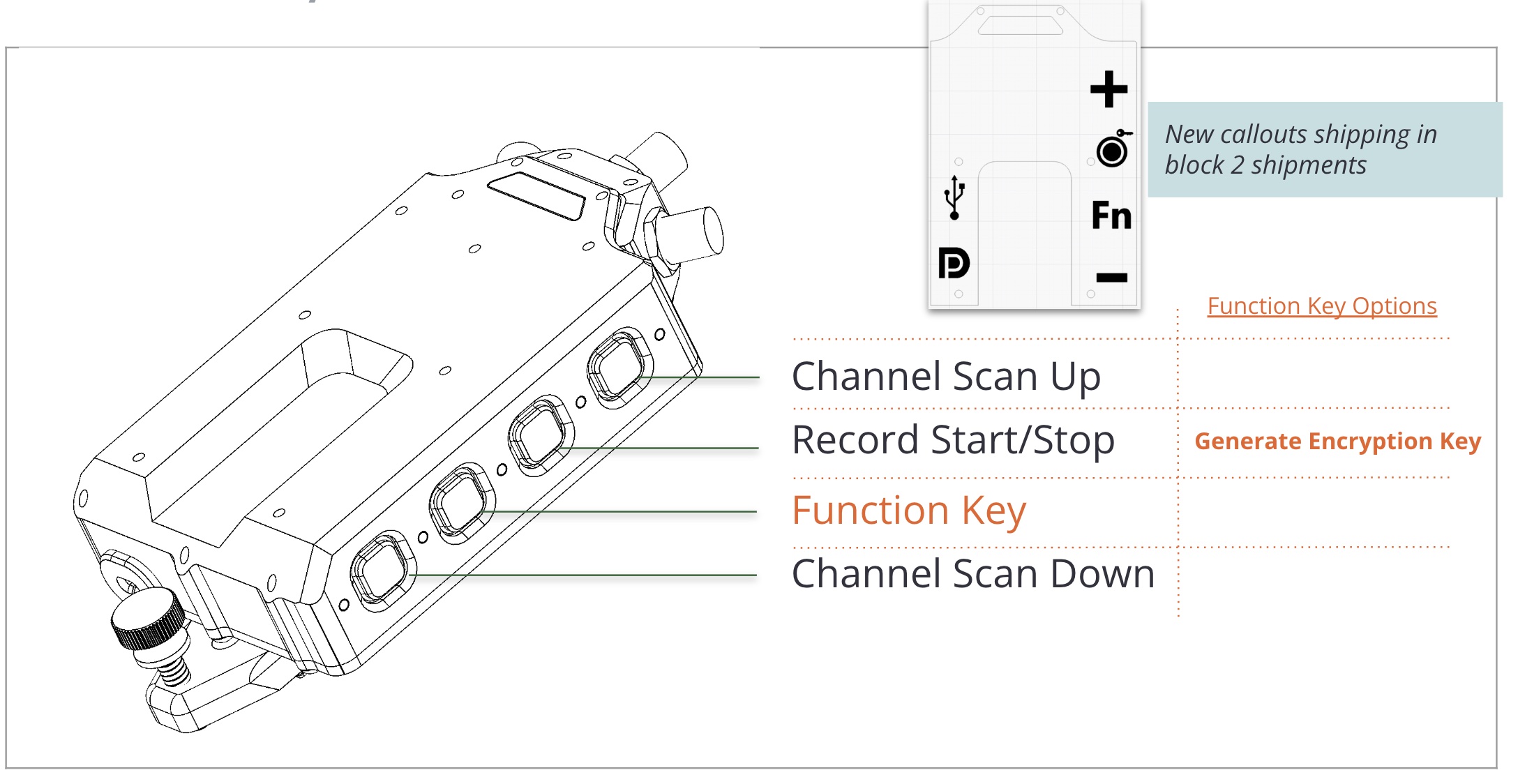
| Button | Primary Use | Secondary Function (when also pressed with Function Key) |
|---|---|---|
| 1 | Channel Up (double-tap to scan up) | Open the RF occupancy scanner |
| 2 | Record Start/Stop | Hold to generate an encryption key on an attached USB flash drive |
| 3 | Function Key | |
| 4 | Channel Down (double-tap to scan down) | Open the RF occupancy scanner |
For the secondary functions, hold the Function Key (3) first, then press the other button. The order matters: pressing Record first starts a recording instead.
USBC-to-HDMI Adapters
The following has been successful in our testing:
- 201388-GRY (included in K1 kit)
Battery/Power Supply
2S-6S supported, ~7W max usage
Antennas
M10001129- Antenna, X2-AIR 5.8 MKII, RHCP, RG316 cable, SMA, 300mmM10001130- Antenna, X2-AIR 5.8 MKII, RHCP, RG316 cable, SMA, 400mmM10001136- Antenna, 4.9-5.9Ghz, 5dBi, Linear, Whip, SMA, 44mm
Drone Side:
M10001112- 5.8 Core: RHCP 160mm RG137 U.FL AntennaM10001114- 2.4 Singularity: RHCP 160mm RG137 U.FL Antenna
System Overview
Pairing/Binding with VTX
VTX and VRX should “pair” when both powered up by default as shipped from the factory.
Cool use cases (and things to be aware of when powering on multiple units at a time):
- Multiple VRXs can be “paired” with a single VTX, allowing for multi view drop from a VTX
- Multiple VTXs can be configured on different channels, and a single VRX can swap between channels to stream from multiple VTXs.
- VRX can be configured to receive IP from the UAS over VPN offering low latency stream
Changing Channels
Use buttons 1 and 4 shown above to step through channels to locate streams from VTX systems using the same encryption key. A single press moves one channel. A double-tap starts a continuous scan in that direction, and the next press stops it.
RF Occupancy Scanner
With voxl-vtx 3.1.4 or newer (SDK 1.8), hold the Function Key (3) and press button 1 or 4 to open the RF occupancy scanner. It sweeps the band and shows the occupancy and noise floor of each channel on the OSD. While it is open:
- Buttons 1 and 4 move the selection (hold to scroll).
- Button 2 tunes to the selected channel and closes the scanner.
- Button 3 closes the scanner without changing channel.
The scanner is available when the VRX receives over RF (enable_pcap, the default) and closes on its own after a period with no button presses.
Generating New Encryption Key
If you want to change the encryption keys from the default, you can generate new ones and then use them on VTX systems to “pair/bind”.
To generate a new key, have:
- the VRX powered on
- a USB flash drive inserted into the USB port
Hold button 3 (Function), then press and hold button 2 (Record), and keep both held for about 1 second to provision the USB flash drive with a new key.
Using New Encryption Key
Power cycle the VRX with a provisioned USB flash drive inserted into the USB port.
Software Overview
The VRX Ground Unit runs the VRX SDK (current release ubun2.0-multi_SDK_1.8.0.tar.gz). Run the same SDK version on the VRX and the drone: a drone on SDK 1.8.0 (voxl-osd 1.2.0 or newer) needs VRX SDK 1.8.0. Stinger ships with SDK 1.8.0.
See VRX Ground Unit Developer Guide for more details.
Default Settings
VTX and VRX ship with default:
- frequency set to 5.805 GHz
- encryption key, to generate new ones (recommended) see above
OSD
To access the OSD menu:
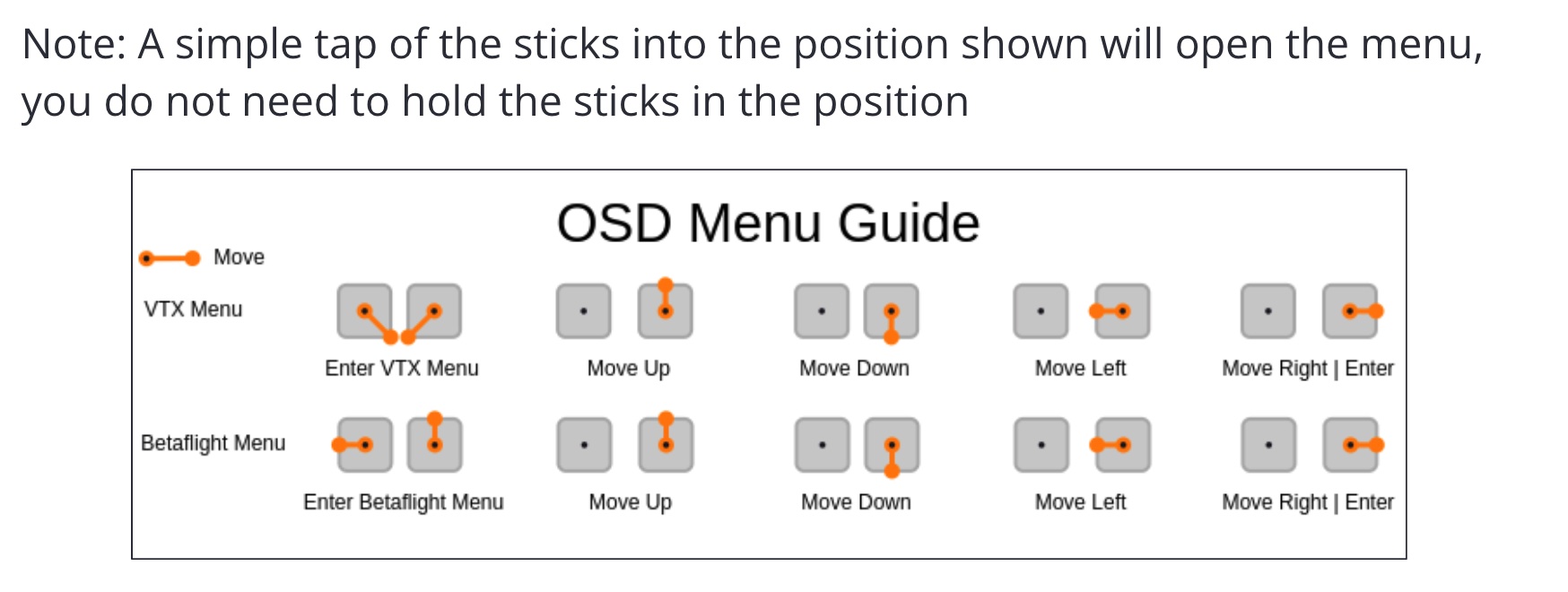
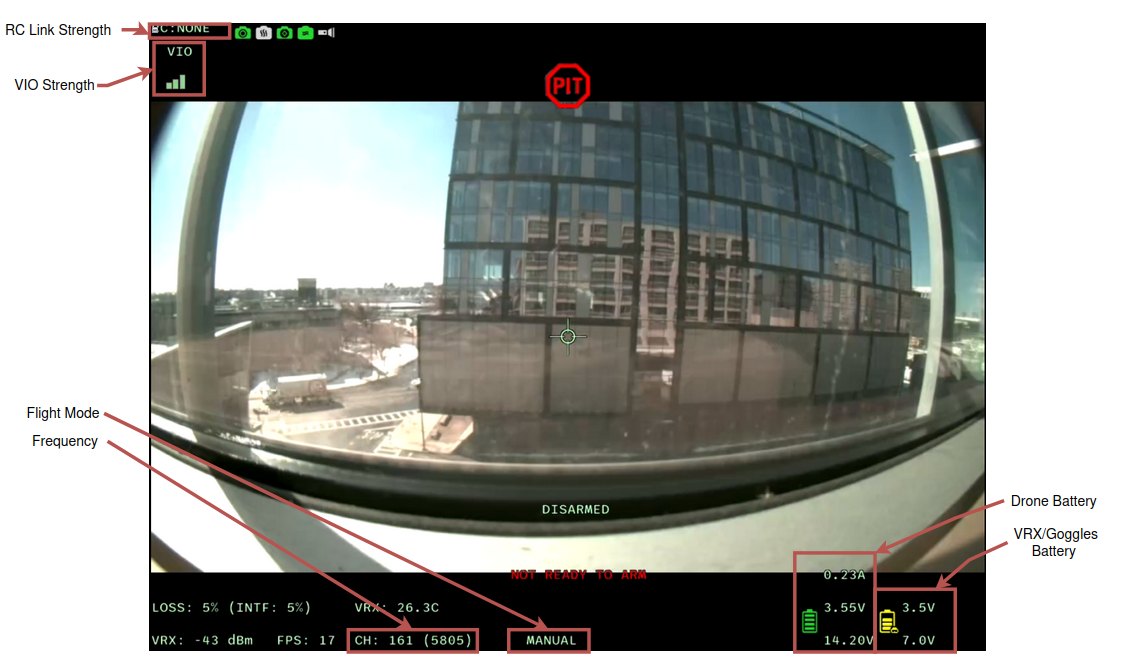
Example of the current OSD menu: