
MVX Channels, Bandwidth & Power
Pick a channel, find a clear one with the RF scanner, and set channel width, transmit power, when the VTX transmits, and regulatory mode.
Table of contents
- Overview
- Change the channel
- Find a clear channel
- Channel bandwidth
- Transmit power
- When the VTX transmits
- Regulatory mode
- Supported frequencies
Overview
The drone’s VTX sets the channel, the channel width and the transmit power. When you change the channel or width from the OSD menu, the VRX follows automatically. Factory defaults are 5805 MHz (channel 161), 20 MHz, and 1000 mW with pit mode on.
To hop across several channels instead of using one, see Frequency Hopping.
Change the channel
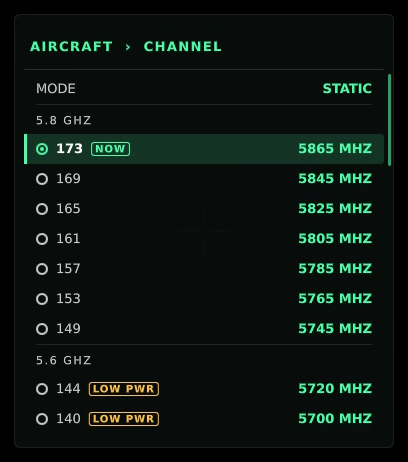
From the OSD menu (drone disarmed): open the menu and select CHANNEL. The list is grouped by band (2.4, 5.2, 5.6 and 5.8 GHz) and marks the current channel NOW. Pick a channel, then SAVE AND EXIT. The VRX follows the drone to the new channel. Channels marked LOW PWR transmit at reduced power.
From the command line, set the same frequency on both units:
voxl-configure-vtx -F 5745     # on the drone
voxl-configure-vrx -F 5745     # on the VRX
From the VRX buttons: buttons 1 and 4 step the VRX up or down one channel to look for a drone using the same key. A double-tap starts a continuous scan in that direction, and the next press stops it. This retunes only the VRX.
Find a clear channel
The VRX has a built-in RF occupancy scanner. Hold button 3 (Function) and press button 1 or 4 to open it. It sweeps the band and shows how busy each channel is and its noise floor, so you can pick a quiet one.
- Buttons 1 and 4 move the selection (hold to scroll).
- Button 2 tunes to the selected channel and closes the scanner.
- Button 3 closes the scanner without changing channel.
Video pauses while the scanner is open, and it closes on its own after a period with no button presses.
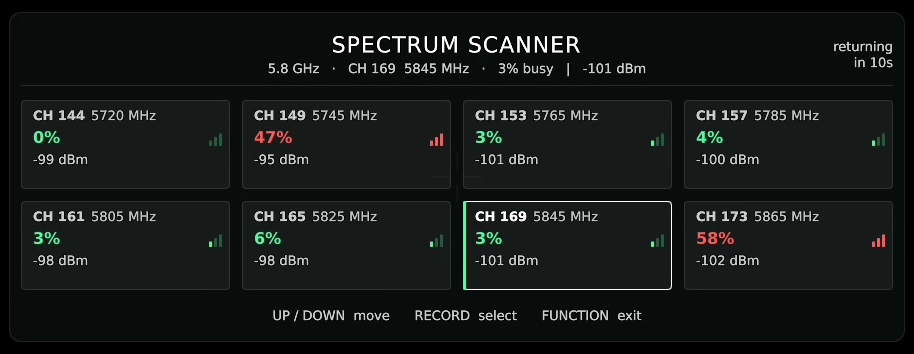
Each tile shows the channel, how busy it is and its noise floor. Here channel 173 is busy (58%) because the drone is transmitting on it, and channel 169 is a quiet choice.
Channel bandwidth
The link runs at 5, 10, 20 or 40 MHz. Narrower channels reach further and hold up better against interference at lower picture quality; wider channels carry more video.
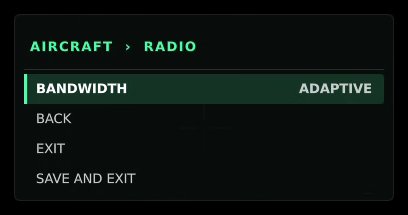
- OSD menu: ADVANCED > RADIO > BANDWIDTH, then SAVE AND EXIT. The VRX follows the change.
- Config file:
bandwidthin/etc/modalai/voxl-vtx.confon the drone and/etc/modalai/voxl-vrx.confon the VRX. On the VRX,voxl-configure-vrx -b <MHz>sets it. - If the drone changes width while the VRX is out of range, the VRX finds it again on its own.
Notes:
- 5 and 10 MHz need the SDK 1.8.1 VRX system image.
- To run at 5 or 40 MHz, use a video profile without adaptive link; adaptive link only uses 20 and 10 MHz. See Video Profiles & Adaptive Link.
- The BANDWIDTH row is read-only while something else sets the width: ADAPTIVE (the Adaptive video profile is active and sets the width itself), HOP SET (frequency hopping is on), or N/A (IP) (the link runs over an IP radio).
Transmit power
Transmit power is set per video profile, in milliwatts from 0 to 1000 (-1 is maximum). To change the active profile’s power and save it:
voxl-configure-vtx -P 500
When the VTX transmits
These settings control when the VTX transmits at all, in /etc/modalai/voxl-vtx.conf:
| Field | Default | Meaning |
|---|---|---|
enable_pit | true | Pit mode keeps the VTX at low power until the drone first arms, so a powered-up drone on the bench does not transmit at full power. PIT in the OSD main menu turns it on or off. |
rc_deadman_en | false | RC dead man’s switch: the VTX stops transmitting when the flight controller stops reporting a healthy RC link, and resumes as soon as RC recovers. Turn it on with voxl-configure-vtx --enable_rc_deadman. |
rc_deadman_tx_timeout_ms | 60000 | How long the VTX keeps transmitting after RC loss before it stops. |
team_race_en | "off" | Team race: with ELRS team race, one transmitter flies several drones in turn. When the pilot switches away from this drone, the VTX stops transmitting to free the channel. "auto" turns it on when the drone’s ELRS receiver has team race set up. |
team_race_tx_timeout_ms | 0 | How long the VTX keeps transmitting after the pilot switches away. |
Restart voxl-vtx after editing the file.
Regulatory mode
Set the regulatory mode for the region where you fly. The VTX then offers only the channels and power allowed there, in the OSD menu and on the command line.
| Value | Region | Behavior |
|---|---|---|
fcc | United States | 5180–5320 MHz channels are limited to 200 mW and show LOW PWR in the CHANNEL list; DFS channels (5260–5720 MHz) and channel 14 are not offered. |
Set regulatory_mode in /etc/modalai/voxl-vtx.conf on the drone, then restart the service:
vi /etc/modalai/voxl-vtx.conf      # "regulatory_mode": "fcc"
systemctl restart voxl-vtx
Always follow your local regulations when setting the regulatory mode, channels, bandwidth and power.
Supported frequencies
Center frequencies in MHz:
| Band | Frequencies |
|---|---|
| 2.4 GHz | 2412, 2417, 2422, 2427, 2432, 2437, 2442, 2447, 2452, 2457, 2462, 2467, 2472, 2484 |
| 5.2 GHz | 5180, 5200, 5220, 5240, 5260, 5280, 5300, 5320 |
| 5.6 GHz | 5500, 5520, 5540, 5560, 5580, 5600, 5620, 5640, 5660, 5680, 5700, 5720 |
| 5.8 GHz | 5745, 5765, 5785, 5805, 5825, 5845, 5865 |