Remote ID
Table of contents
Introduction
Video Quickstart
Summary
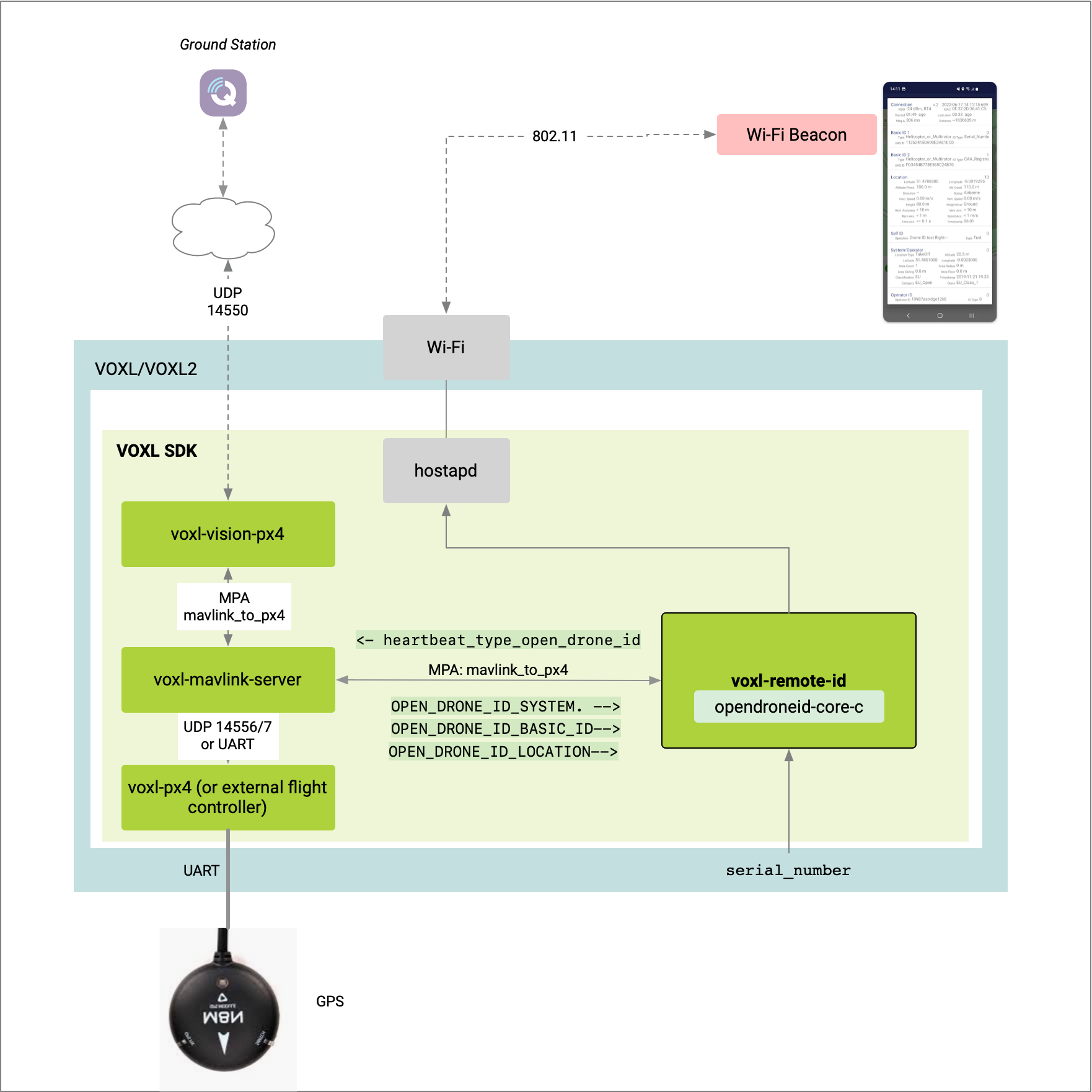
The voxl-remote-id is a VOXL SDK based service that be used to facilitate remote ID compliance on VOXL2 only.
There are various use cases and radio types depending one end user requirements, thus there are multiple use cases captured below.
Supported PX4 Versions
QRB5165 (VOXL 2)
voxl-remote-id is part of the VOXL SDK. SDK 1.8 ships voxl-remote-id 0.1.0 with voxl-px4 1.18 (PX4 1.18).
How to Enable/Disable
The PX4 parameter COM_ARM_ODID sets how PX4 reacts when the Open Drone ID system is missing or reports unhealthy. Values in PX4 1.18 (SDK 1.8):
COM_ARM_ODID | Behavior |
|---|---|
0 | Disabled (default). The vehicle arms regardless of remote ID status. |
1 | Warning only. A warning is reported but arming is allowed. |
2 | Error. Arming is denied until remote ID is present and healthy. |
3 | Return. Arming is denied, and if remote ID fails in flight the vehicle switches to Return. |
4 | Land. Arming is denied, and if remote ID fails in flight the vehicle lands. |
5 | Terminate. Arming is denied, and if remote ID fails in flight flight termination is triggered. |
SDK 1.6 and older (PX4 1.14) accept only
0(disabled),1(warning only), and2(deny arming). Very old releases named this parameterCOM_PREARM_ODID.
For a final product requiring remote ID, you would want to remove the parameter and hardcode the check on.
Support Use Cases
| ID | Flight Controller | Radio | Reference | Status |
|---|---|---|---|---|
| 1 | VOXL 2 | WiFi, SoftAP | Sentinel | in beta |
| 2 | VOXL-Flight, VOXL + FC | WiFi, SoftAP | M500 | in beta |
Please send use case requests here!
User Guide
Install Package
voxl-remote-id is published in the VOXL SDK package repository. If voxl-configure-remote-id is not found on the vehicle, install the package while connected to the internet:
apt update
apt install voxl-remote-id
Use Case 1 - VOXL Wi-Fi SoftAp
Summary
- Vehicle advertises remote ID data via Wi-Fi beacons using vehicle in SoftAP mode
- PX4 runs on VOXL 2 or an external flight controller (VOXL-Flight)
voxl-remote-idruns on the applications processor of VOXL/VOXL2 and a hostapd based service facilitate beacon comms- a GPS fix is provided from PX4 to
voxl-remote-idto send out in
Requirements
Hardware:
- VOXL 2 (Sentinel reference drone)
- Add on board supporting USB (like M0151), with MCBL-00009
- Wi-Fi dongle (Alpha Networks AWUS036ACS used for test)
or VOXL-Flight (M500 reference drone, built in WiFi)
- GPS unit (Holybro M9N GPS used for test) with a GPS fix (fix_type > 2)
Software:
- VOXL SDK with
voxl-remote-idinstalled (see Install Package) voxl-mavlink-server,voxl-px4configured and running
Visualization Tools:
- QGroundControl v4.2 or newer
- Android device with OpenDroneID OSM application installed
Network Setup
Enter SoftAP Mode for Beacon Broadcasting
To create a SoftAP network to enable broadcasting with SSID name remoteId and password 1234567890, run the following:
voxl-wifi softap remoteId 1234567890
Connect Ground Station to SoftAP
Connect you groundstation machine to the network above. Obtain the IP address from your machine.
Update conf file
Set primary_static_gcs_ip in /etc/modalai/voxl-mavlink-server.conf to the IP address above, then restart the service with systemctl restart voxl-mavlink-server. See voxl-mavlink-server for the configuration file reference.
Older SDKs set the GCS address with
qgc_ipin/etc/modalai/voxl-vision-px4.conf. Current voxl-vision-hub removes that key; GCS connectivity is handled by voxl-mavlink-server.
Open QGroundControl
Open QGroundControl and confirm you have a telemetry connection.
voxl-px4 Configuration
Enable the Arming Check
Set COM_ARM_ODID to 2 (or higher, see How to Enable/Disable) to deny arming without a healthy remote ID system.
voxl2:/$ px4-param set COM_ARM_ODID 2
  COM_ARM_ODID: curr: 0 -> new: 2
If you have a QGC connection open, you will see this if attempting to arm now without completing the remainder of the guide.

Enable voxl-remote-id
Run the voxl-configure-remote-id command to open the configuration wizard.
Note: see Install Package if the command is not found.
Note: the operator registration ID is stored as operator_id in /etc/modalai/voxl-remote-id.conf and broadcast in the Operator ID message.
voxl2:/$ voxl-configure-remote-id
Starting Wizard

Do you want to reset the config file to factory defaults?
1) yes
2) no
#? 1
wiping old config file
INFO:    Writing new configuration file to /etc/modalai/voxl-remote-id.conf

Do you want to enable the voxl-remote-id service
1) yes
2) no
#? 1

Now we are going to do a preliminary configuration of /etc/modalai/voxl-remote-id.conf

Please enter your operator registration ID
Some regulations require operators to include their operator id in the
remote ID packets. If the rule in your area doesn't require this,
you can press enter to leave this option empty

enabling  voxl-remote-id systemd service
Created symlink /etc/systemd/system/multi-user.target.wants/voxl-remote-id.service → /etc/systemd/system/voxl-remote-id.service.
starting  voxl-remote-id systemd service
Done configuring voxl-remote-id
Check voxl-remote-id Status
Run the following systemctl status voxl-remote-id
voxl2:/$ systemctl status voxl-remote-id
● voxl-remote-id.service - voxl-remote-id
   Loaded: loaded (/usr/bin/voxl-remote-id; enabled; vendor preset: enabled)
   Active: active (running) since Tue 2022-09-06 03:22:58 UTC; 18s ago
 Main PID: 2541 (voxl-remote-id)
    Tasks: 5 (limit: 4915)
   CGroup: /system.slice/voxl-remote-id.service
           └─2541 /usr/bin/voxl-remote-id

Sep 06 03:22:58 m0054 systemd[1]: Started voxl-remote-id.
Sep 06 03:22:58 m0054 voxl-remote-id[2541]: INFO:    Remote ID SN: 1814A1234567890
Sep 06 03:22:58 m0054 voxl-remote-id[2541]: INFO:    Attempting to Connect to hostapd: /data/misc/wifi/hostapd/wlan0
Sep 06 03:22:58 m0054 voxl-remote-id[2541]: INFO:    Connected to hostapd: /data/misc/wifi/hostapd/wlan0
Sep 06 03:22:58 m0054 voxl-remote-id[2541]: INFO:    Connected to voxl-mavlink-server
Sep 06 03:22:58 m0054 voxl-remote-id[2541]: INFO:    Detected PX4 Mavlink SYSID 1
Sep 06 03:22:58 m0054 voxl-remote-id[2541]: INFO:    Remote ID is in active mode
The serial number follows CTA-2063-A: the ModalAI manufacturer code 1814, the length code A (10 characters), then the 10-character board serial number read from /sys/devices/soc0/serial_number. 1814A1234567890 above is an example.
Validate GPS
To get GPS status and confirm fix_type > 2, run the following:
- VOXL2, run
px4-listener sensor_gps - VOXL1, run
voxl-px4-shell listener sensor_gps
For example:
px4-listener sensor_gps

TOPIC: sensor_gps
 sensor_gps_s
	timestamp: 171195446  (0.087693 seconds ago)
	time_utc_usec: 0
	lat: 327783759
	lon: -1170410696
	alt: 159712
	alt_ellipsoid: 125966
	s_variance_m_s: 0.3480
	c_variance_rad: 2.8493
	eph: 1.8870
	epv: 2.6060
	hdop: 0.9900
	vdop: 1.6100
	noise_per_ms: 105
	jamming_indicator: 167
	vel_m_s: 0.0600
	vel_n_m_s: -0.0180
	vel_e_m_s: -0.0570
	vel_d_m_s: 0.0780
	cog_rad: 0.0000
	timestamp_time_relative: 0
	heading: nan
	heading_offset: 0.0000
	fix_type: 4
	jamming_state: 0
	vel_ned_valid: True
	satellites_used: 10
Ready To Arm
At this point, the vehicle is broadcasting Wi-Fi Beacons advertising remote ID data, and the vehicle is ready to arm.
Troubleshooting
Not in SoftAP Mode
If you run systemctl status voxl-remote-id and see something like this:
voxl2:/$ systemctl status voxl-remote-id
● voxl-remote-id.service - voxl-remote-id
   Loaded: loaded (/usr/bin/voxl-remote-id; enabled; vendor preset: enabled)
   Active: active (running) since Thu 1970-01-01 02:19:30 UTC; 52 years 9 months ago
 Main PID: 2447 (voxl-remote-id)
   CGroup: /system.slice/voxl-remote-id.service
           └─2447 /usr/bin/voxl-remote-id

Jan 01 02:19:30 m0054 systemd[1]: Started voxl-remote-id.
Jan 01 02:19:31 m0054 voxl-remote-id[2447]: INFO:    Remote ID SN: 1814A1234567890
Jan 01 02:19:31 m0054 voxl-remote-id[2447]: INFO:    Attempting to Connect to hostapd: /data/misc/wifi/hostapd/wlan0
It means that you need to put the device into SoftAP mode. You can do that with SSID of remoteId and password 1234567890:
voxl-wifi softap remoteId 1234567890
Developer Guide
Wireshark
Soft AP - WiFi Beacons
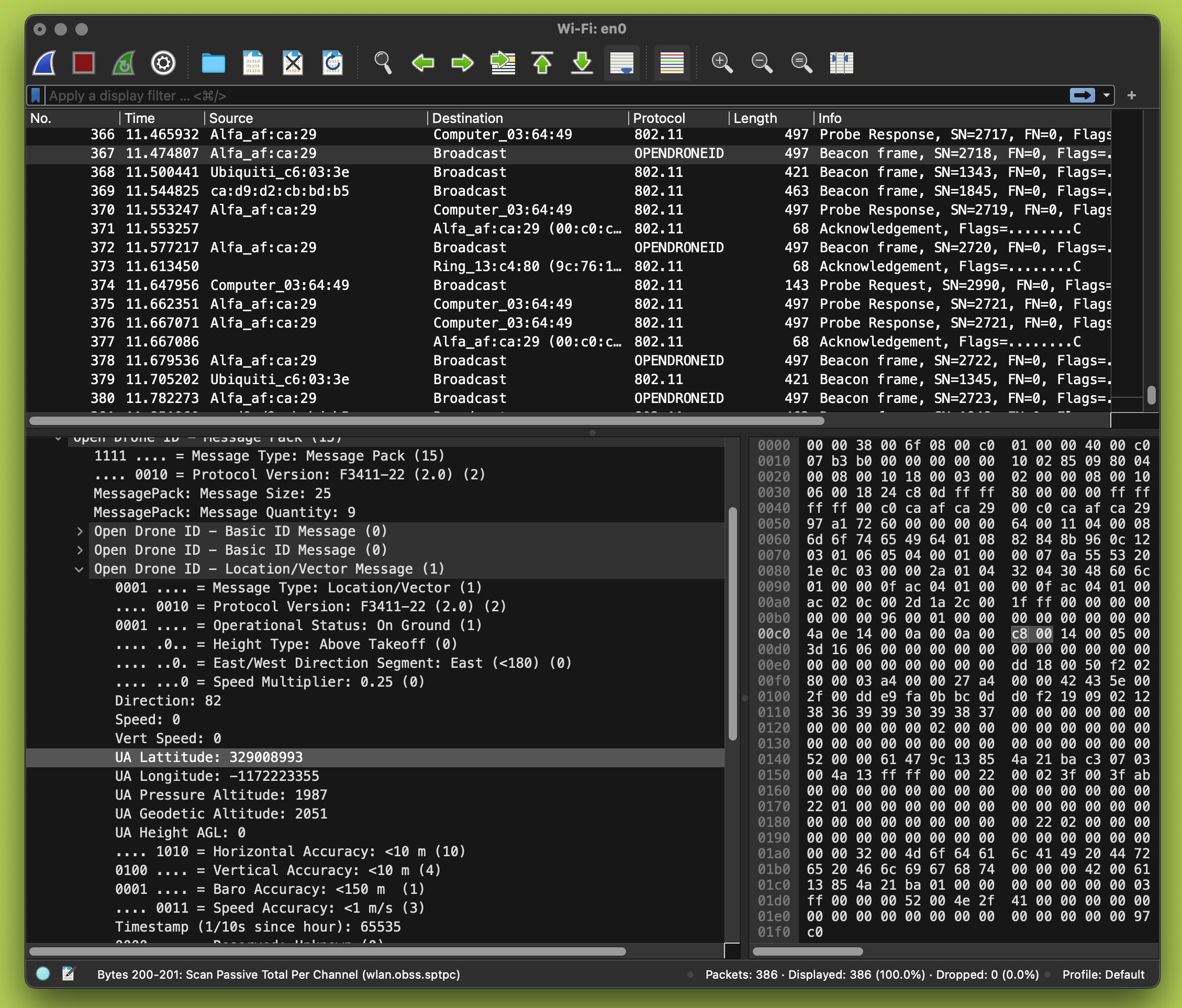
In order to decode Opendrone ID packets in Wireshark, the following was done (on OSX host as example):
- Open Wireshark > About > Folders
- Locate “Global Configuration” and “Personal LUA Plugins”
- Using this project, clone into those directories above
- On OSX, you need to “disconnect” from any networks to use monitor mode
- Now, monitor the WLAN interface to sniff for ODID packets: