
VOXL Portal
Table of contents
- Accessing VOXL Portal
- Tabs Overview
- Viewing Cameras
- Viewing Pointclouds
- CPU and IMU Plotting
- Debug Menu
- Other Features
- Flight Info
The voxl-portal package provides an embedded webserver on VOXL. It enables camera inspection and other debug tools all via web browser interface at your VOXL’s IP address.
(Video recorded on an older VOXL Portal version — the current interface has additional tabs; see below.)
Accessing VOXL Portal
Ensure voxl-portal is running using voxl2:/$ voxl-inspect-services. If it’s not running, start it with voxl2:/$ systemctl start voxl-portal. You can also enable it to run on boot using voxl2:/$ voxl-configure-portal.
voxl-portal listens on all network interfaces on port 80, so any IP connection to your VOXL works: WiFi, Ethernet, or even a USB cable using ADB port-forwarding — no network needed. It is supported on VOXL 2, RB5 Flight, and QCS6490-based platforms.
Next, find your VOXL’s IP address. On VOXL 2, you can use this command: voxl2:/$ voxl-my-ip. On VOXL or VOXL Flight, you must use ifconfig.
If your VOXL is in station mode, you can access VOXL Portal by simply pointing your web browser to the IP address of VOXL:
http://<VOXL IP>/
If your VOXL is in SoftAP mode, you MUST additionally ensure your host computer is connected to the network SSID that the VOXL is hosting. VOXL Portal will not be able to connect otherwise.
You can see what WiFi mode you are in using this command:
voxl2:/$ voxl-wifi getmode
Tabs Overview
The header bar at the top of every page provides the following tabs:
- Cameras — dropdown listing every active camera/image pipe. Covered in detail below.
- Pointclouds — dropdown listing every active pointcloud pipe, rendered in a WebGL viewer. Covered in detail below.
- Debug — dropdown of calibration and diagnostic tools, including the CPU and IMU plotting tools. See Debug Menu below.
- Benchmark — browse and visualize VIO benchmark results stored on the vehicle.
- ELRS — ExpressLRS receiver configuration, with configuration presets selected by the vehicle’s SKU and a control for setting the binding phrase.
- VIO — VIO workbench with a Live View mode for monitoring the running VIO server and a VINS Lab mode for replay and analysis.
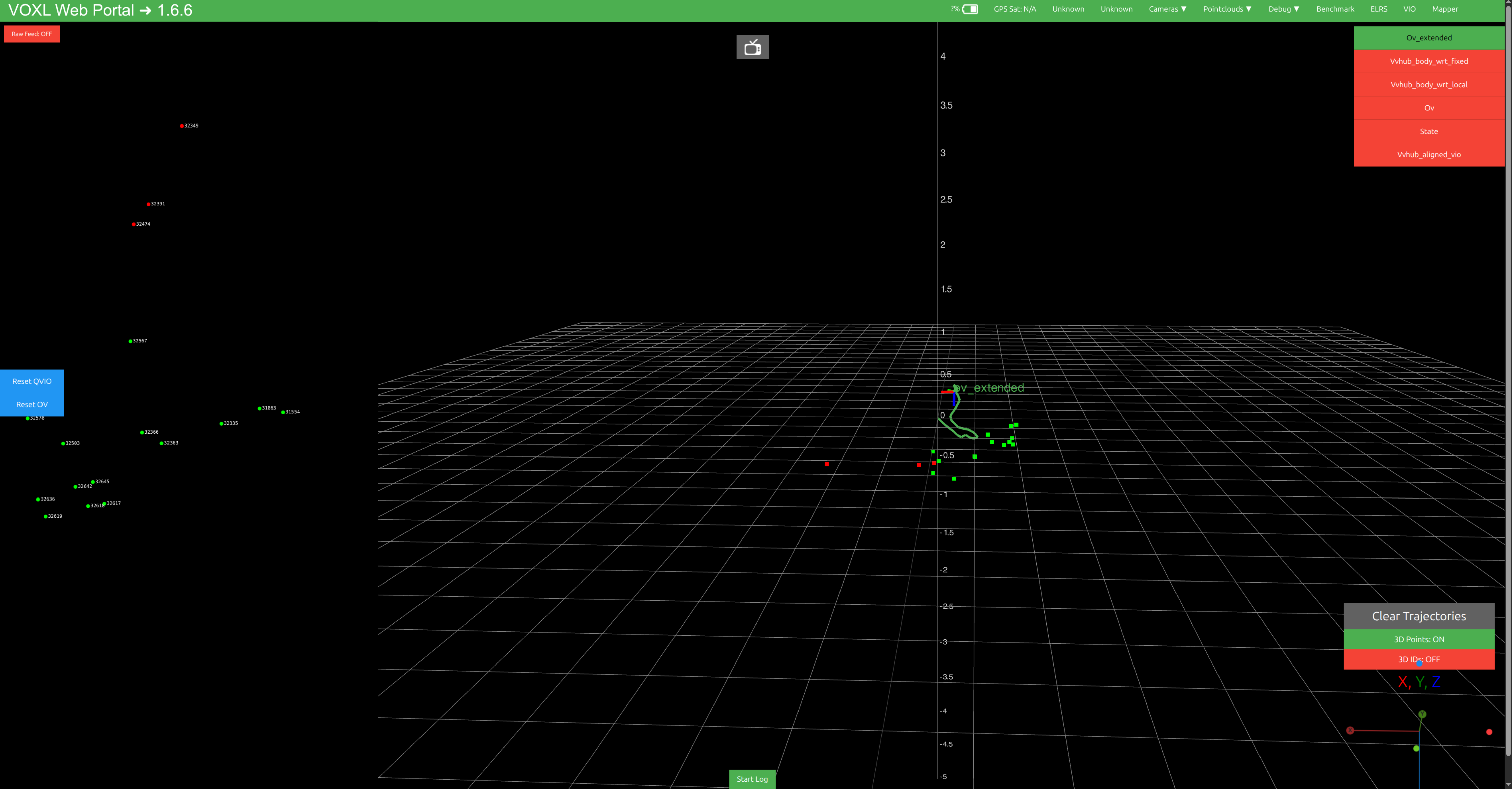
- Follow — live camera view for the follow feature; click a target in the feed to select it.
- Mapper — 2D/3D map view for voxl-mapper; only appears when voxl-mapper is installed. See Interacting with VOXL Mapper.
Viewing Cameras
voxl-portal uses the MPA library to dynamically list and display any open camera/image pipes. When the “Cameras” dropdown is selected, any available image output will be displayed, regardless of supported type.
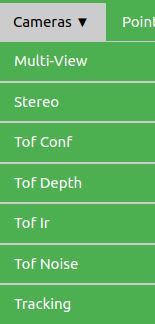
Select the camera you wish to view, and the image will be displayed as long as the image format is supported. 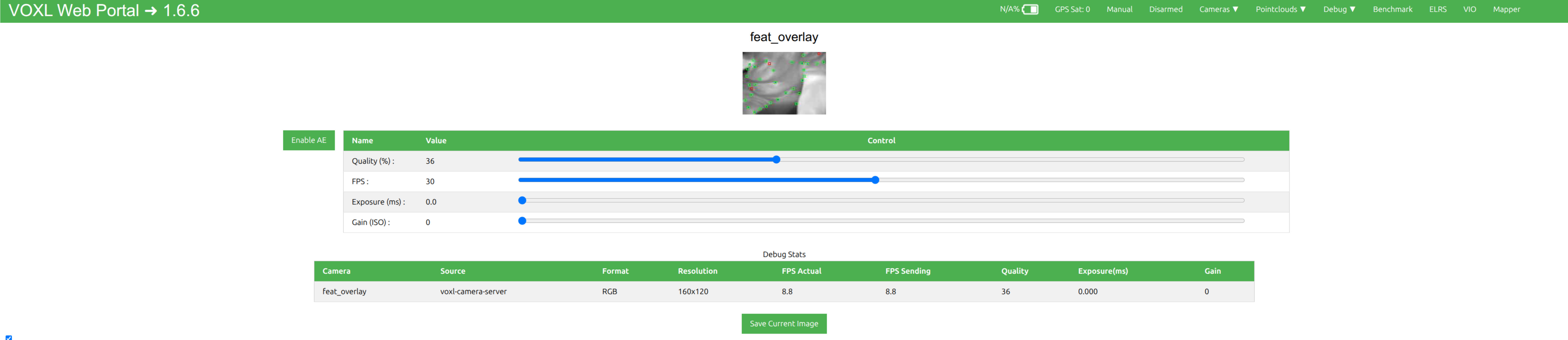
Supported image formats
- RAW8
- RAW16
- STEREO_RAW8
- RGB
- YUV420
- YUV422
- NV21
- NV12
- STEREO_NV12
- STEREO_NV21
- H264
- H265
Image Quality
voxl-portal will attempt to adjust to your networks capabilities. When you have a poor network connection, framerate will drop until a consistent framerate can be reached. If you are expecting a higher resolution image than what you are receiving, the cause is likely a poor connection.
A Multi-View option at the top of the dropdown collages all active streams at once. Viewing streams one at a time is recommended instead — streaming many cameras simultaneously stresses the network and reduces quality for all of them.
Viewing Pointclouds
voxl-portal uses the MPA library to dynamically list and display any open pointcloud pipes. Note that you need either stereo cameras or a ToF sensor to have any pointclouds.
Select any pointcloud in the “Pointclouds” dropdown to view it. All MPA pointcloud types are supported, see libmodal-pipe for the full list.
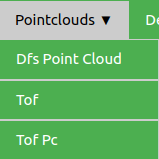
The pointcloud viewer utilizes WebGl for GPU-accelerated rendering, so running on devices that do not support this may result in other issues.
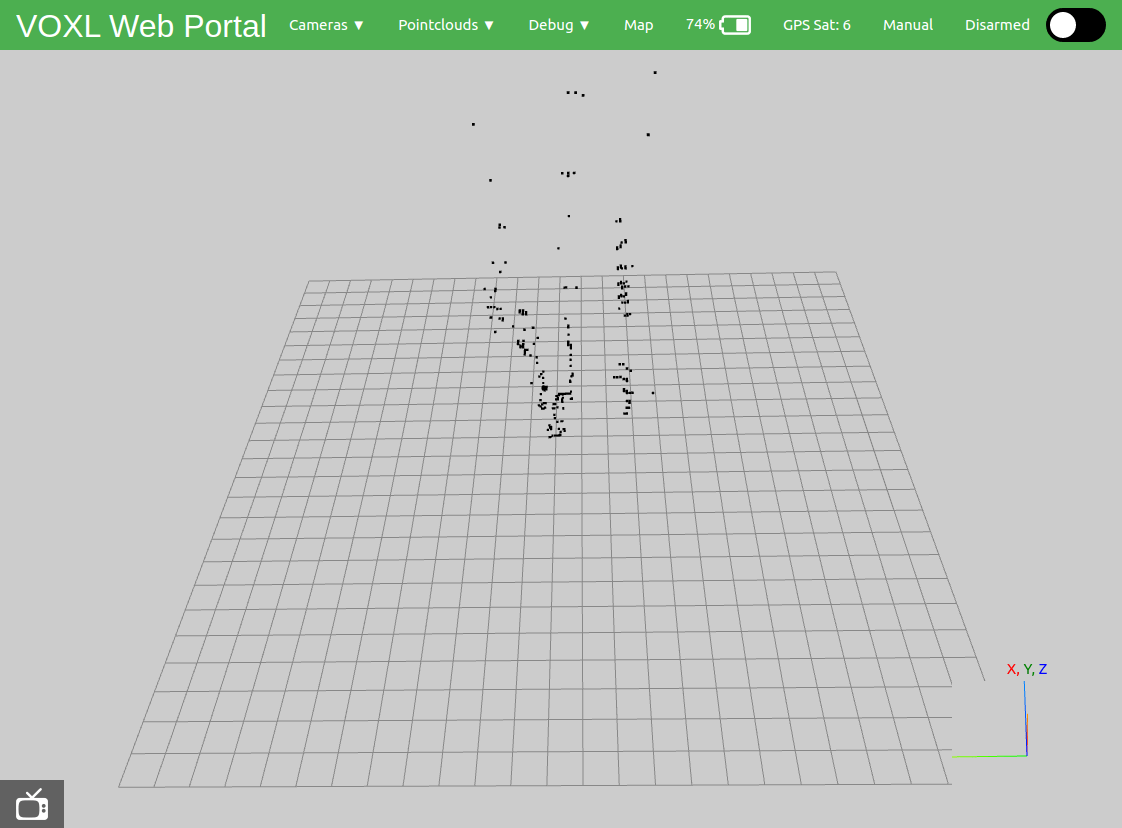
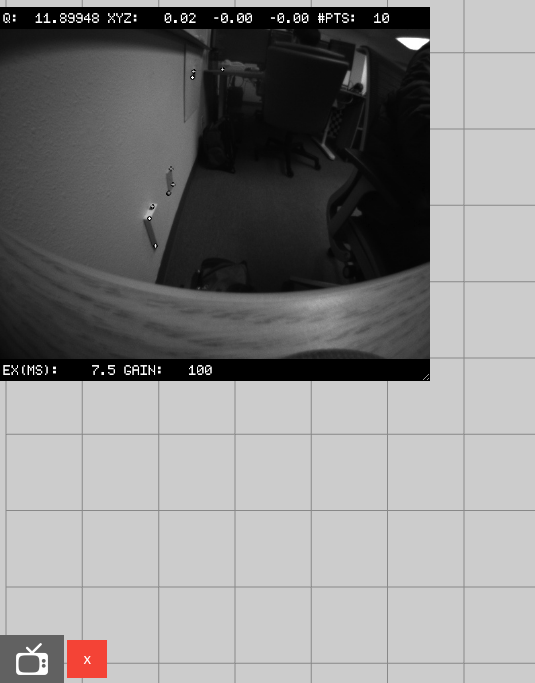
The bottom left hand corner of the page includes a button to overlay an image stream on top of the pointcloud grid. Clicking on this tv icon will populate a list above of all available image topics, similar to the camera dropdown.

Selecting one will overlay it on the page, where it can be resized via the bottom left corner of the stream and closed using the red x at the bottom left.
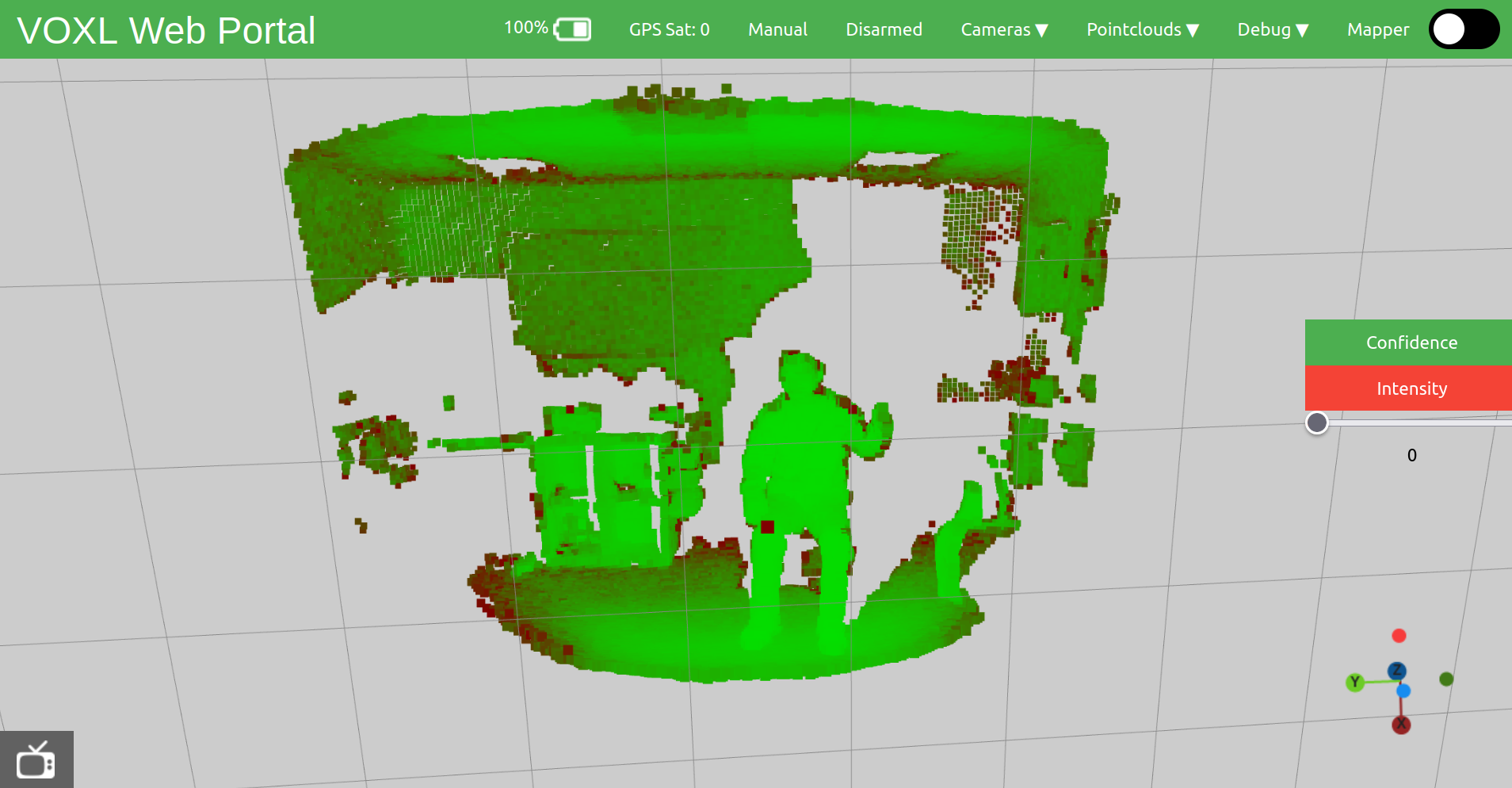
Tof
voxl-portal has a special viewer for the “Tof” pointcloud topic if your VOXL setup includes a tof camera. This specific pointcloud can be colored by either confidence or reflected light intensity, since those values are included with the tof topic. (Note: Tof Pc only displays Point Cloud data, no confidence or intensity).
CPU and IMU Plotting
voxl-portal is able to produce detailed plots with CPU and IMU information.
Hovering above the graph will tell you the the exact x-axis and y-axis values.
CPU
This tool will plot ten second windows of data, with various CPU, GPU, and memory options. You may choose to plot as few or as many of the listed options as you wish. 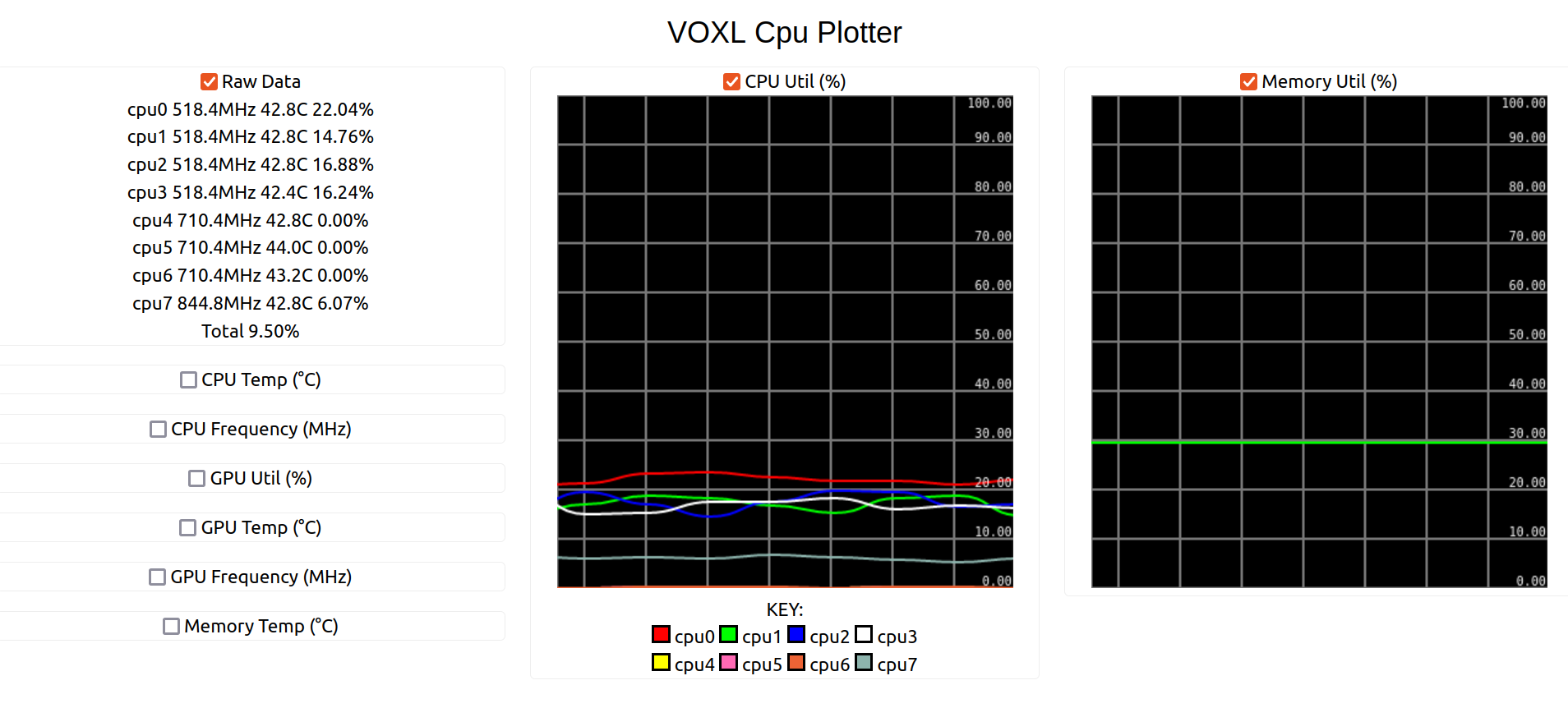
IMU
This tool mimics the CPU plotting tool, but displays gyro and acceleration data. 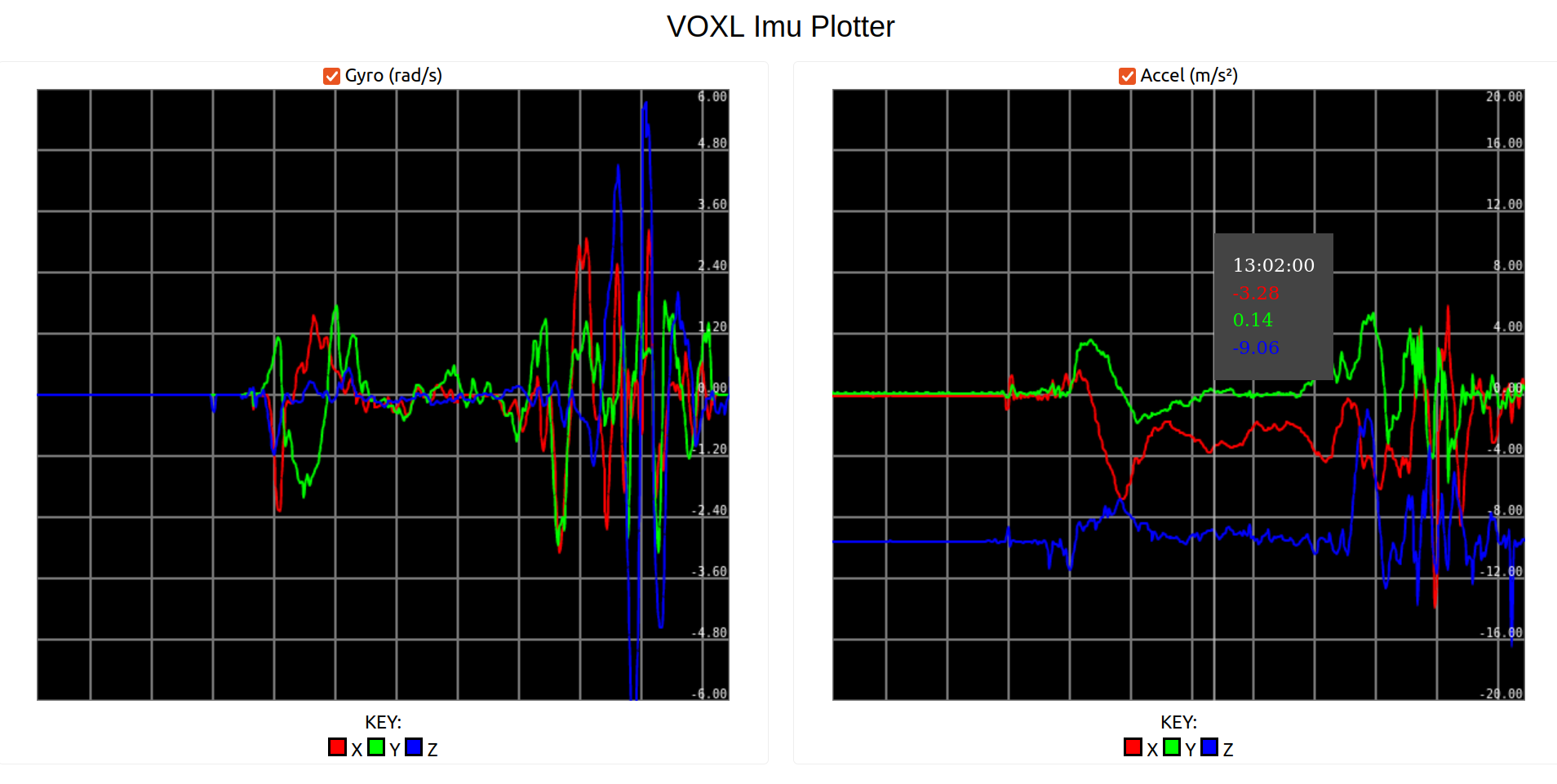
FFT (Fast Fourier Transform)
This tool helps to measure vibration levels detected by the IMU, and plots angular velocity and acceleration against frequency, computed using FFT. The FFT entry is not present on every platform or portal build — the voxl-inspect-vibration terminal tool provides the same vibration measurement everywhere, with color-coded accel and gyro noise thresholds. 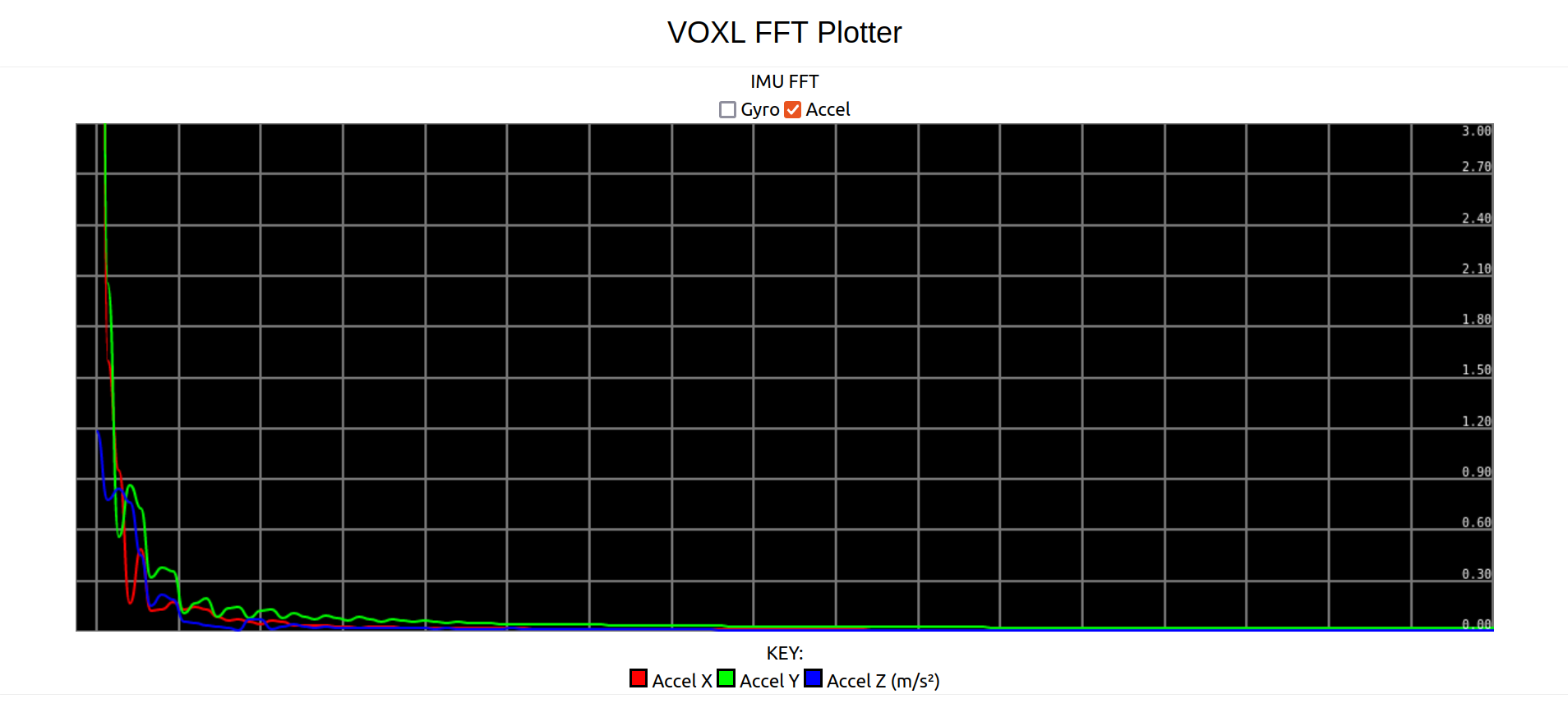
The FFT tool only appears on QRB-based platforms.
Debug Menu
The Debug dropdown in the header collects calibration and diagnostic tools:
- Sensor Calibration — accelerometer, gyroscope, magnetometer, and level-horizon calibration. As of voxl-portal 0.9.7, the level-horizon calibration requires the accelerometer calibration to be completed first.
- Barometer Calibration — see Calibrate Barometer
- Thermal Calibration — IMU and barometer thermal calibration, see Calibrate IMU. As of voxl-portal 0.9.14:
- Checkboxes select the Apps IMU, PX4 IMU, and Barometer. At least one must be selected; deselecting the Apps IMU skips it.
- Live temperatures are shown while the page is open. A sensor shown in red is not reporting data.
- The cooling panel has an adjustable cold-start threshold (default 35 C, remembered per browser), a cooling trend readout, and a Start Now at Current Temp button for boards that never cool to the threshold.
- DONE is shown only when the results are computed successfully. Reloading the page during a run restores the current stage and controls.
- Keep the board still for the whole run. Results are written to
/data/modalai/voxl-imu-server.cal(Apps IMU),/data/modalai/px4/parameters_imu_tc.cal(PX4 IMU), and/data/modalai/px4/parameters_baro_tc.cal(Barometer).
- VINS Calibration: targetless camera-IMU calibration (voxl-portal 0.9.12 and newer), see VINS Calibration
- RC Calibration
- Flight Modes — flight mode configuration
- Actuators — per-motor actuator testing, similar to QGroundControl’s motor test
- Health Check — system health check
- Imus / Cpu — the IMU and CPU plotting tools described above
- Version Info — installed software versions
- Download Logs — download service journals from the browser
- GPS — per-satellite signal (SNR) plots
- Mobile View — simplified view for phones; mobile browsers are automatically redirected to it
Other Features
- The dark-mode toggle in the header persists across pages and sessions (stored in your browser).
- Single-camera views include a Snapshot button to capture a frame from the stream.
- H.264-encoded camera streams (such as hires) are decoded in the browser, enabling low-latency high-resolution streaming.
- An experimental REST API is served under
/api/v1. It can be enabled withvoxl-portal -eand is enabled automatically on supported platforms.
Flight Info
voxl-portal uses the MPA library and output from voxl-mavlink-server to display, in the upper right corner of the portal:
- drone battery level
- number of satellites being used to triangulate GPS position
- flight mode
- arm Status

If these fields are “unknown”, you should check that voxl-mavlink-server and voxl-px4 are running.