
VOXL 2 WiFi Setup
Overview
This page serves as a WiFi setup guide for all devices based the VOXL 2 and VOXL 2 mini autopilots including the Starling 2, Starling 2 Max, and Sentinel development drones.
These models keep the core size and weight low by minimizing component counts and taking techniques like moving modems and USB Ports to add-on cards. Below are options for getting them on a network.
WiFi Adapters
For desktop development, this is an ideal low-latency option.
Since VOXL 2 does not have USB onboard, we’ll need to find a way to add USB ports. There are some options:
| Image | Description | Link |
|---|---|---|
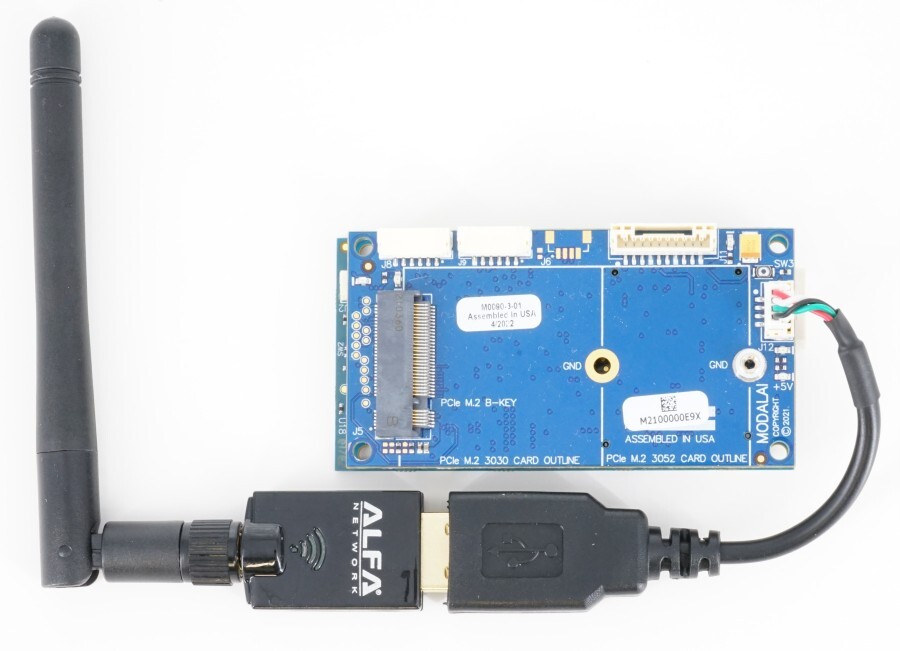 | M0090 VOXL 2 5g Modem Carrier Shown with MCBL-00009 and AWUS036ACS | Buy Datasheet |
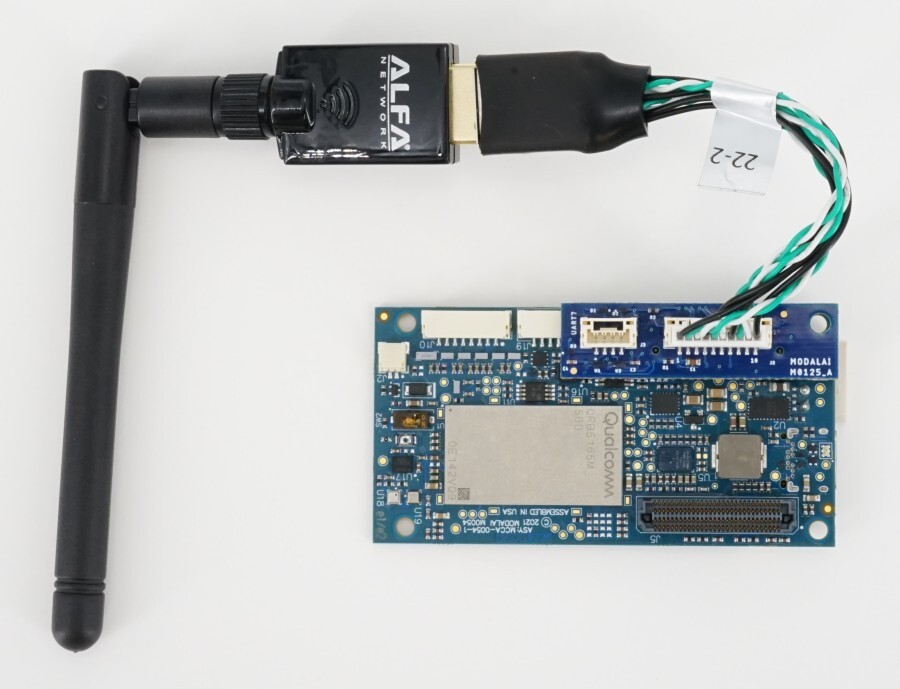 | M0151 VOXL 2 USB3.0 / UART Expansion Adapter Shown with MCBL-00022 and AWUS036ACS | Buy Datasheet |
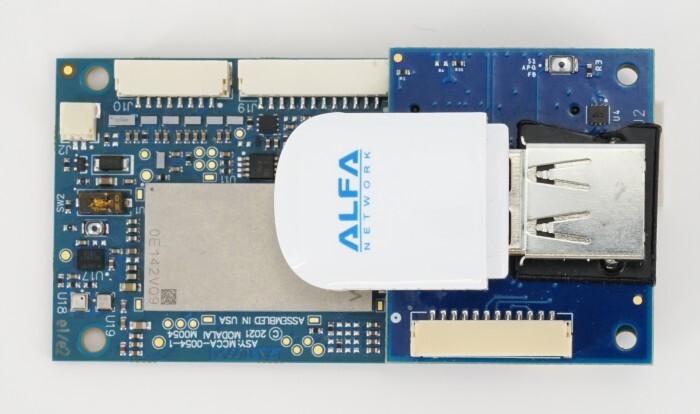 | M0141 VOXL 2 USB-A Breakout Board + UART/I2C/SPI Shown here with AWUS036EACS | Datasheet |
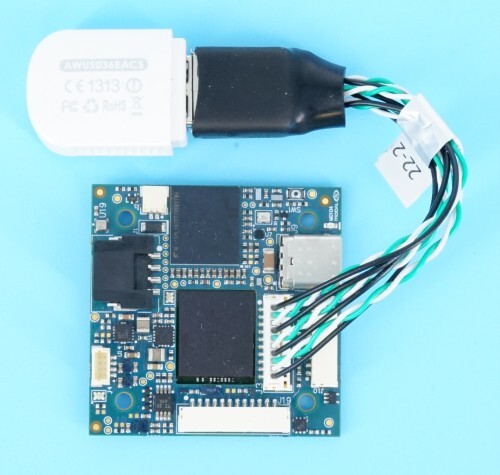 | MCBL-00022 Shown here with AWUS036EACS | EOL Datasheet |
The purpose of the USB port is to plug in a USB WiFi adapter. For a well-tested, plug and play solution: VOXL 2 WiFi Add-On Kit
Other Supported and Tested USB WiFi Dongles:
| Dongle | Chipset | NDAA ‘20 Section 848 Compliant | Radio & FCC Report | Link | |
|---|---|---|---|---|---|
| Alfa AWUS036EACS 802.11ac AC600 | Realtek RTL8812CU | Yes (COO Taiwan) | Frequency Range: 5150.0-5825.0, 2412.0-2472.0 | Link | Product |
| Alfa AWUS036ACS 802.11ac AC600 | Realtek RTL8812AU | Yes (COO Taiwan) | Frequency Range: 5180.0-5240.0, 5745.0-5825.0, 2412.0-2462.0 | Link | Product Amazon |
| Alfa AWUS036EAC 802.11ac AC1200 | Realtek RTL8812AU | Yes (COO Taiwan) | Product Amazon | ||
| TP-link TL-WN725N N150 | Realtek RTL8818EUS | No (COO China) | Product Link |
If you prefer to use ethernet instead of a wireless setup, any USB to ethernet adapter, like Apple’s A1277, should work.
Configuration and Connection
All devices support two WiFi modes, Station and SoftAP. Station Mode refers to the device being configured into a typical ‘WiFi client’ on a wireless network like your phone or laptop. Software enabled Access Point Mode (SoftAP) configures the device to generate its own hotspot so that other WiFi devices can connect to it. This is useful if you are in the field away from your home or office WiFi network. On VOXL 2, switching between the two modes can be done at any time using the voxl-wifi wizard.
Configure and Connect in Station Mode
To configure the VOXL 2 device into Station Mode, run the following command from the host machine:
me@mylaptop:~$ adb shell voxl-wifi
WiFi is currently set up as follows:
	Mode: softap
	Hardware: single-mode (wlan0)
	SoftAP on wlan0: VOXL-12345678

Station mode connects to an existing WiFi network.
SoftAP mode creates a WiFi hotspot that other devices can connect to.

Hardware: Single-mode STA or AP (exclusive modes)

Please select WiFi operation:
Options:
	1) Configure Station
	2) Configure SoftAP (2.4GHz)
	3) Configure SoftAP (5GHz)
	4) Disable WiFi (disables all active modes)
	5) Factory Reset
	6) Exit
The status header at the top matches the output of voxl-wifi getmode: the current mode (station, softap, sta+ap, or disabled), the WiFi hardware type, and the SSID active on each interface.
The exact menu adapts to your hardware: boards with concurrent STA+AP radios also get individual
Disable Station/Disable SoftAPentries, and QCS6490-based boards add a USB interface option. Go by the option text rather than the number.
Type 1 and press Enter to select Configure Station. From here, you will then be prompted for the SSID and Password of your network.
To finish the setup, reboot the device:
me@mylaptop:~$ adb reboot && adb wait-for-device
Once the device has rebooted, you can use the command voxl-my-ip to get the IP address of your device on the network like:
me@mylaptop:~$ adb shell voxl-my-ip
192.168.1.217 (wlan0)
The tool prints an IP (interface) pair for every network interface that currently has an address, so you may see more than one entry. In this case the IP address is 192.168.1.217. Now you can connect via ssh as:
me@mylaptop:~$ ssh root@192.168.1.217
Where here the IP address following root@ should correspond to the above output from the above command. The password to connect will be oelinux123.
The device gets its address via DHCP by default. If you need a static IP, the
voxl-static-ipandvoxl-static-ip-watcherutilities included invoxl-utilscan assign one, or you can reserve an address for the device in your router’s software.
Configure and Connect in SoftAP Mode
By default, the unit ships configured as a 5GHz SoftAP with an SSID of VOXL-<serial number> (falling back to the MAC address on units where the serial number cannot be read) and password 1234567890. To configure the VOXL into Access Point Mode with your desired SSID, use the voxl-wifi wizard:
me@mylaptop:~$ adb shell voxl-wifi
In the wizard menu shown earlier, type 2 (2.4GHz) or 3 (5GHz) and press Enter to set up a SoftAP with a custom SSID and password. Alternatively, type 5 to select Factory Reset, which restores the default 5GHz SoftAP configuration described above.
Now on your host machine you should connect to the SSID above using either the default password 1234567890 or the custom password you set. The VOXL will assign itself the IP 192.168.8.1 and so then from your host machine you can use ssh to connect as:
me@mylaptop:~$ ssh root@192.168.8.1
Your device will be assigned an IP with DHCP in the 192.168.8.X subnet, usually 192.168.8.60, but not always.
Scripted Usage
Everything the wizard does is also available non-interactively for scripted use:
voxl-wifi getmode                    # print the current Wi-Fi mode
voxl-wifi station <ssid> [password]  # connect to an existing network
voxl-wifi softap <ssid> [password]   # 2.4GHz access point mode (ch6), default password '1234567890'
voxl-wifi softap5 <ssid> [password]  # 5GHz access point mode (ch149), default password '1234567890'
voxl-wifi disable-station            # disable station mode (if currently active)
voxl-wifi disable-softap             # disable softap mode (if currently active)
voxl-wifi disable-all                # disable all active WiFi modes
voxl-wifi factory                    # factory defaults: 5GHz SoftAP, SSID 'VOXL-<serial number>', password '1234567890'
Troubleshooting
Dongle Drops Off the USB Bus
If wlan0 disappears mid-session, or never appears after boot, check dmesg on VOXL 2 for USB enumeration errors:
usb 1-1.4: device descriptor read/64, error -71
usb 1-1.4: device not accepting address 6, error -71
usb 1-1-port4: Cannot enable. Maybe the USB cable is bad?
These errors occur before the WiFi driver loads, so they point to a fault in the physical USB path (dongle, cable, expansion board, or 5V supply) rather than a software or driver problem. Reinstalling or upgrading the SDK is unlikely to change this behavior. A dongle that enumerates cleanly on a PC can still be the failing part: the PC test does not exercise the same connector, cable, heat, or vibration, and dongles have failed in service after weeks of use on a vehicle.
To isolate the failing part:
- Try a known-good dongle from the supported list above in the same port. If the errors stop, replace the dongle.
- If a second dongle fails the same way, try a different USB cable or, where the design allows, a different expansion board. If the failure stays with the port, the expansion board or the VOXL 2 USB host port is suspect. Open an RMA with the
dmesgoutput andvoxl-version.
Appendix
Configure Hostname for Soft AP Mode (Optional)
It may be desired to have a dedicated hostname for your target instead of using an IP. This thread describes how to enable.
Next: Inspect and Configure SKU