
VRX Ground Unit Developer Guide
SDK, shell access, and configuration on the VRX ground unit.
Table of contents
- VOXL SDK Support
- VRX Software Reference
- Use Cases
VOXL SDK Support
SDK Versions
The VRX runs its own SDK image (5.4 kernel, Ubuntu 20 rootfs), separate from the image flashed on the drone. The SDK version numbers match, and the VRX and the drone must run the same SDK version.
| SDK Version | File Name | Link |
|---|---|---|
| VRX 1.8.0 | ubun2.0-multi_SDK_1.8.0.tar.gz | Downloads |
| VRX 1.6.6 | ubun2.0-multi_SDK_1.6.6.tar.gz | Downloads |
| VRX 1.5.0 | ubun2.0-multi_SDK_1.5.0.tar.gz | Downloads |
Run the same SDK on the drone and the VRX. voxl-vtx 3.3 (SDK 1.8.0) requires voxl-osd 1.2.0 or newer on the drone, so a drone on SDK 1.8.0 needs a VRX on VRX SDK 1.8.0. Stinger ships with SDK 1.8.0.
VRX Software Reference
voxl-vrx Service
voxl-vrx receives the RF (or UDP) stream, FEC-decodes it, decodes the video, and renders it to the DisplayPort output with the OSD overlay. It runs as the systemd service voxl-vrx.service and restarts automatically.
Enable/configure it with voxl-configure-vrx:
voxl-configure-vrx --enable       # enable the service and load kernel modules
voxl-configure-vrx --list         # show the current configuration
voxl-configure-vrx --wizard       # interactive settings editor
voxl-configure-vrx --frequency 5805
Options (VRX SDK 1.8.0):
| Option | Meaning |
|---|---|
-l, --list | Show the current configuration |
-F, --frequency | Set the frequency in MHz |
-b, --bandwidth | Set the bandwidth (20 or 40 MHz) |
-e, --enable | Enable voxl-vrx and load the kernel modules |
-d, --disable | Disable voxl-vrx |
--blackout-mode | Set blackout_mode |
--osd-on-link-loss | Set osd_on_link_loss (0, 1 or 2) |
--link-loss-indicator | Set link_loss_indicator |
-w, --wizard | Interactive settings editor |
Factory presets enable the service and restore a known-good configuration for each radio option:
| Preset | Radio |
|---|---|
-f, --factory_enable_spark_lan | SparkLAN modem (default RF setup) |
-m, --factory_enable_mini_pini | Mini Pini modem |
-L, --factory_enable_lte | LTE |
-I, --factory_enable_fiber | Fiber (UDP) |
-D, --factory_enable_doodle | Doodle Labs (UDP) |
--factory_enable_dtc | DTC (UDP) |
--factory_enable_silvus | Silvus (UDP), SDK 1.8.0+ |
Configuration File Reference
/etc/modalai/voxl-vrx.conf (JSON), written by voxl-configure-vrx (-f or any preset). frequency, bandwidth, and FEC settings must match the VTX. The tables below list the fields and the values voxl-configure-vrx writes in VRX SDK 1.8.0.
Wireless Reception
| Field | Default | Meaning |
|---|---|---|
frequency | 5805 | Center frequency in MHz (must match VTX) |
bandwidth | 20 | 20 or 40 MHz (must match VTX) |
card | "wlan0" | Radio interface (wlan0 SparkLAN, ath0 Mini Pini) |
enable_pcap | true | Receive via RF |
enable_fec | true | Forward error correction (must match VTX) |
enable_stbc | true | Space-Time Block Coding |
enable_lq_resp | true | Answer link-quality requests from the VTX (needed for adaptive link) |
Video Display
| Field | Default | Meaning |
|---|---|---|
encoding | "h265" | "h264" or "h265" |
stretch_to_screen | false | Fill the screen (may distort aspect ratio) |
splash_on_lost_link | false | Show the splash screen when the link is lost |
blackout_mode | false | Show a black screen instead of splash/last frame when video is not live |
osd_on_link_loss | 1 | 0 = no OSD on link loss, 1 = full OSD, 2 = minimal (loss %, RSSI, FPS, channel, temp) |
link_loss_indicator | true | Proof-of-life indicator when the OSD is suppressed during link loss |
stream_timeout_ms | 100 | Time before declaring the stream lost |
v_sync | true | Page-flip at vblank (tear-free). false renders straight to the scanned-out buffer, saving up to one frame (about 8 ms mean at 60 Hz) of latency at the cost of a possible tear line |
display_width | 1280 | Requested display output width in pixels (0 = display’s preferred mode) |
display_height | 720 | Requested display output height in pixels (0 = display’s preferred mode) |
display_refresh_hz | 0 | Requested refresh rate (0 = highest available at that size) |
headless | false | Publish the reassembled H.264/H.265 stream on the vrx_encoded pipe without decoding or displaying it. SDK 1.8.0+ |
Sharpening Filter
An unsharp mask applied to the video before display:
| Field | Default | Meaning |
|---|---|---|
sharpen_amount | 1.5 | Strength: 0.0 off, 0.5 subtle, 1.0-2.0 moderate, 3.0+ aggressive |
sharpen_threshold | 0.0 | Noise gate: minimum edge contrast before sharpening applies |
OSD (VRX side)
| Field | Default | Meaning |
|---|---|---|
debug_osd | false | Show debug info on the OSD |
ai_detection_enable | true | Draw AI detection boxes received from the VTX |
ai_detection_show_labels | true | Show labels on detected objects |
The OSD font, theme and which elements are shown are set from the VRX SETTINGS menu in SDK 1.8.0. The osd_font_size field used by older VRX SDKs was removed.
Decoder Performance
| Field | Default | Meaning |
|---|---|---|
overheat_mitigation | 1 | Throttle on decode latency: -1 off, 0 or 1 use the latest sample, >1 number of samples averaged |
decode_latency_threshold | 100 | Decode latency in ms that triggers throttling |
display_damaged_frames | false | Show frames the decoder flags as corrupted |
drop_all_bad_pframes | false | Drop P-frames until the next I-frame after the decoder flags corruption |
Recording
| Field | Default | Meaning |
|---|---|---|
record_video | false | Start recording at startup |
allow_record_local | false | Allow recording to internal storage when no USB drive is present |
Recordings go to /media/usb/vrx_videos/ when a USB drive is inserted (drives auto-mount at /media/usb), otherwise to /data/video/vrx_videos/ — but only if allow_record_local is true.
Telemetry & Network
| Field | Default | Meaning |
|---|---|---|
gcs_ip | "10.0.0.1" | GCS/ATAK device IP to forward MAVLink to |
telem_tx_ip | "10.0.0.2" | Local IP telemetry is transmitted from |
mavlink_gcs_port | 14550 | MAVLink port to/from the GCS |
en_mpeg_ts_rebroadcast | false | Rebroadcast the encoded video as MPEG-TS over UDP to the GCS |
mpeg_ts_rebroadcast_port | 8901 | MPEG-TS rebroadcast port |
mavlink_upstream_ip | "" | Optional upstream VRX that GCS MAVLink is forwarded through toward the VTX |
mavlink_upstream_port | -1 | Port for mavlink_upstream_ip (-1 = unused) |
allow_mavlink_forward_while_armed | false | Forward GCS MAVLink toward the VTX while the vehicle is armed |
System
| Field | Default | Meaning |
|---|---|---|
perf_mode | true | Performance CPU governor while armed |
enable_button_board | true | Enable the physical buttons |
battery_cell_count | 2 | VRX battery cell count for the voltage display |
scan_dwell_time_ms | 500 | Dwell time per channel during a channel scan |
spectrum_dwell_time_ms | 100 | Measurement time per channel in the RF occupancy scanner. SDK 1.8.0+ |
spectrum_settle_time_ms | 20 | Time discarded after each retune before measuring. SDK 1.8.0+ |
spectrum_timeout_ms | 10000 | Idle time before the scanner screen closes and video resumes. SDK 1.8.0+ |
debug_log | "off" | CSV debug logging: "off", "on", "arm" |
ulog | "off" | Log MAVLink and VTX link stats to a ulog: "off", "on", "arm" |
Buttons: Scan and Record
- A single press of channel up/down steps one channel; a second press in the same direction starts a continuous channel scan (press again to stop). Scan dwell time per channel is
scan_dwell_time_ms. - The record button toggles video recording (see Recording above for where files land).
- Function plus up or down opens the RF occupancy scanner (VRX SDK 1.8.0+).
VRX SETTINGS Menu
VRX SDK 1.8.0 renders the OSD on the VRX with a Qt overlay, and the VRX has its own settings menu. Open the drone’s OSD menu with the sticks (vehicle disarmed, see voxl-osd) and select VRX SETTINGS. Stick input is then handed to the VRX: right stick up and down moves, left and right selects or adjusts. Backing out of the VRX menu returns to the drone menu. The menu footer shows the drone SDK (T-SDK) and VRX SDK (R-SDK) versions.
| Row | Options | What it changes |
|---|---|---|
OSD | submenu | Font, Theme (Day Green or Night Red), Opacity (25 to 100%), and on/off toggles for each OSD element: Video Stats, RF Stats, VTX CPU Stats, Crosshair, Attitude, Telemetry, MGRS, Compass Tape, Home Arrow, Warnings, Link Bar, VIO / Backtrack |
DISPLAY | submenu | OSD on Link Loss (Off, Full, Minimal), Display on Link Loss (Last Frame, Splash, Blackout), Link Loss Indicator, VSync. Saved to osd_on_link_loss, splash_on_lost_link / blackout_mode, link_loss_indicator and v_sync |
LQ Response | on / off | enable_lq_resp. With two VRX units on one VTX, turn it off on the observer’s VRX so only the pilot’s VRX reports link quality to the adaptive link |
Goggles Cells | 1S to 6S | battery_cell_count, the VRX-side pack used for the goggles per-cell voltage. The drone’s pack is set with BAT CELLS in the drone’s ADVANCED menu |
The
VRX SETTINGSrow needs voxl-osd 1.1.0 or newer on the drone. A VRX on SDK 1.8.0 needs voxl-osd 1.2.0 (SDK 1.8.0) on the drone.
RF Occupancy Scanner
VRX SDK 1.8.0 adds a spectrum scanner. Press function plus up or down on the VRX buttons to open it. The VRX sweeps every channel it can tune and shows a tile per channel, in frequency order, with the channel number, frequency, the percentage of time the channel was busy and the measured noise floor in dBm. Busy readings below 10% use the theme accent color (green in Day Green, red in Night Red), 10 to 35% is orange, and above that is red. Channels that cannot be measured show unavailable.
On the scanner screen up and down move between channels, record selects the highlighted channel and function exits. With no input for spectrum_timeout_ms (10 s by default) the scanner closes and video resumes. Measurement timing is set by spectrum_dwell_time_ms and spectrum_settle_time_ms.
Inspecting the Link
voxl-inspect-vrx -n
prints live receive stats — bitrate, frame/decode/total latency, SNR, noise floor, and packet loss.
What the RF Link Carries
In SDK 1.8.0 the link is two-way. From the VTX to the VRX it carries:
- the encoded video stream (H.264 or H.265) and its forward error correction
- MAVLink telemetry forwarded from PX4 at
mavlink_telem_rate_hz, which the VRX renders on the OSD and can forward to a GCS or ATAK device on its IP network (see Telemetry & Network) - the OSD data from voxl-osd
- AI detection metadata drawn as bounding boxes on the VRX OSD (see AI Detection)
From the VRX back to the VTX it carries:
- link-quality responses (SNR and packet loss) that drive the adaptive link, when
enable_lq_respis on - OSD menu navigation commands for the VRX SETTINGS menu and channel-change requests from the VRX command pipe
- MAVLink from a GCS on the VRX’s network, forwarded toward the VTX. By default this stops while the vehicle is armed (
allow_mavlink_forward_while_armed)
It is not a general-purpose data channel. There is no supported way to send custom companion-computer data (for example, application-generated observations as binary or JSON) between the drone and a ground station over the digital video link. RC stick and switch inputs to PX4 use the separate ELRS 915 MHz RC link.
If your application needs a bidirectional data path between the drone and a ground station, use an IP link: the VTX’s SoftAP mode or an external WiFi dongle in station mode, a USB-to-Ethernet adapter, or an LTE or mesh modem, as described under Video Streaming over IP Networks. Note that the VTX radio and the built-in WiFi share the same hardware, so RF video and built-in WiFi cannot run at the same time; see the VTX Software Guide.
SDK 1.6.0 and 1.6.1 were air to ground only. From SDK 1.6.3 the VRX also returns link-quality responses and GCS MAVLink. SDK 1.8.0 adds menu commands and channel-change requests.
Use Cases
Video Streaming over RF
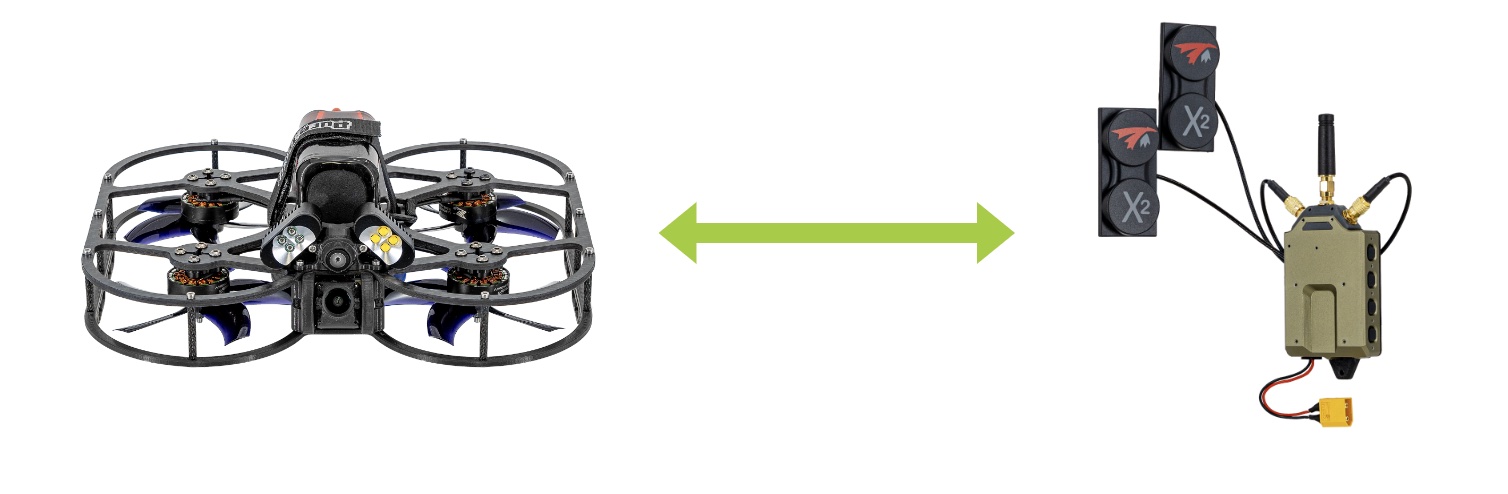
This is how systems are configured by default and use the integrated RF path to stream video.
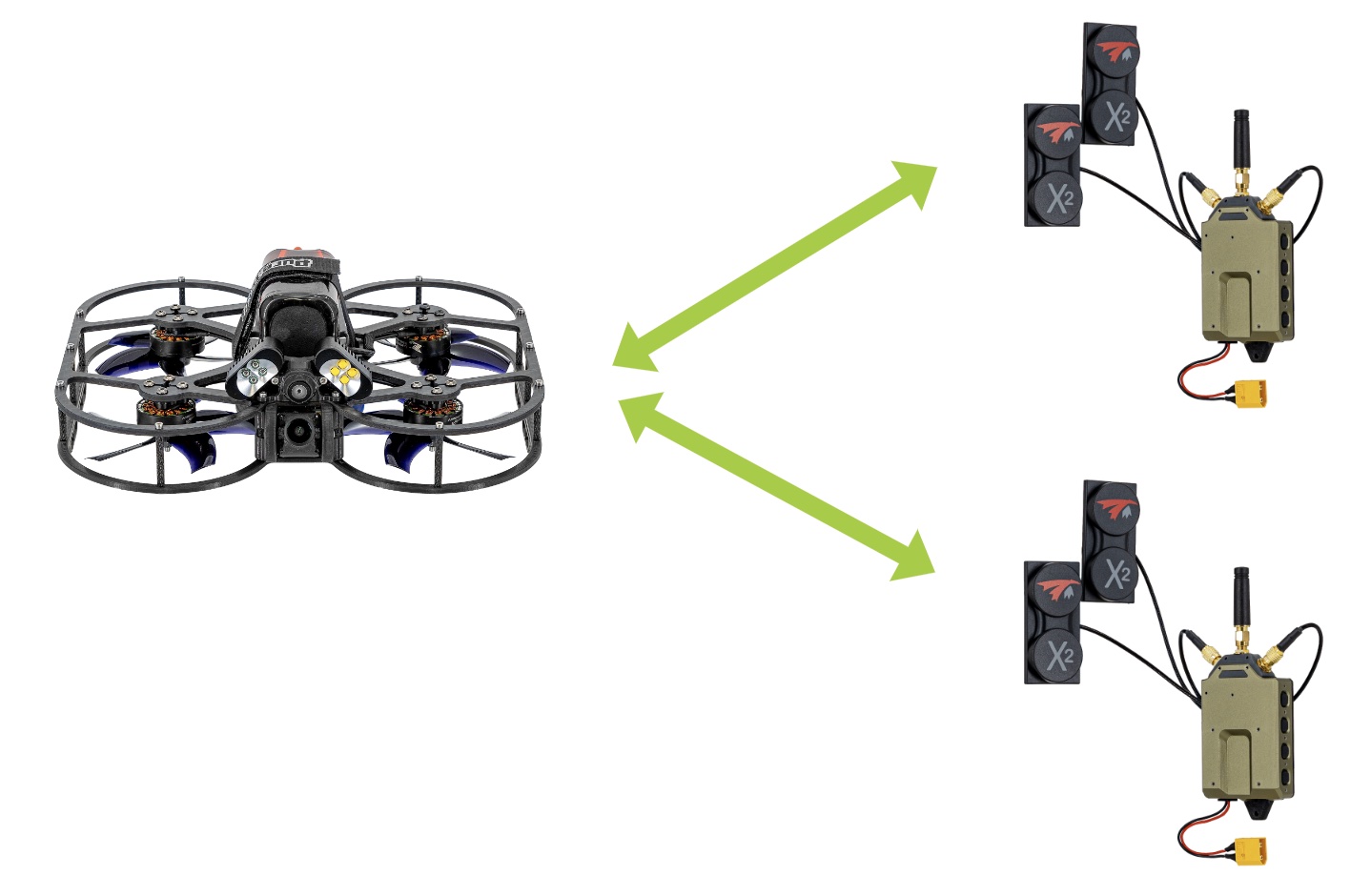
Using Multiple VRX to View Single VTX
Multiple VRXs can view the stream from the same VTX (assuming they share encryption keys) and are on the same channel.
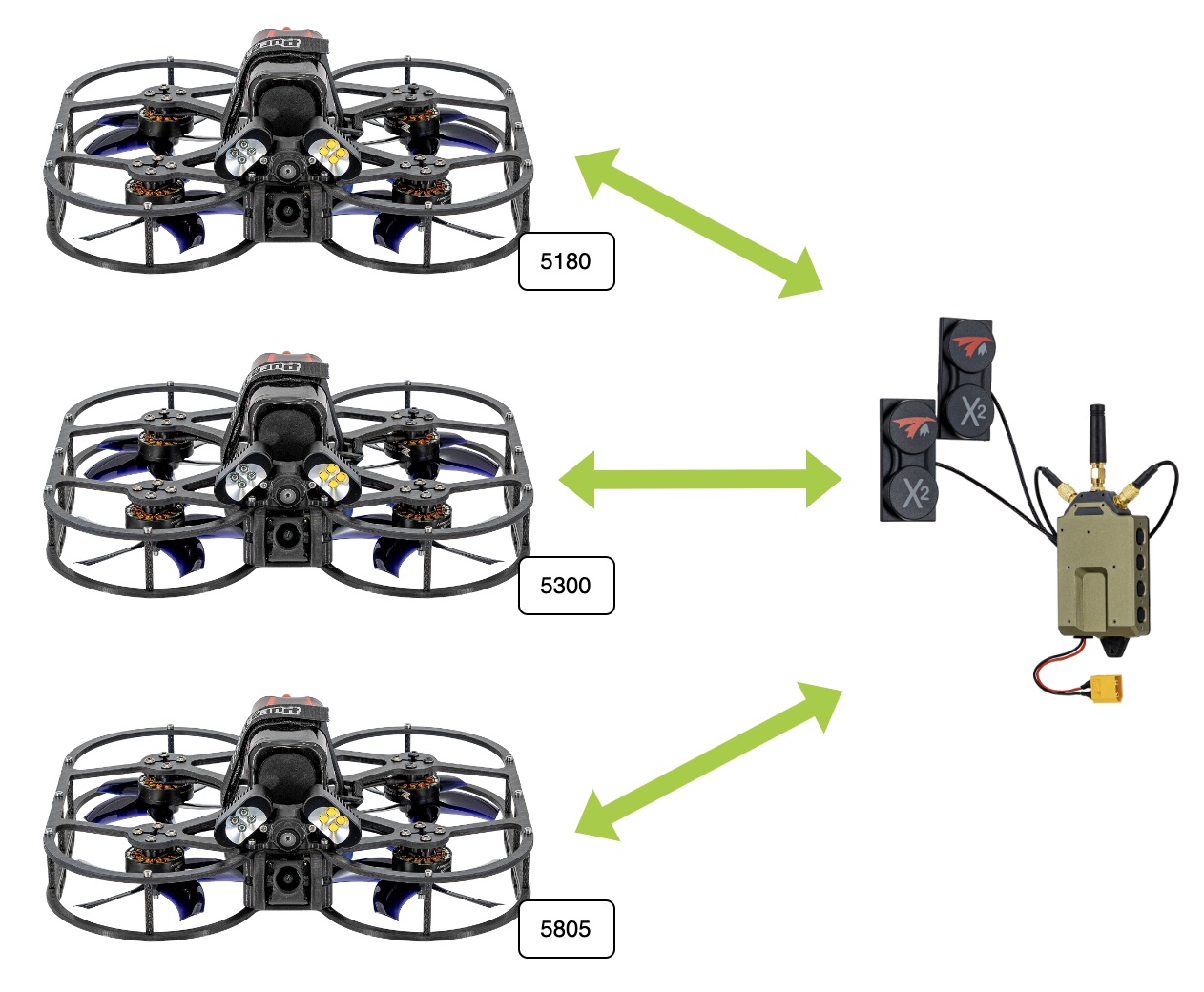
Viewing Multiple VTX from Single VRX
Again assuming the VTXs and VRXs share the same encryption keys, we can stream from multiple VTXs to a VRX (or again multiple VRXs…).
For this use case, we need to first configure the VTXs to be on different channels. The procedure is as follows:
Setup:
- Ensure VTXs/VRXs have same encryption key (or are all using the default)
- Power on one VTX at a time
- Change the frequency/channel of the VTX using the OSD menu (see this video at 223 seconds as to how to change frequencies/channels)
- Power off the VTX
- Set VRX back to default frequency/channel (5805/161)
- Power on next VTX to setup (assuming its out of the box, default frequency is 5805), and change frequency again off the default. Repeat for N VTXs.
Usage:
- All VTXs and VRX can be powered on now
- Using the Channel Scan buttons, you can scan through the available streams from the VTXs
Video Streaming over IP Networks
Overview
Another use case the VTX/VRX system supports is streaming over IP networks.
The pilot can view the low latency video via goggles connected to Display Port output of the VRX.
Different modem types can be used, where we capture below USB-to-Ethernet, Doodle Labs, and LTE use cases.
If using LTE, both drone and VRX can be configured with VPN clients and can stream over through a network a VPN server facilitates. Tailscale VPN client ships in VOXL2 starting SDK 1.6.
Additionally, the voxl-joystick-server can be used to send RC over MAVLink to a drone for command and control, plugging a controller into a USB hub connected to the AUX USB port.
Block Diagrams
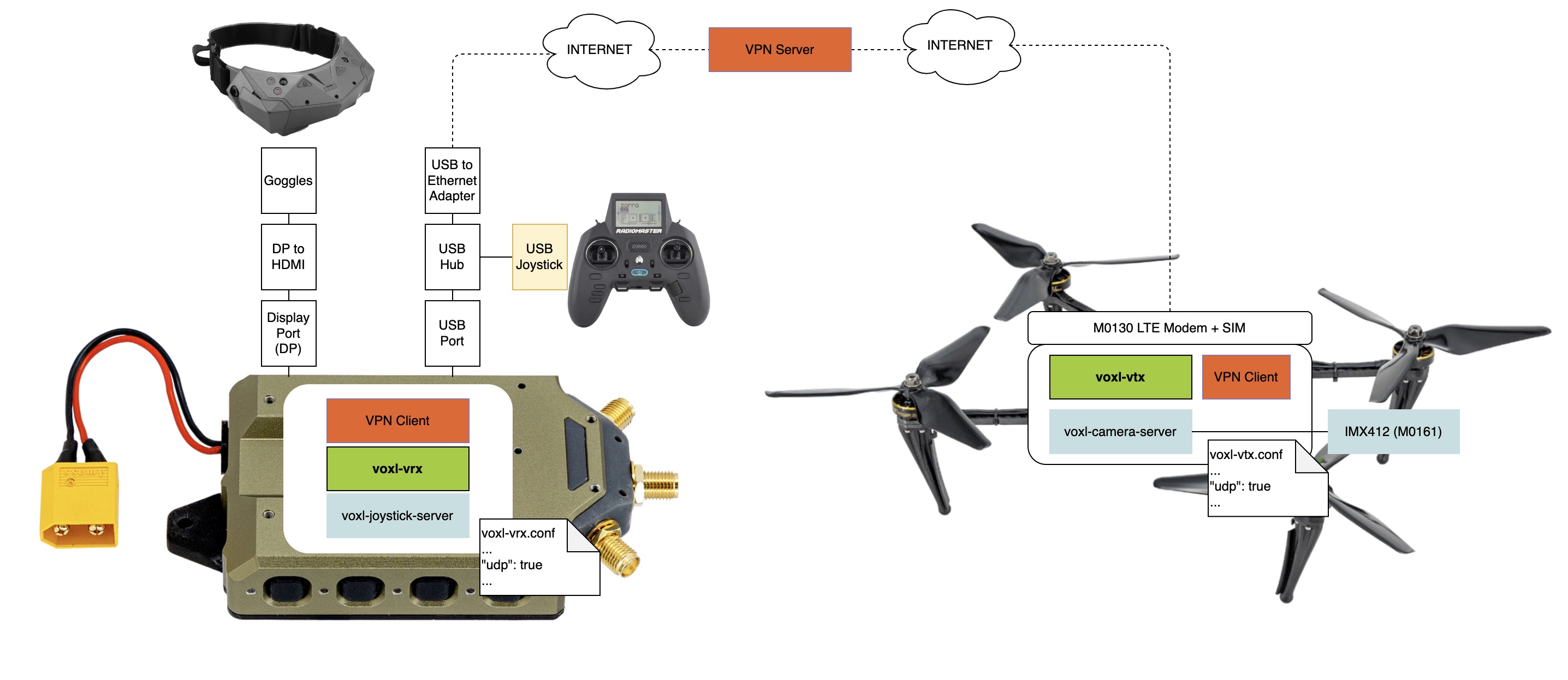
The block diagram below describes this architecture:
- the VRX is connected to the internet via USB-to-Ethernet
- the UAS/VTX is connected to the internet with LTE
- both UAS/VTX are connected to the same IP network using a VPN
- the VTX is configured to send UDP traffic to the VRX IP address(es) / port.
- a user can view the video stream from the DisplayPort Out with an HDMI adapter to goggles/display
VRX Software Configuration
To enable receiving video over UDP, edit /etc/modalai/voxl-vrx.conf. The --factory_enable_doodle, --factory_enable_dtc, --factory_enable_silvus and --factory_enable_fiber presets of voxl-configure-vrx set these fields for those radios.
| Name | Type | Default | Description |
|---|---|---|---|
udp | bool | false | true to receive over UDP |
enable_pcap | bool | true | RF receive. The UDP presets set it to false |
udp_interface_ip | string | "" | IP address of the local interface (the VRX) |
udp_interface_rx_port | integer | 50000 | Port the VRX listens on. Must match the port in the VTX’s udp_receiver_configs |
udp_interface_tx_port | integer | -1 | Local port the VRX sends from (-1 = OS assigns) |
udp_receiver_configs | array | [] | Where the VRX sends its return traffic (link quality, menu input, GCS MAVLink): the VTX’s IP and udp_interface_rx_port |
└─ ip | string | IP address of the VTX | |
└─ port | integer | Port the VTX listens on (VTX default 50001) |
For example, the VRX settings after the Doodle Labs preset:
    "udp": true,
    "enable_pcap": false,
    "udp_interface_ip": "10.223.0.101",
    "udp_interface_rx_port": 50000,
    "udp_receiver_configs": [
        {
            "ip": "10.223.0.100",
            "port": 50001
        }
    ],
VTX Software Configuration
To enable this use case on the UAS, edit /etc/modalai/voxl-vtx.conf, or use the matching voxl-configure-vtx preset (--factory_enable_doodle, --factory_enable_dtc, --factory_enable_silvus, --factory_enable_fiber). Receivers can also be managed with voxl-configure-vtx --add_udp_receiver <ip:port>, --remove_udp_receiver <ip:port> and --clear_udp_receivers.
| Name | Type | Default | Description |
|---|---|---|---|
udp | bool | false | true to transmit over UDP |
enable_pcap | bool | true | RF transmit. The UDP presets set it to false; leave it on to use RF and UDP together, for example with RF / IP fallback |
udp_interface_ip | string | "" | IP address of the local interface on the VTX/UAS |
udp_interface_rx_port | integer | 50001 | Port the VTX listens on for VRX return traffic |
udp_interface_tx_port | integer | -1 | Local port the VTX sends from (-1 = OS assigns) |
udp_receiver_configs | array | [] | List of VRX endpoints to send video to |
└─ ip | string | IP address of the VRX | |
└─ port | integer | Port the VRX listens on (its udp_interface_rx_port, default 50000) |
For example, the VTX settings after the Doodle Labs preset:
    "udp": true,
    "enable_pcap": false,
    "udp_interface_ip": "10.223.0.100",
    "udp_interface_rx_port": 50001,
    "udp_receiver_configs": [
        {
            "ip": "10.223.0.101",
            "port": 50000
        }
    ],
VRX SDK 1.6.1 and older used
udp_ipandudp_porton the VRX andudp_transmitter_ipon the VTX. Those keys are not read by SDK 1.8.0.
Interface Options
Ethernet Adapter
The VRX’s AUX USB port can be used to add an Ethernet adapter (like the TUC-ETGH3).
When the VRX is connected to an IP network, we can send video over IP instead of RF.
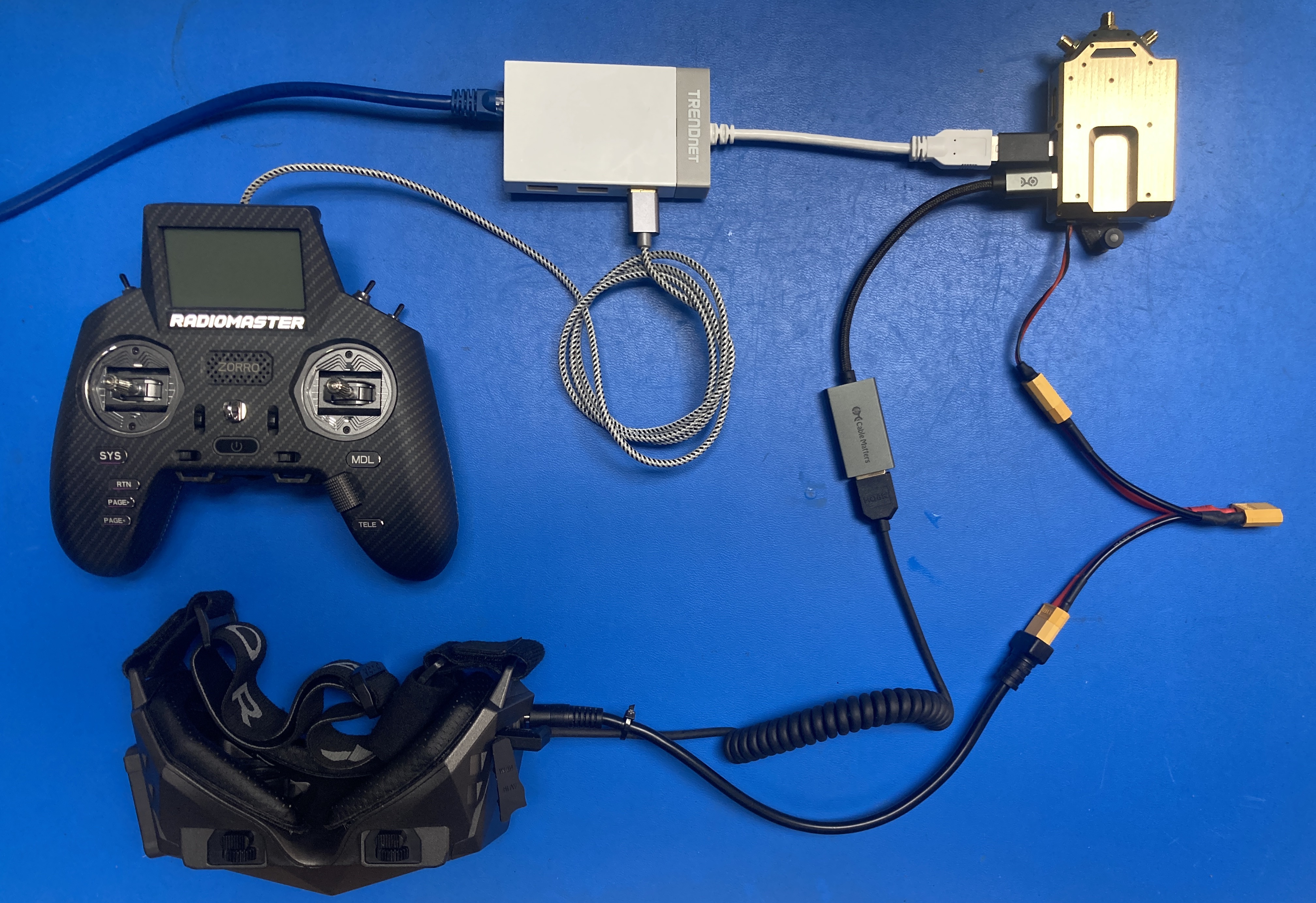
When an Ethernet adapter is attached to AUX USB, it will by default get a static IP (see Static IP from VRX with USB-to-Ethernet below).
eth0: flags=4163<UP,BROADCAST,RUNNING,MULTICAST>  mtu 1500
        inet 10.0.0.2  netmask 255.255.255.0  broadcast 10.0.0.255
        ether 00:30:1a:3b:86:9e  txqueuelen 1000  (Ethernet)
        RX packets 253  bytes 64410 (64.4 KB)
        RX errors 0  dropped 0  overruns 0  frame 0
        TX packets 467  bytes 27898 (27.8 KB)
        TX errors 0  dropped 0 overruns 0  carrier 0  collisions 0
Doodle Labs
The following shows how to configure a Doodle Labs modem setup to be used with the VRX system.
First follow VRX Software Configuration and VTX Software Configuration sections above.
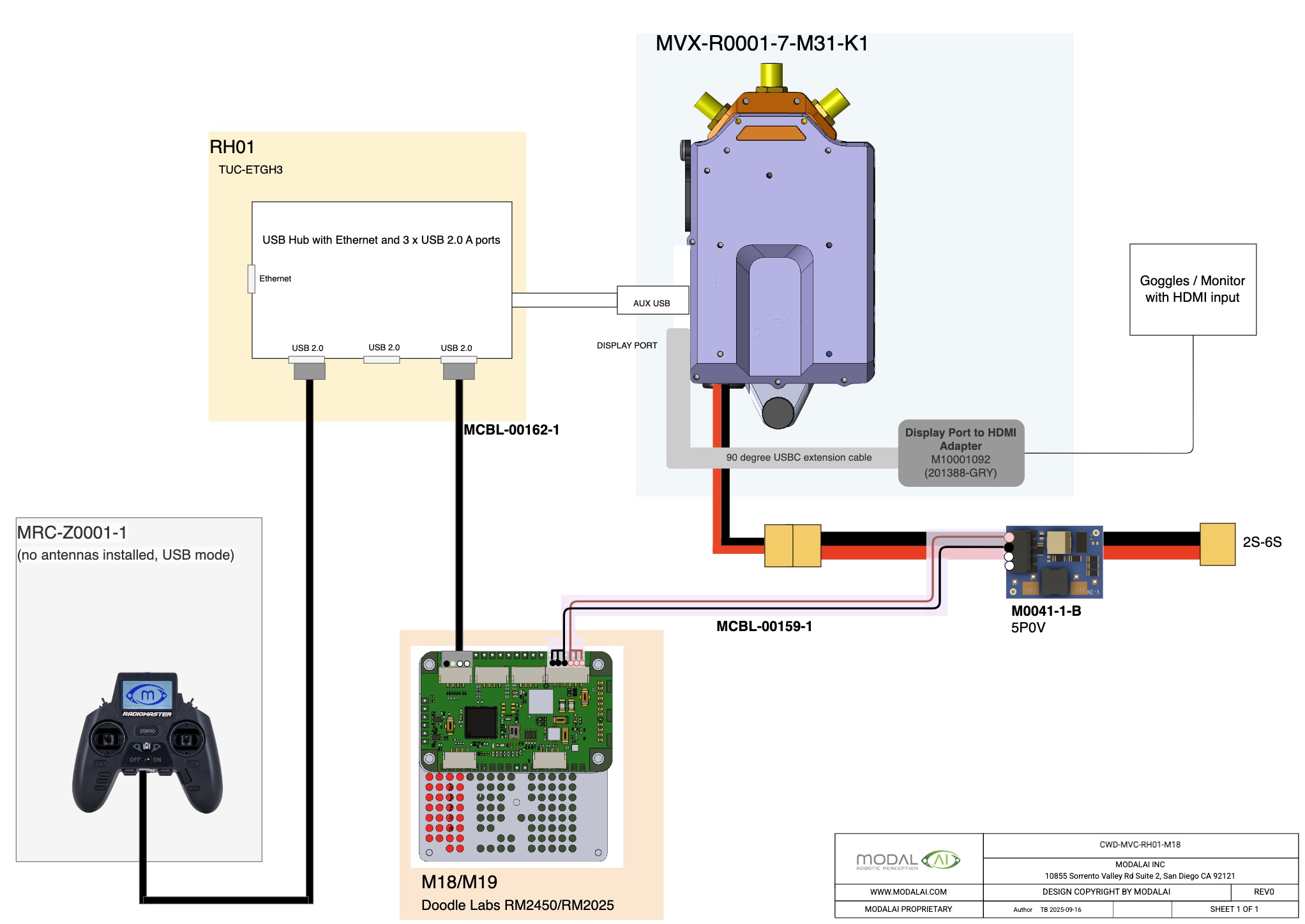
On the VRX, to setup the Doodle Lab modem connected over USB, you will need to:
- ADB on to the VRX (see
ADB Access to VRXbelow). - run
voxl-configure-modem doodle-vrx
This will setup a new interface with default IP 10.223.0.101.
In this case it’s eth1, as we have a USB-to-Ethernet dongle on eth0.
eth1: flags=4099<UP,BROADCAST,MULTICAST>  mtu 1500
        inet 10.223.0.101  netmask 255.0.0.0  broadcast 10.255.255.255
        ether 78:2d:7e:14:f9:4d  txqueuelen 1000  (Ethernet)
        RX packets 0  bytes 0 (0.0 B)
        RX errors 0  dropped 0  overruns 0  frame 0
        TX packets 0  bytes 0 (0.0 B)
        TX errors 0  dropped 0 overruns 0  carrier 0  collisions 0
You can interface with the Doodle Labs modem using the doodl-cli tool that ships in the SDK.
On VRX, for example to get the IP address of the Doodle,
voxl2:/$ doodle-cli -i
10.223.0.101
xxxx::138f:beb0:e79b:xxxx
For VTX/UAS side, for reference, the following could be done with a Doodle Labs enabled VOXL UAS:
- ADB onto VTX/UAS
- run:
voxl2:/$ voxl-configure-modem doodle
The VTX/UAS side should get an interface like:
eth0: flags=4163<UP,BROADCAST,RUNNING,MULTICAST>  mtu 1500
        inet 10.223.0.100  netmask 255.0.0.0  broadcast 10.255.255.255
        ether 00:30:1a:3b:86:a6  txqueuelen 1000  (Ethernet)
        RX packets 1242  bytes 209966 (209.9 KB)
        RX errors 0  dropped 0  overruns 0  frame 0
        TX packets 2054  bytes 108812 (108.8 KB)
        TX errors 0  dropped 0 overruns 0  carrier 0  collisions 0
LTE
First follow VRX Software Configuration and VTX Software Configuration sections above.
Then follow the information on VOXL SDK LTE software setup
For hardware:
- On VTX side - you could use LTE hotspot with Ethernet out and plug into the Ethernet port of the USB-hub option above.
- On the VTX - instead of the VTX modem, we can use an IP based modem like the M0130 LTE modem/antennas/SIM card, e.g. similar to this.
Static IP from VRX with USB-to-Ethernet
Using a USB-to-Ethernet adapter (and sometimes a USB-C to USB-A adapter like in the setup below), you can easily get an IP connection with the VRX.
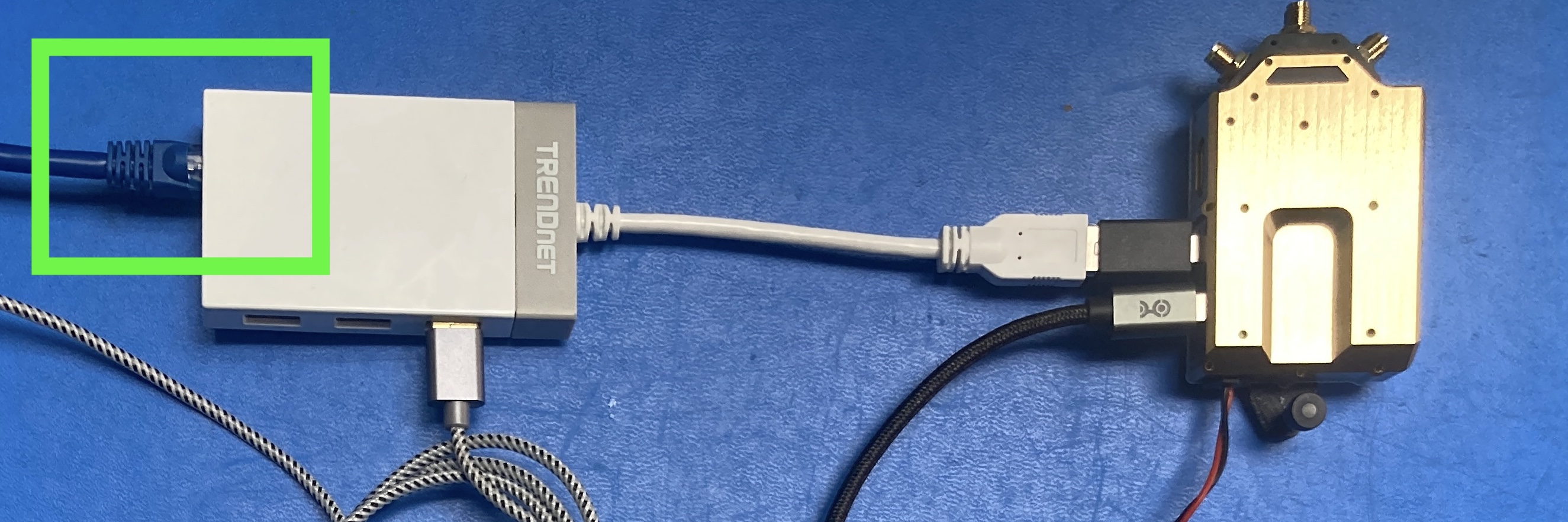
Starting in SDK 1.6, the voxl-static-ip-watcher service will run by default on the VRX.
When you plug in a USB to Ethernet dongle to the AUX port, it enumerates as eth0, and will be assigned static IP 10.0.0.2 with default netmask 255.255.255.0
If you want to customize this, edit /etc/systemd/system/voxl-static-ip-watcher.service.
Environment=NETWORK_INTERFACE=eth0
Environment=STATIC_IP=10.0.0.2
Environment=DEBUG=0
Environment=NETMASK=255.255.255.0
RTSP Stream From VRX
The voxl-streamer services runs on the VRX by default and exposes an RTSP endpoint at rtsp://10.0.0.2:8900/live.
If the VTX is off, you should get a “black screen” for the feed.
SSH Access to VRX
After getting an IP connection following the previous setup, you can get an SSH connection.
NOTE: The static IP functionality is supported in SDK 1.6.X and newer
ssh root@10.0.0.2
(password: oelinux123)
ADB Access to VRX
To access the VRX via ADB, disconnect the USB-C to HDMI adapter from the VRX and connect your USB-C cable to the same USB-C port.
adb shell
See the Interfaces section of the VRX Ground Unit Quick Start Guide for more details.
voxl-joystick-server Setup
NOTE: voxl-joystick-server requires SDK 1.5.0+, recommend 1.6+
USB Mode
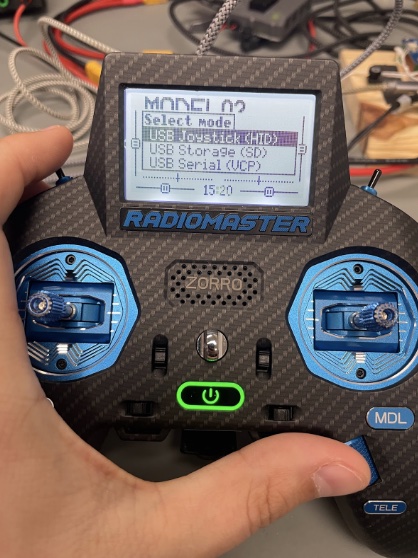
- Connect USB C from USB HUB in VRX to RadioMaster Zorro and hold the power button to power on
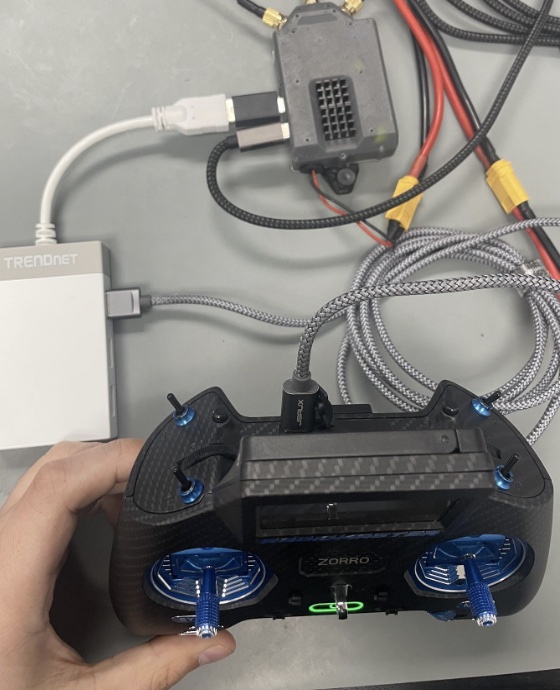
- Use the scroll wheel to set transmitter to “USB Joystick (HID)” mode. Press the scroll wheel to select mode
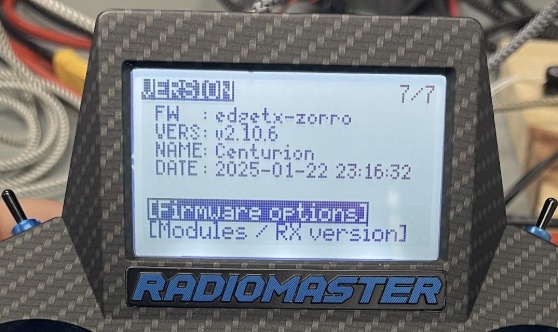
- Confirm that edgeTX version is v.2.10+
- Press “SYS” button, this will bring you to the “TOOLS” Page
- Press “PAGE<” button to Navigate left to the “VERSION” Page
- Confirm edgeTX version is >= v2.10 (ex: VERS: v2.10.6)
- If you need to upgrade, instructions can be found here
- How to get TX into DFU found here
Joystick Configuration
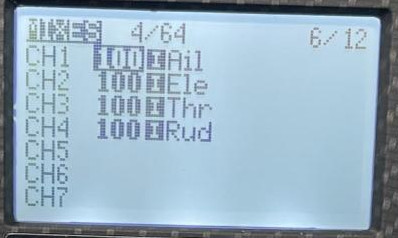
Mixes setup
- Navigate to the Model Selection Menu
- Navigate to the “MIXES” page
- Assign CH1-4 to be axes: pitch, roll, thrust, and yaw
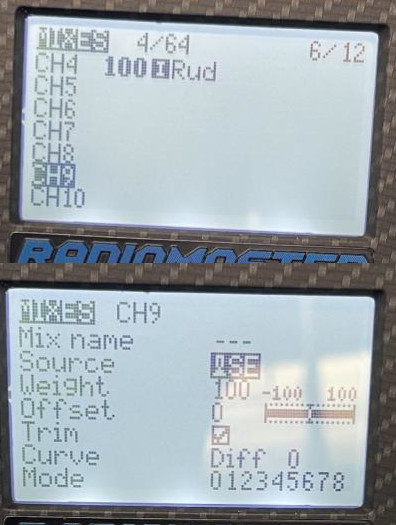
- Assign buttons/switches to CH9 or higher, these will be referenced in the Joystick Axes and Switches/Buttons Setup section below
- Select each channel to be used and set the source as the physical button/switch you want to be linked to that channel
Joystick Axes and Switches/Buttons Setup
- Navigate to the Model Selection Menu
- Navigate to the “SETUP” page
- Scroll all the way to the bottom until you see the “USB Joystick” section
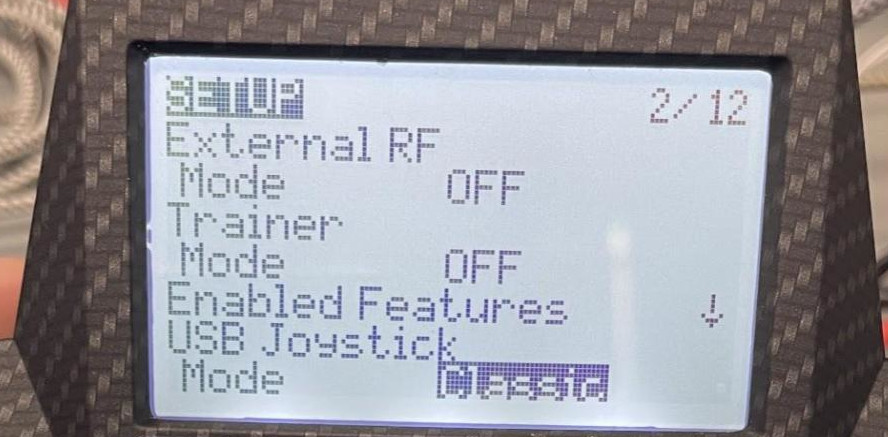
- In the “USB Joystick” section:
- Set “Mode” to “Advanced”
- Set “If.mode” to “Joystick”
- Set “Circ. cut” to “None” (Pilot should verify this is what is desired)
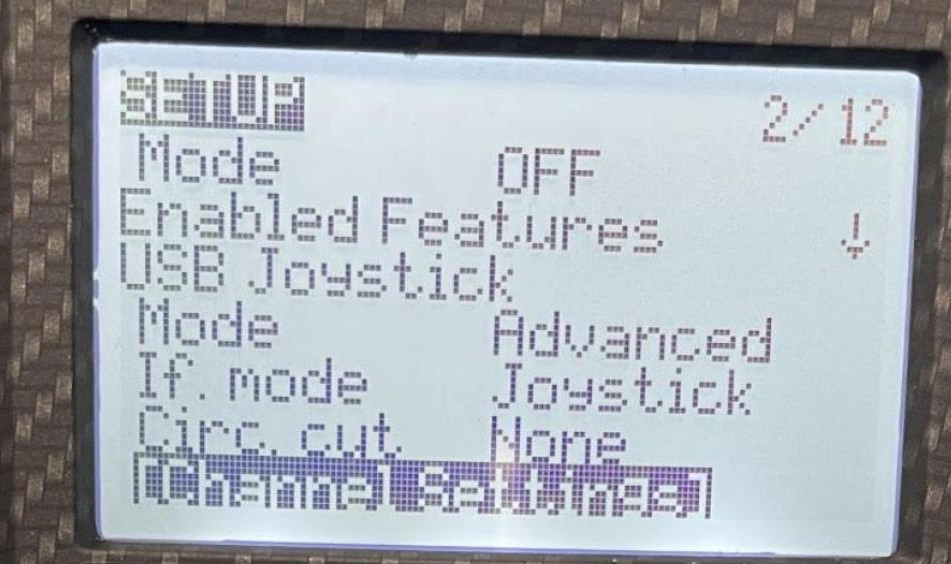
- Navigate down to “[Channel Settings]” and select enter to enter the menu
- Setup X,Y,Z and rotations on channels (1-8) or whichever order you want them to be in if applicable
- The channel(s) used for switches/buttons need to be on channel 9 or above
- More information can be found in the EdgeTX Manual
- Navigate to a channel you want to assign a button/switch on your RC to, then click edit
- Set “Mode” to “Btn”
- Set “Positions” to either “2POS”, “3POS”, or whatever type is relevant depending on the physical switch it will be attached to
- Set “Button no.” to be the button numbers that you want this switch to populate
- For example, for a 2POS switch a user can set the button “0..1”, “1..2”, etc depending on which button numbers are already in use (A warning “!Button no. collision!” will appear if the range you are trying to use is already in use)
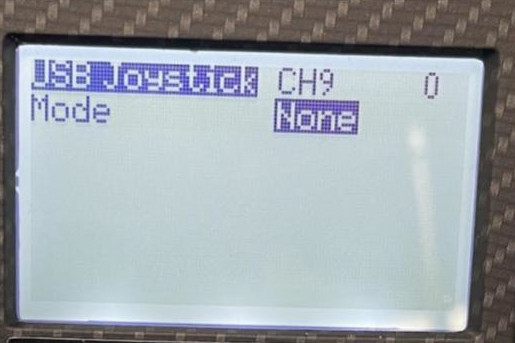
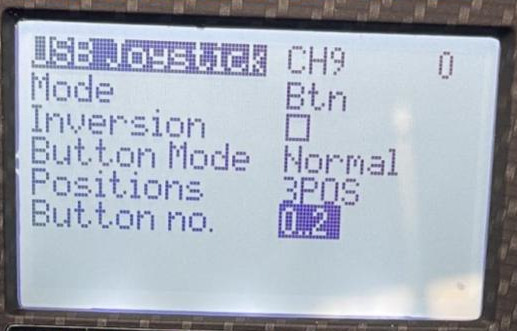
- Repeat the steps above for all buttons you want to setup
Application Configuration
- ADB or SSH onto the VRX
- Run
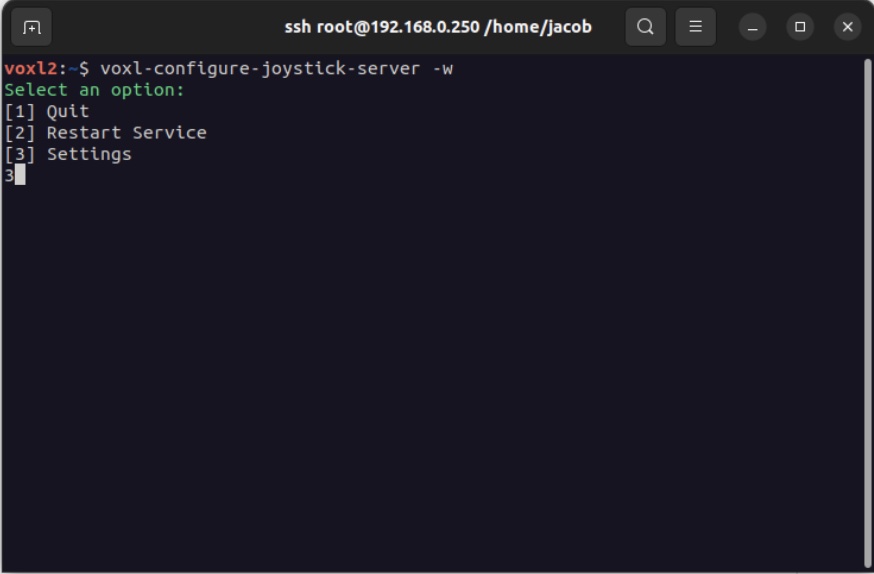
voxl-configure-joystick-server -wand then select “3” for “Settings”
- Now assign the X, Y, Z, and R channels to roll, pitch, yaw, and throttle
- Descriptions from mavlink manual_control header file:
- X: X-axis, normalized to the range [-1000,1000]. Generally corresponds to forward(1000)-backward(-1000) movement on a joystick and the pitch of a vehicle.
- Y: Y-axis, normalized to the range [-1000,1000]. Generally corresponds to left(-1000)-right(1000) movement on a joystick and the roll of a vehicle
- Z: Z-axis, normalized to the range [-1000,1000]. Generally corresponds to a separate slider movement with maximum being 1000 and minimum being -1000 on a joystick and the thrust of a vehicle. Positive values are positive thrust, negative values are negative thrust.
- R: R-axis, normalized to the range [-1000,1000]. Generally corresponds to a twisting of the joystick, with counter-clockwise being 1000 and clockwise being -1000, and the yaw of a vehicle.
- Update Rate: Optionally increase the update rate
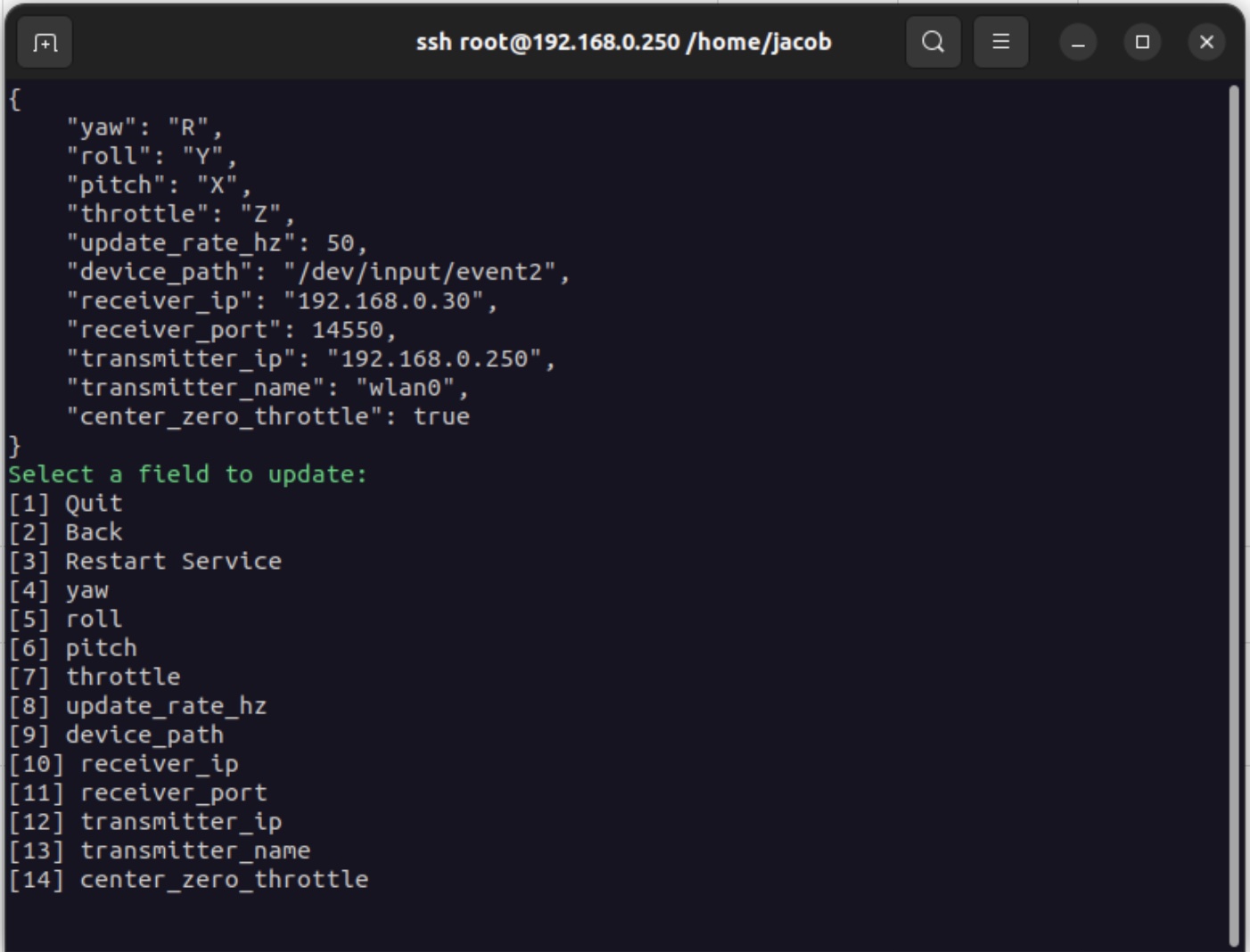
- Now decide how you want to throttle to behave: Zero throttle at center stick or full range.
- Set center_zero_throttle to true if you want the center stick position to be zero throttle. Otherwise, set center_zero_throttle false
- Now provide the file path to your Joystick, the default config here should work, typically on VRX this will be
/dev/input/event2. If the defauly path doesn’t work, you may need to watch this directory as you plug in your Joystick to determine which event is linked to your Joystick. - Now setup the network connection
- Receiver: receiver_ip should be the IP address of the drone and receiver_port should remain as the default (14550) as this is the port that voxl-mavlink-server listens to on the drone.
- Transmitter: transmitter_ip should be the IP address of this device (the VRX). transmitter_name should be the name of the network interface to be used for transmitting the data (likely wlan0, tailscale0, or wwan0)
Troubleshooting
Joystick to VRX interface
To see if the VRX is seeing the Joytick inputs:
- adb on to VRX
- stop the joystick service:
systemctl stop voxl-joystick-server
- manually run with
-doption for debug joystick events
voxl-joystick-server -d
Here is an example output:
voxl2:~$ voxl-joystick-server -d
Found 1 UDP Configurations
Joystick detected: OpenTX Radiomaster TX12 Joystick (/dev/input/event2)
WARNING: No kill switch button provided: -1. Valid options: 0-31.
PITCH: Y
ROLL:  X
YAW:   R
THROTTLE: Z
ARM BUTTON: 0
KILL BUTTON: -1
CENTER ZERO THROTTLE: FALSE
UPDATE RATE: 200Hz
INPUT DEVICE: /dev/input/event2
TX-IP:   10.223.0.101
[1] RX-IP:   10.223.0.100
[1] RX-PORT: 14550

[debug] Debug mode enabled
existing instance of voxl-joystick-server found, attempting to stop it
Device: OpenTX Radiomaster TX12 Joystick
UDPMultiForwarder: add forwarding to: 10.223.0.100:14550
UDPForwarder::configured for 10.223.0.100:14550 via 10.223.0.101
[debug] ev { time=1718656274.505133, type=3, code=0, value=1023 }
[debug] ev { time=1718656274.505133, type=3, code=1, value=825 }
[debug] ev { time=1718656274.505133, type=0, code=0, value=0 }
[debug] ev { time=1718656274.510144, type=3, code=0, value=1042 }
[debug] ev { time=1718656274.510144, type=3, code=1, value=791 }
[debug] ev { time=1718656274.510144, type=0, code=0, value=0 }
Joystick Network Connection to VTX/UAS
To see if the connection is being made from the VRX to the VTX/UAS, do the following:
- adb shell onto VTX/UAS
- manually run the following:
voxl-mavlink-server
When the VRX connects, you should see something like this (where these IPs may be different for your setup)
Added new UDP connection to 10.223.0.101
CONNECTED to GCS at 10.223.0.101
Check For mamual control events From VRX
To see the manual control events originating from the VTX, do the following:
voxl-inspect-mavlink mavlink_from_gcs
Here is an example output:
|   ID  |      Mavlink MSG Name       |Counter|  Hz  |
|-------|-----------------------------|-------|------|
|     0 | heartbeat                   |     7 |  1.0 |
|    69 | manual_control              |  1414 |196.1 |
Check For manual_control_setpoint Events from PX4
 px4-listener manual_control_setpoint

TOPIC: manual_control_setpoint
 manual_control_setpoint
    timestamp: 380219234 (0.003195 seconds ago)
    timestamp_sample: 380218414 (820 us before timestamp)
    roll: 0.99700
    pitch: -0.00100
    yaw: -0.00500
    throttle: -0.99800
    flaps: 0.00000
    aux1: 0.00000
    aux2: 0.00000
    aux3: 1010.00000
    aux4: 1000.00000
    aux5: 0.00000
    aux6: 0.00000
    valid: True
    data_source: 3
    sticks_moving: False
No events?
Make sure voxl-px4 is setup for EXTERNAL RC:
- Check
/etc/modalai/voxl-px4.conf - If wanting to use USB Joystick mode, set
RC=EXTERNAL
Check that the PX4 param COM_RC_IN_MODE is set to 1:
voxl2:/$ px4-param show COM_RC_IN_MODE
Symbols: x = used, + = saved, * = unsaved
x + COM_RC_IN_MODE [249,531] : 1
If not, you can use:
px4 param set COM_RC_IN_MODE 1
AI Detection
For information on setting up AI object detection with real-time bounding box overlay on the video stream, see the AI Detection Setup Guide.