
MVX IP Radios & RC over IP
Run MVX video, OSD and menus over Silvus, DTC, Doodle Labs, LTE or fiber, with RF-to-IP fallback and RC over IP.
Table of contents
- Overview
- Set up with a preset
- Custom networks
- Silvus and DTC radios
- Doodle Labs, LTE and Ethernet
- RF to IP fallback
- RC over IP
Overview
The MVX link can run over an IP network instead of, or alongside, the MVX radio. Video, the OSD, the drone and VRX menus, and telemetry all work the same way; only the transport changes. Supported links:
- Silvus StreamCaster and DTC BluSDR mesh radios, with radio status on the OSD and radio control from the menu.
- Doodle Labs radios.
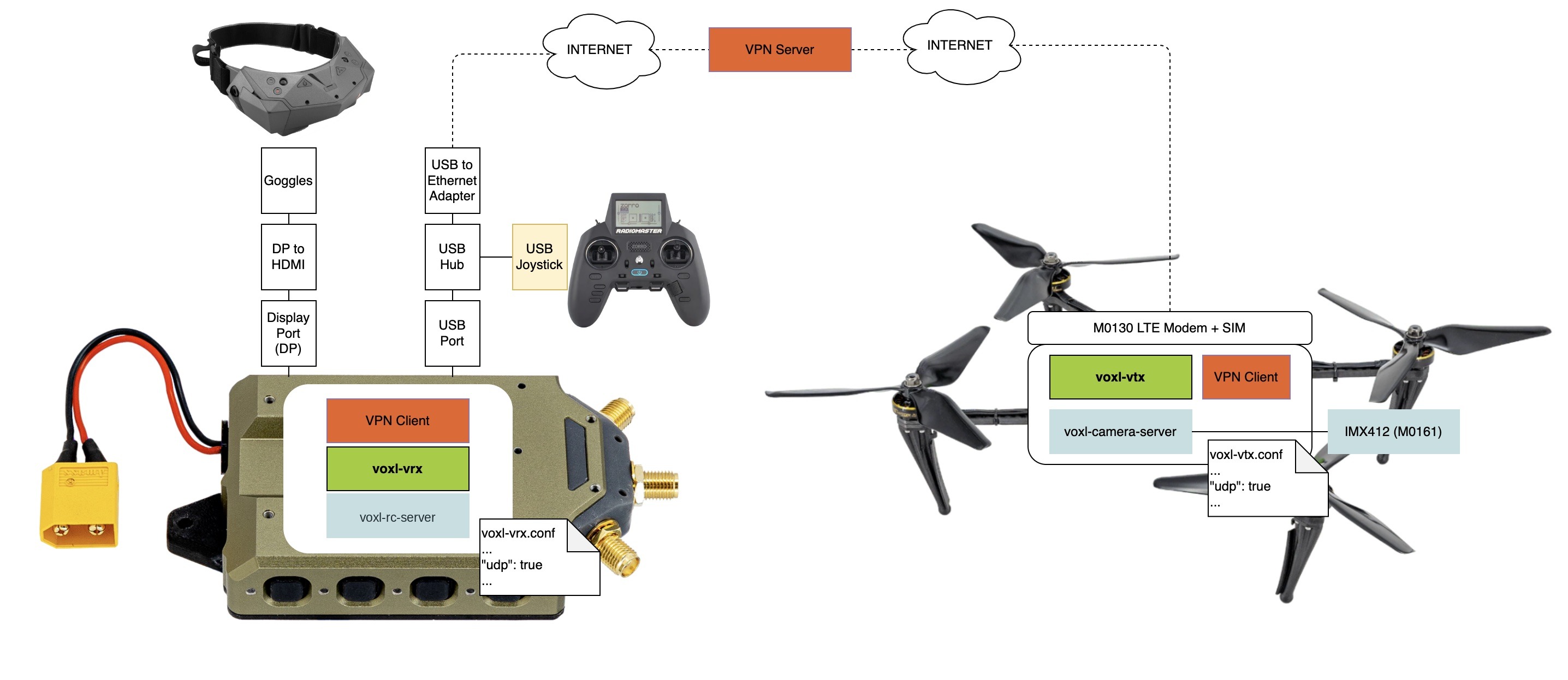
- LTE, with the drone and VRX joined over a VPN.
- Fiber or any wired Ethernet link.
Set up with a preset
voxl-configure-vtx on the drone and voxl-configure-vrx on the VRX each have a preset per link type. Run the matching preset on both units:
| Link | Drone | VRX | Drone address | VRX address |
|---|---|---|---|---|
| Silvus | voxl-configure-vtx --factory_enable_silvus | voxl-configure-vrx --factory_enable_silvus | 172.19.16.10 | 172.18.71.10 |
| DTC | voxl-configure-vtx --factory_enable_dtc | voxl-configure-vrx --factory_enable_dtc | 192.168.0.100 | 192.168.0.104 |
| Doodle Labs | voxl-configure-vtx -D | voxl-configure-vrx -D | 10.223.0.100 | 10.223.0.101 |
| Fiber | voxl-configure-vtx -I | voxl-configure-vrx -I | 10.0.0.10 | 10.0.0.2 |
| LTE | voxl-configure-vtx -L | voxl-configure-vrx -L | your VPN address | your VPN address |
The addresses are the ones each preset expects on the drone and VRX network interfaces. The radio presets also set a profile list that matches the drone’s cameras (see Video Profiles & Adaptive Link).
The LTE preset does not know the VRX’s address. Add it on the drone after running the preset, with the VRX’s VPN address and port 50000:
voxl-configure-vtx -A 100.64.0.20:50000
-R <ip:port> removes a receiver, and -C 1 removes them all. The drone can send to several VRXs at once.
Custom networks
For a network the presets do not cover, set these keys yourself. On the drone, in /etc/modalai/voxl-vtx.conf:
| Key | Set to |
|---|---|
udp | true |
enable_pcap | false for IP only; leave true to keep the MVX radio as well (see RF to IP fallback) |
udp_interface_ip | The drone’s address on the IP network |
udp_interface_rx_port | The port the drone listens on (50001) |
udp_receiver_configs | A list of {"ip": "<VRX address>", "port": 50000} entries, one per VRX |
On the VRX, in /etc/modalai/voxl-vrx.conf:
| Key | Set to |
|---|---|
udp | true |
enable_pcap | false |
udp_interface_ip | The VRX’s address on the IP network |
udp_interface_rx_port | The port the VRX listens on (50000) |
udp_receiver_configs | [{"ip": "<drone address>", "port": 50001}] |
Restart voxl-vtx on the drone and voxl-vrx on the VRX after editing.
Silvus and DTC radios
On Silvus and DTC links the drone talks to the radios directly:
- Radio status on the OSD. The VRX shows the radio’s SNR, RSSI, noise, frequency, channel width, temperature and transmit power.
- CHANNEL in the drone menu lists only the frequencies every radio in the mesh supports, and SAVE AND EXIT retunes all the radios together.
- ADVANCED > RADIO sets BANDWIDTH (only widths every radio supports), DRONE POWER and GCS POWER. Silvus radios show the powers that radio supports; DTC radios show FULL or a number of dB below full power.
- Transmit power follows the video profile. The profile’s
powersets the drone radio (-1is the radio’s full power, which the presets use). Pit mode holds the drone radio at 25 mW until the first arm. - Adaptive link runs on the radio’s own link quality, so video quality adjusts to the radio link as it does on the MVX radio.
The presets turn this on with ip_radio_stats (silvus or dtc) in /etc/modalai/voxl-vtx.conf. For DTC radios, if you changed the radio’s web password, set ip_radio_password to match.
Doodle Labs, LTE and Ethernet
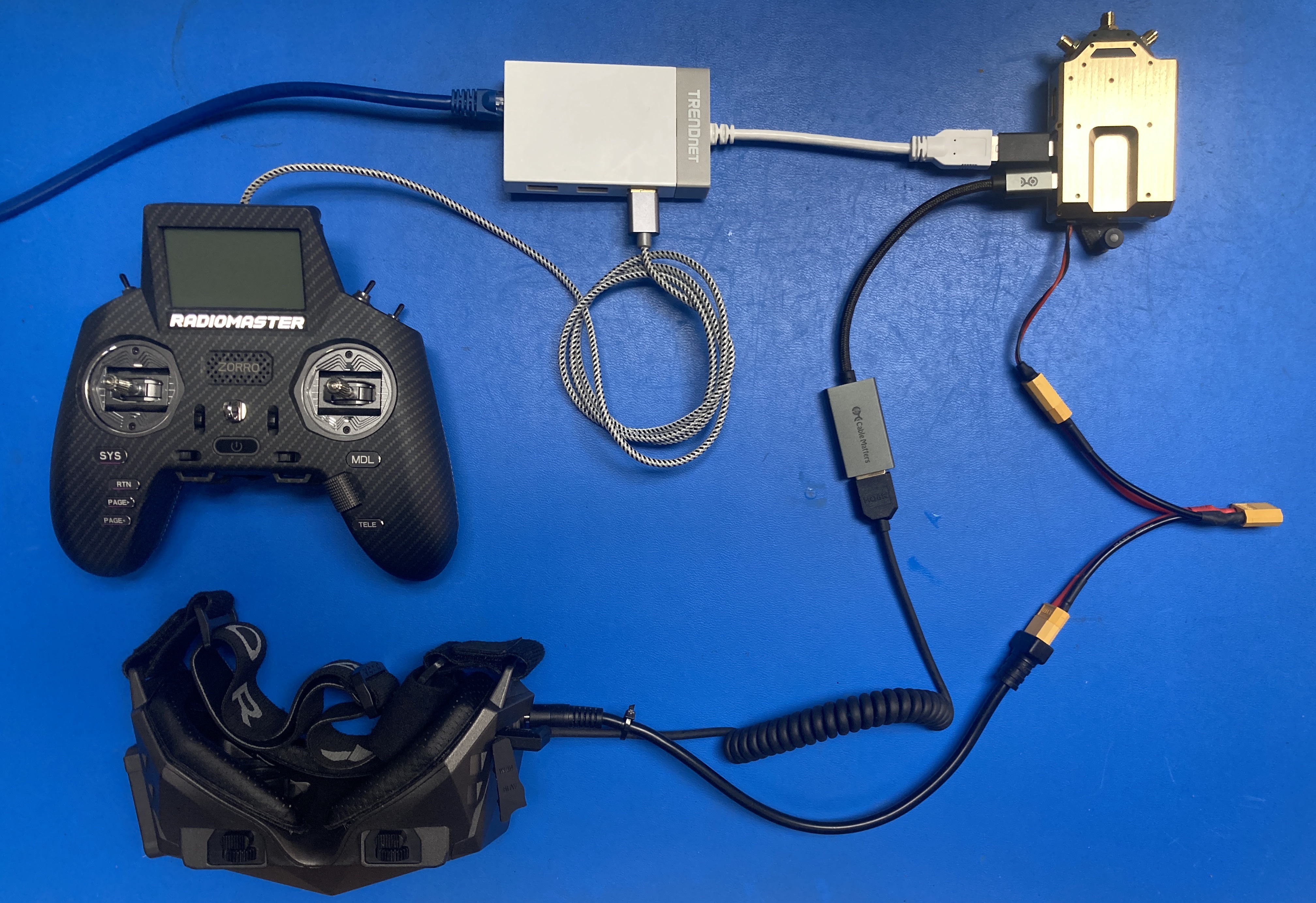
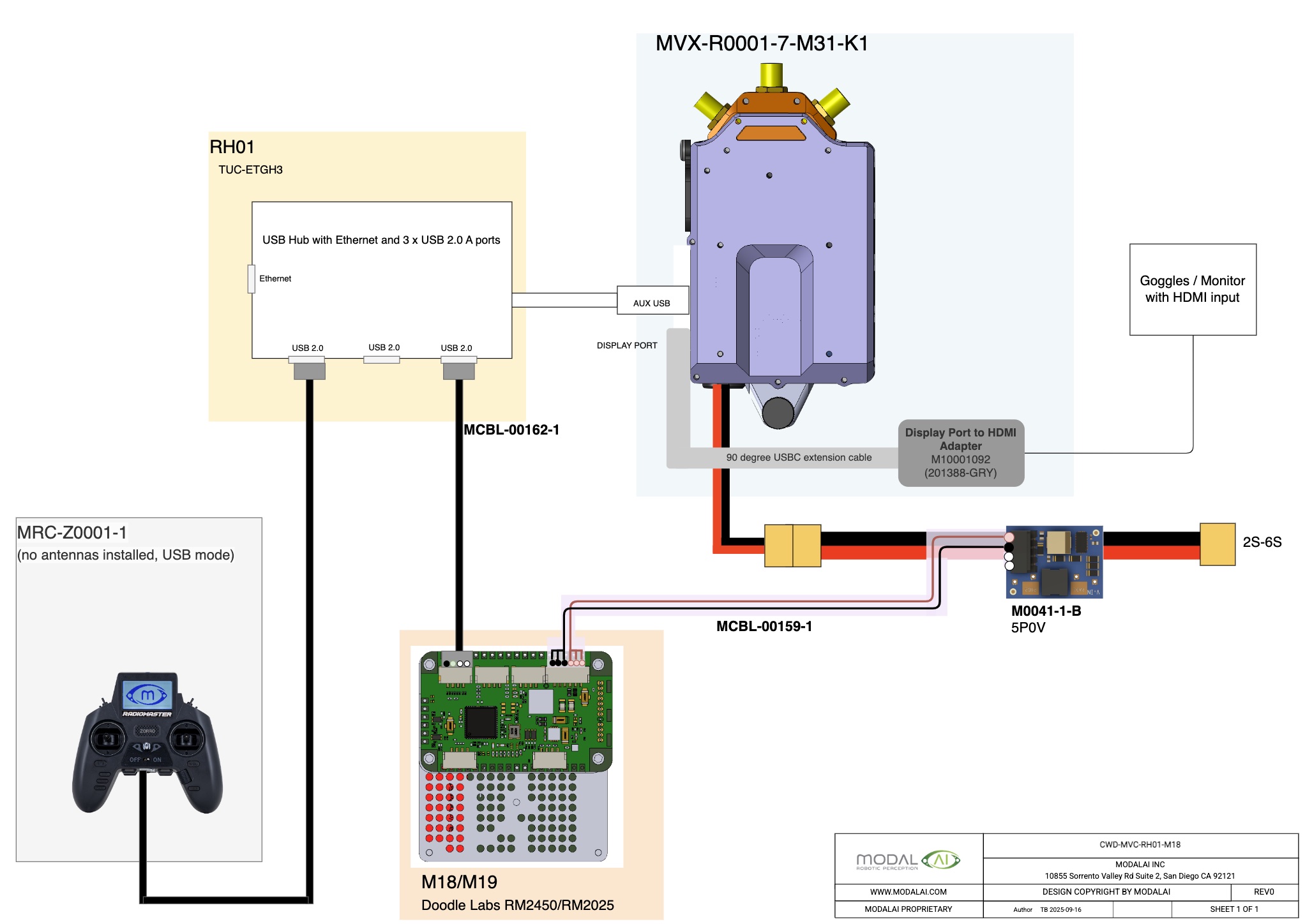
Ethernet on the VRX: plug a USB-to-Ethernet adapter into the VRX’s AUX USB port. It comes up as eth0 with the static address 10.0.0.2 (see Static IP from VRX with USB-to-Ethernet).
Doodle Labs: after running the presets above, bring up the modem on each unit:
voxl-configure-modem doodle-vrx    # on the VRX: 10.223.0.101
voxl-configure-modem doodle        # on the drone: 10.223.0.100
doodle-cli -i prints the modem’s address.
LTE: set up the drone’s LTE modem with the LTE modem software setup, and join the drone and the VRX (on Ethernet) to the same VPN. Tailscale ships in the VOXL SDK. Then add the VRX as a receiver on the drone as shown above.
RF to IP fallback
A drone with both the MVX radio and an IP link can fall back automatically: video moves to the IP link when the RF link weakens or drops, and back to RF when it recovers. Telemetry and menus run over both links throughout.
- Set up the IP link on the drone and the VRX as in Custom networks, but leave
enable_pcapset totrueon both, so the MVX radio stays on alongside the IP link. Turn on fallback on the drone:
voxl-configure-vtx --enable_ip_fallback systemctl restart voxl-vtx- Restart
voxl-vrxon the VRX. With several VRXs, the controlling VRX decides when to fall back.
RC over IP
With RC over IP, a joystick at the ground station flies the drone over the IP link, and the camera switch (channel 11) and zoom wheel (channel 12) work the same as over ELRS.
- Ground side: connect the joystick to the VRX.
voxl-rc-serveron the VRX sends it to the drone as MAVLink. A ground station such as QGroundControl can send RC instead. - Drone: voxl-mavlink-server’s RC mux (
en_elrs_rc_mux, see rc_active source selection) and voxl-vision-hub’sen_rc_activemust be on. voxl-configure-mpasets up both ends for Silvus and DTC:voxl-rc-serveron the VRX, and the RC mux anden_rc_activeon FPV drones.- A live ELRS link always takes priority over RC arriving over IP.
The OSD’s RC bar shows the IP link instead of ELRS: the radio’s uplink SNR on Silvus and DTC, or video loss on links without radio status, such as fiber.
Joystick setup
These steps use a RadioMaster Zorro, which voxl-rc-server has a ready-made preset for.
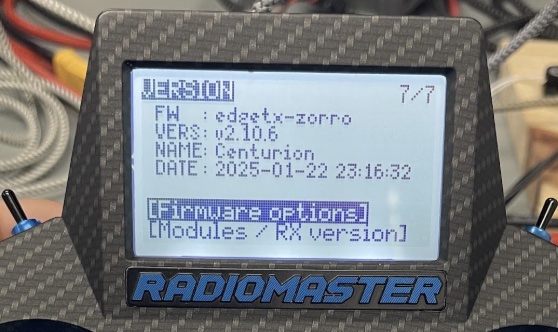
Check that the radio runs EdgeTX 2.10 or newer: press SYS, then PAGE< to the VERSION page. To update, see the EdgeTX update instructions and how to enter DFU mode.
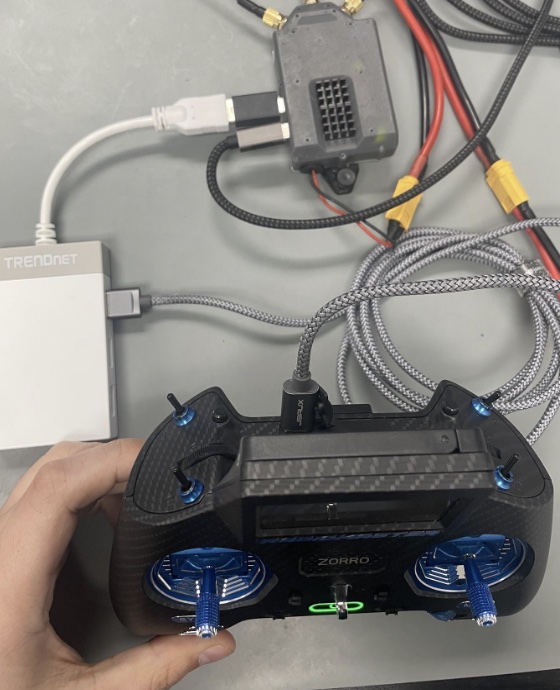
Connect the radio’s USB-C port to the VRX’s USB hub and hold the power button to turn the radio on.
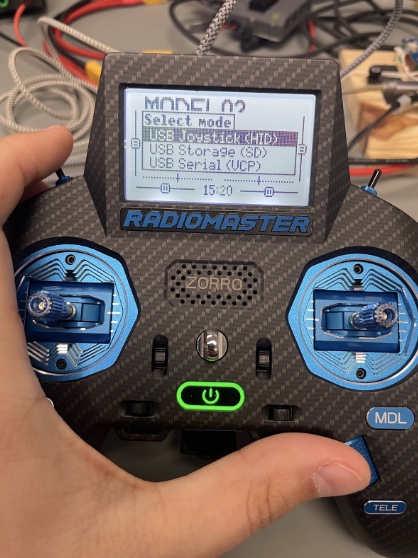
When the radio asks for the USB mode, choose USB Joystick (HID) with the scroll wheel and press it to select.
Set up
voxl-rc-serveron the VRX for the link, ifvoxl-configure-mpahas not already done so. For example, for fiber, or for any IP link by the drone’s address and MAVLink port:voxl-configure-rc-server factory_enable_fiber voxl-configure-rc-server factory_enable_lte_joystick <drone IP> 14550 systemctl start voxl-rc-serverThe presets, button mapping and command-line options are on the voxl-rc-server page. The Zorro’s switch and button layout is under MANUAL_CONTROL channel mapping.
Check the joystick link
- On the VRX,
voxl-rc-server --monitorprints the channels it is sending. Stop the service first (systemctl stop voxl-rc-server) when running it by hand. On the drone, check that the RC is arriving:
voxl-inspect-mavlink mavlink_from_gcsmanual_control(orrc_channels_override) should appear at the joystick’s update rate.