
MVX Software Setup
SDK versions, the voxl-vtx and voxl-vrx services, configure tools, and connecting over ADB or SSH.
Table of contents
- SDK Versions
- Services on the drone
- voxl-vtx Service
- voxl-configure-vtx
- voxl-vrx Service
- voxl-configure-vrx
- Edit the configuration files
- Control a running VTX
- Connect to the drone and VRX
- OSD
SDK Versions
These guides describe VOXL SDK 1.8.1 (voxl-vtx 3.19, voxl-osd 1.8). The drone runs the standard VOXL SDK, and the VRX runs a VRX build of the same SDK release.
Run the same SDK release on the drone and the VRX.
- Which SDK to run: see Which SDK Should I Flash?, which lists the current SDK for the VTX Air Unit, the VRX Ground Unit and each FPV drone.
- Download and flash: see Upgrading VOXL SDK, which has the SDK download for each product, including the VRX.
- What changed: see the SDK release notes and the VRX system image changelog.
These guides cover the VTX Air Unit, drones with a built-in MVX VTX such as Stinger, and the VRX Ground Unit.
Services on the drone
The drone runs the standard VOXL SDK. These services do the video work:
| Service | Config file | Role |
|---|---|---|
voxl-camera-server | /etc/modalai/voxl-camera-server.conf | Publishes the camera streams, including the encoded video |
voxl-osd | /etc/modalai/voxl-osd.conf | Renders the OSD and the drone menu |
voxl-vtx | /etc/modalai/voxl-vtx.conf | Sends video, OSD and telemetry over the MVX link |
voxl-vtx Service
voxl-vtx is the digital video transmitter. It runs as the systemd service voxl-vtx.service, starts after voxl-camera-server, and restarts automatically. Installing the package does not enable it; use voxl-configure-vtx:
voxl-configure-vtx --enable            # switch the radio to VTX mode and enable the service
voxl-configure-vtx --disable           # return the radio to standard WiFi and disable the service
The VTX radio and standard WiFi share the same hardware. To use WiFi instead, see WiFi Mode.
voxl-configure-vtx
voxl-configure-vtx manages /etc/modalai/voxl-vtx.conf and pushes changes to the running service where it can.
Set up from scratch with the preset that matches the drone and link:
| Option | Sets up |
|---|---|
-f, --factory_enable | Enables the VTX and writes the default configuration |
--d0013 | Stinger (D0013) |
-L, --factory_enable_lte | LTE |
-I, --factory_enable_fiber | Fiber |
-D, --factory_enable_doodle | Doodle Labs radios |
--factory_enable_dtc | DTC radios |
--factory_enable_silvus | Silvus radios |
--lepton_enable | Adds a Lepton thermal profile (can be combined with a preset) |
--tracking_stereo | Uses Tracking Left in place of Tracking Front (can be combined with a preset) |
The IP radio presets are described in IP Radios & RC over IP, and the profiles each preset writes in Video Profiles & Adaptive Link.
Change settings:
| Option | Meaning |
|---|---|
-l, --list | Show the current configuration |
-F, --frequency <MHz> | Set the channel, or a comma-separated list for frequency hopping |
-a, --active_profile_idx <n> | Set the active video profile |
-s, --source <pipe> | Set the camera stream of the active profile |
-P, --power-mw <mW> | Set the active profile’s transmit power |
--enable_ip_fallback | Turn on RF to IP fallback |
--enable_rc_deadman | Turn on the RC dead man’s switch |
-A, -R <ip:port> | Add or remove a UDP receiver; -C 1 removes them all |
--ar_waypoints enable\|disable | Turn AR waypoints on or off |
-t, --toggle | Toggle between VTX mode and WiFi SoftAP mode |
-w, --wizard | Walk through every setting interactively, including a video profile editor |
-h, --help | Show all options |
Single-frequency, power and profile changes take effect immediately. A frequency list for hopping takes effect when the service restarts. Running voxl-configure-vtx with no config file present writes the factory defaults first.
voxl-vrx Service
voxl-vrx receives the link, decodes the video and draws it with the OSD on the VRX’s display output. It also records, streams and forwards telemetry. It runs as the systemd service voxl-vrx.service and restarts automatically. The VRX ships with it set up; to restore the factory setup for your VRX, run:
voxl-configure-mpa
voxl-configure-vrx
voxl-configure-vrx manages /etc/modalai/voxl-vrx.conf:
| Option | Meaning |
|---|---|
-l, --list | Show the current configuration |
-F, --frequency <MHz> | Set the channel |
-b, --bandwidth <MHz> | Set the channel width: 5, 10, 20 or 40 |
-e, --enable | Enable voxl-vrx |
-d, --disable | Disable voxl-vrx |
--blackout-mode <0\|1> | Black screen instead of the last frame or splash when video is lost |
--osd-on-link-loss <0\|1\|2> | OSD while the link is lost: off, full or minimal |
--link-loss-indicator <0\|1> | Show the link-lost indicator |
-w, --wizard | Walk through every setting interactively |
-h, --help | Show all options |
IP link presets (-L, -I, -D, --factory_enable_dtc, --factory_enable_silvus) match the drone presets of the same name; see IP Radios & RC over IP.
Edit the configuration files
Every setting lives in /etc/modalai/voxl-vtx.conf on the drone and /etc/modalai/voxl-vrx.conf on the VRX (JSON). Each guide lists the settings for its feature. After editing a file by hand, restart the service:
systemctl restart voxl-vtx     # on the drone
systemctl restart voxl-vrx     # on the VRX
Settings not covered in the other guides, on the drone:
| Field | Default | Meaning |
|---|---|---|
perf_mode | false | Run the CPU at full performance while armed, for lower latency |
i2c_port | 0 | I2C bus of the power/temperature sensor (-1 disables). Set by the drone presets |
On the VRX:
| Field | Default | Meaning |
|---|---|---|
encoding | "h265" | Video codec the drone sends: "h265" or "h264" |
perf_mode | true | Run the CPU at full performance, for lower latency |
enable_button_board | true | Use the VRX’s buttons |
ai_detection_enable | true | Draw AI detection boxes received from the drone. See the AI Detection Setup Guide |
ai_detection_show_labels | true | Show labels on detection boxes |
Display output settings are in OSD Menu & Display.
Control a running VTX
A running voxl-vtx accepts commands on its control pipe:
voxl-send-command vtx_latency set_frequency 5805
voxl-send-command vtx_latency set_mw_power 500
voxl-send-command vtx_latency set_profile_idx 1
voxl-send-command vtx_latency set_pit_mode 0
Frequency commands are refused while frequency hopping is on; use the OSD menu or voxl-configure-vtx -F instead. To watch the link, run voxl-inspect-vtx on the drone or voxl-inspect-vrx on the VRX (see Link Diagnostics).
Connect to the drone and VRX
ADB Access to the VTX
The VTX Air Unit’s USB-C port gives ADB access, as on any VOXL 2 Mini:
adb shell
ADB Access to VRX
Disconnect the USB-C to HDMI adapter from the VRX, connect your USB-C cable to the same port, and run:
adb shell
See the Interfaces section of the VRX Ground Unit Quick Start Guide for the port location.
Static IP from VRX with USB-to-Ethernet
Plug a USB-to-Ethernet adapter into the VRX’s AUX USB port (a USB-C to USB-A adapter may be needed). The adapter comes up as eth0 with the static address 10.0.0.2, netmask 255.255.255.0.
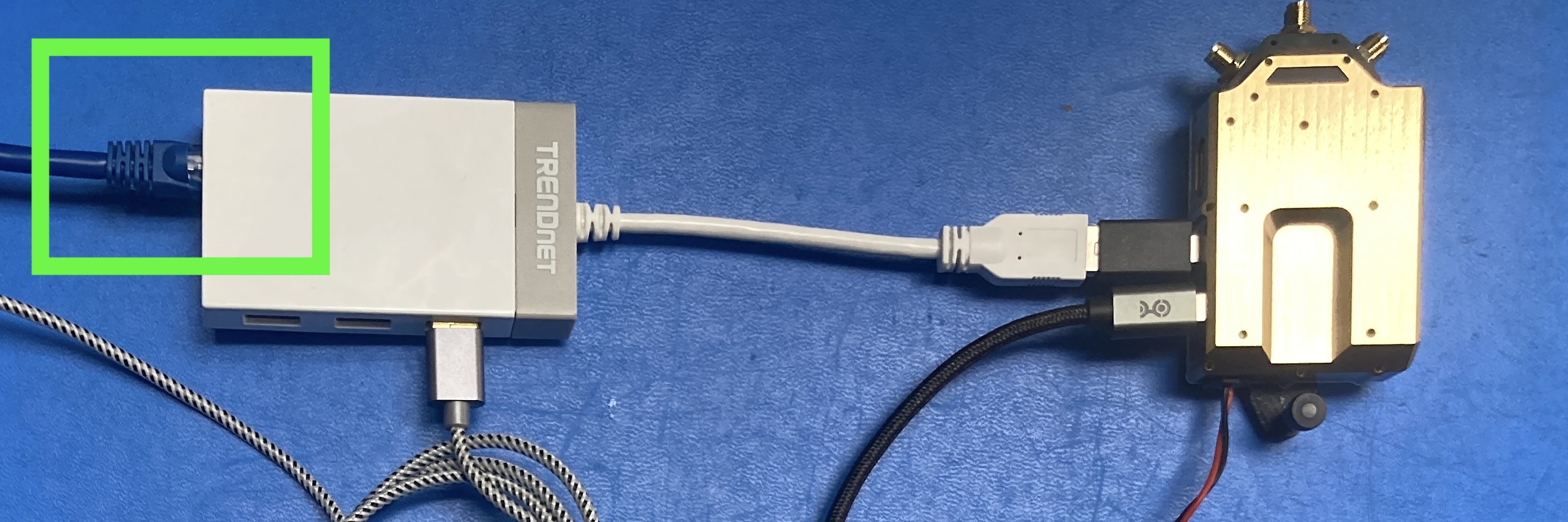
The address is set by the voxl-static-ip-watcher service. To change it, edit /etc/systemd/system/voxl-static-ip-watcher.service:
Environment=NETWORK_INTERFACE=eth0
Environment=STATIC_IP=10.0.0.2
Environment=DEBUG=0
Environment=NETMASK=255.255.255.0
SSH Access to VRX
With the VRX on the network, connect over SSH:
ssh root@10.0.0.2
(password: oelinux123)
OSD
voxl-osd draws the OSD and the drone menu, and the VTX sends them to the VRX. Its configuration, voxl-configure-osd modes and pipes are on the voxl-osd page. To use the menu from the goggles, see OSD Menu & Display. To drive the OSD from a non-VOXL flight controller, see External Flight Controller.