
MVX Frequency Hopping
Start, change and stop frequency hopping from the OSD menu or the command line, with optional jamming avoidance.
Table of contents
- Overview
- Start hopping from the OSD menu
- Change or stop hopping
- Set up hopping from the command line
- What the VRX OSD shows
- If hopping does not start
Overview
With frequency hopping, the link moves continuously across a set of channels you pick instead of staying on one, so interference or jamming on any single channel no longer takes the link down. With jamming avoidance on, the link also moves away from channels in your set that are jammed or busy.
The VRX follows the drone automatically. It needs only the same encryption key as the drone (see Pairing & Encryption Keys), so a receiver without your key cannot follow the link.
Requirements:
- SDK 1.8.1 on the drone and the VRX.
- The link runs over the MVX radio (not an IP radio).
- The VRX’s LQ Response setting is on (the default). Starting hopping from the OSD menu turns it on for you.
Start hopping from the OSD menu
With the drone disarmed:
- Open the OSD menu and select CHANNEL.
- Set MODE to FREQUENCY HOPPING.
- Set BAND to 2.4 or 5 GHz. All channels in a hop set come from one band.
- Set JAMMING AVOIDANCE to ON or OFF (on by default).
- Tick the channels to hop across. The menu shows PICK 2 OR MORE until you have ticked enough.
- Select SAVE AND EXIT. A START FREQUENCY HOPPING? pop-up lists what will change. Confirm it.
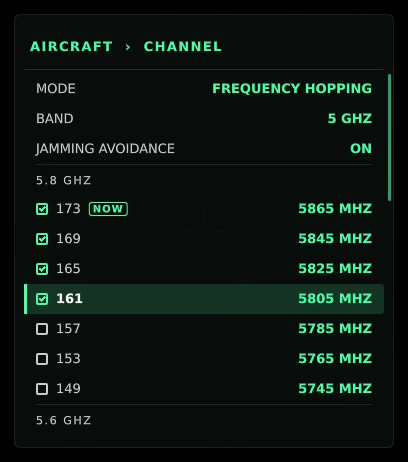
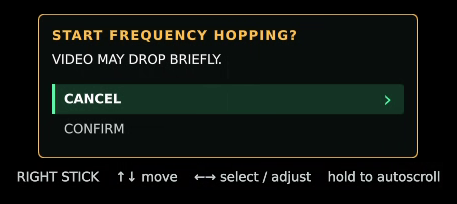
The pop-up can include:
| Pop-up line | Meaning |
|---|---|
| VRX LQ RESPONSE TURNS ON. | The VRX’s LQ Response setting is switched on, because hopping needs it. |
| BANDWIDTH DROPS TO 20 MHZ. | Hopping started from the menu runs at 20 MHz. |
| VIDEO MAY DROP BRIEFLY. | Expect a short video interruption while both ends switch over. |
The VRX OSD then shows FREQUENCY HOPPING ON.
With jamming avoidance on in the 5 GHz band, the menu warns MAY LEAVE YOUR LIST: to get away from a jammed channel, the link may use a 5 GHz channel you did not tick.
Change or stop hopping
Open CHANNEL again with the drone disarmed:
- To change the set, tick or untick channels or change JAMMING AVOIDANCE, then SAVE AND EXIT.
- To stop, set MODE to STATIC, optionally pick the channel to stay on, then SAVE AND EXIT. The VRX OSD shows FREQUENCY HOPPING OFF.
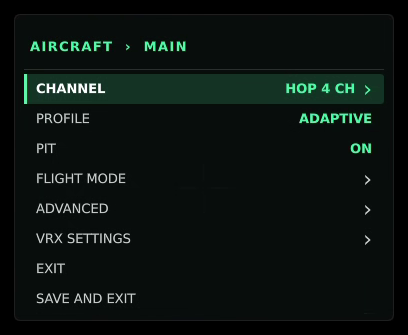
While hopping is on, the main menu shows HOP and the number of channels in the set, and the single-channel controls are locked: the CHANNEL list only offers the hop set, and ADVANCED > RADIO > BANDWIDTH shows HOP SET.
Set up hopping from the command line
Give voxl-configure-vtx a comma-separated list of frequencies in MHz, all from one band, then restart the service:
voxl-configure-vtx -F 5745,5765,5785,5805,5825
systemctl restart voxl-vtx
To go back to a single channel, set one frequency the same way:
voxl-configure-vtx -F 5805
systemctl restart voxl-vtx
Nothing needs to change on the VRX. Hopping runs at the configured bandwidth of 5, 10 or 20 MHz; at 40 MHz the link stays on the first channel in the list. Jamming avoidance is set with hop_exclusion (true by default) in /etc/modalai/voxl-vtx.conf.
What the VRX OSD shows
A hop icon appears beside the channel in the top-right status bar. It is green while all channels in the set are clear, yellow while the link is moving away from interference, and orange or red when interference has nowhere better to go.

The RF Stats card shows one tick per channel in the set, with the current channel highlighted. A red tick marks a channel being avoided because of interference. RF Stats is off by default; turn it on in VRX SETTINGS > OSD.
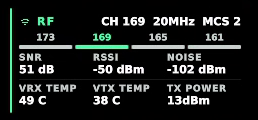
The channel readout turns amber when the VRX hears a hopping drone on its channel but cannot follow it. This almost always means the two units hold different encryption keys.
If hopping does not start
When a hopping change is refused, the VRX OSD shows FREQUENCY HOPPING NOT CHANGED with one of these reasons:
| Reason | What to do |
|---|---|
| DISARM FIRST | Disarm the drone, then try again. |
| RF LINK DOWN | Video is not running over the MVX radio (for example the link has fallen back to IP). Hopping needs the RF link. |
| NO VRX HEARD | The drone cannot hear a VRX. Check that the VRX is on, in range, and showing video. |
| VRX REPLIES OFF | Turn on LQ Response in the VRX menu (VRX SETTINGS > RADIO). |
| VRX CANNOT HOP | Update the VRX to SDK 1.8.1. |
| RADIO CANNOT HOP | The drone’s radio setup does not support hopping. Check that the drone runs SDK 1.8.1 with the MVX VTX enabled. |
| WIDTH MUST BE 20 / NO REPLY AT 20 MHZ | The switch to 20 MHz did not complete. Check the link and try again. |
| NO REPLY ON CHANNEL | The VRX did not answer after the drone changed channel. Check the link and try again. |
| BAD CHANNEL LIST | The list mixes bands or holds an unsupported channel. Pick channels from one band. |
| CHANGE IN PROGRESS | Another change is still being applied. Wait a moment and try again. |