
MVX OSD Menu & Display
Use the drone and VRX menus from your goggles, and set what the VRX shows when video is lost.
Table of contents
- Overview
- Read the OSD
- Open and navigate the menu
- Drone menu
- VRX SETTINGS menu
- Video loss: raw or freeze
- Link loss and latency settings
- Display output
Overview
Two menus are reachable from your transmitter sticks while you wear the goggles:
- The drone menu changes the drone’s settings: channel, video profile, pit mode, radio, logging and more. It is drawn by voxl-osd on the drone.
- The VRX SETTINGS menu changes the receiver’s own settings: OSD layout, what the screen shows on link loss, recording and the goggles battery. It is drawn by the VRX.
Both need SDK 1.8.1 on the drone and the VRX.
Read the OSD
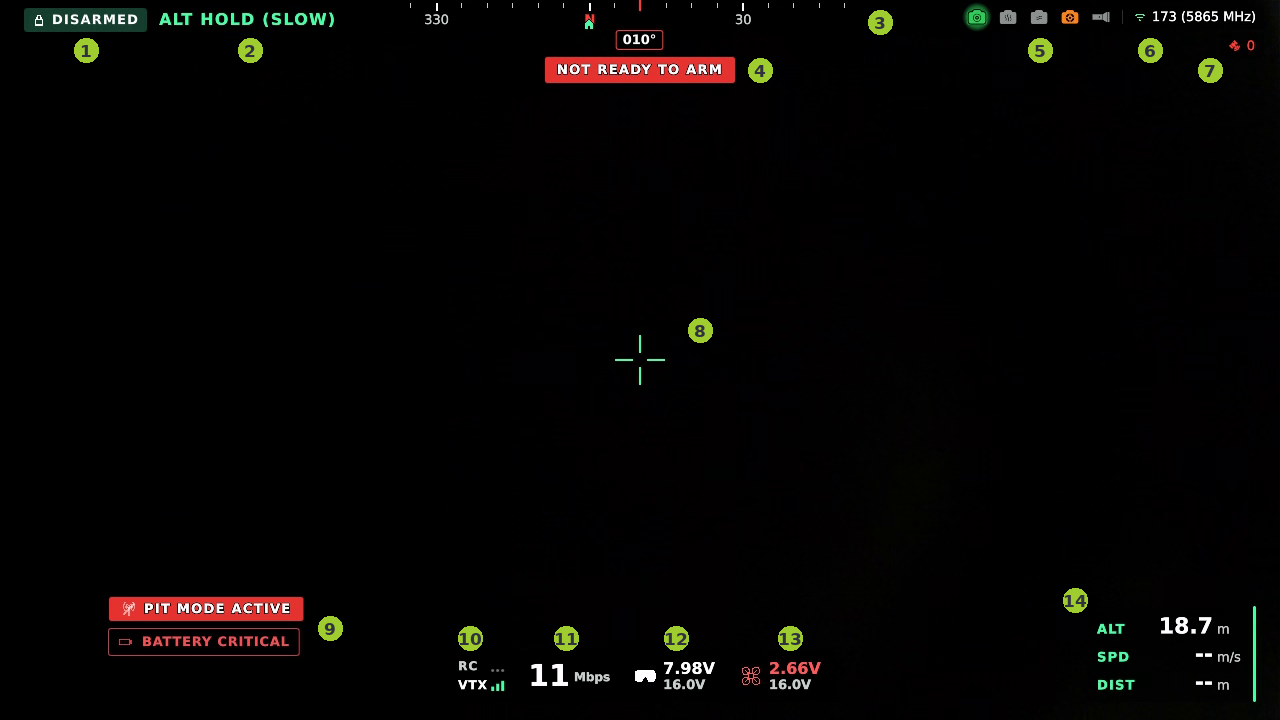
| # | Element |
|---|---|
| 1 | Arm state: ARMED or DISARMED |
| 2 | Flight mode |
| 3 | Compass tape and heading |
| 4 | Pre-arm status. NOT READY TO ARM shows until the drone can arm |
| 5 | Cameras and illuminator. The active camera is highlighted |
| 6 | Channel and frequency. While frequency hopping, a hop icon appears here |
| 7 | GPS satellites, red without a fix |
| 8 | Crosshair |
| 9 | Warnings, such as PIT MODE ACTIVE or BATTERY CRITICAL |
| 10 | RC and VTX link quality |
| 11 | Video bitrate |
| 12 | Goggles battery: voltage per cell over pack voltage. Set the cell count in VRX SETTINGS > Goggles Cells |
| 13 | Drone battery: voltage per cell over pack voltage. Set the cell count in ADVANCED > BAT CELLS |
| 14 | Altitude, speed and distance to home |
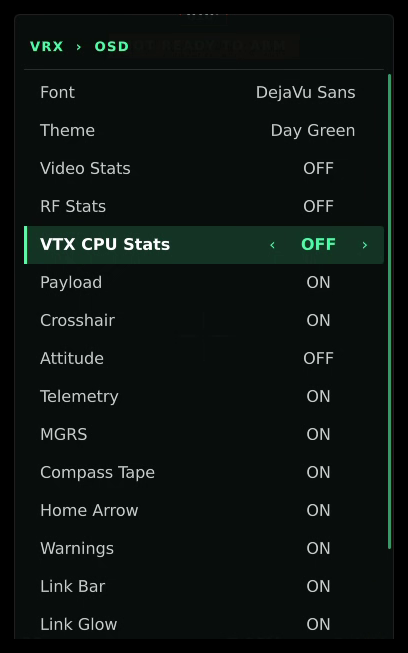
While recording, REC and the elapsed time show under the channel. Each element can be turned on or off in VRX SETTINGS > OSD. The Video Stats, RF Stats and VTX CPU Stats cards are diagnostic views and are off by default.
Open and navigate the menu
With the drone disarmed, push throttle down, yaw right, pitch down and roll left to open the drone menu. On a Mode 2 transmitter that is both sticks down and in. A brief tap is enough, and the menu always opens at the main menu.
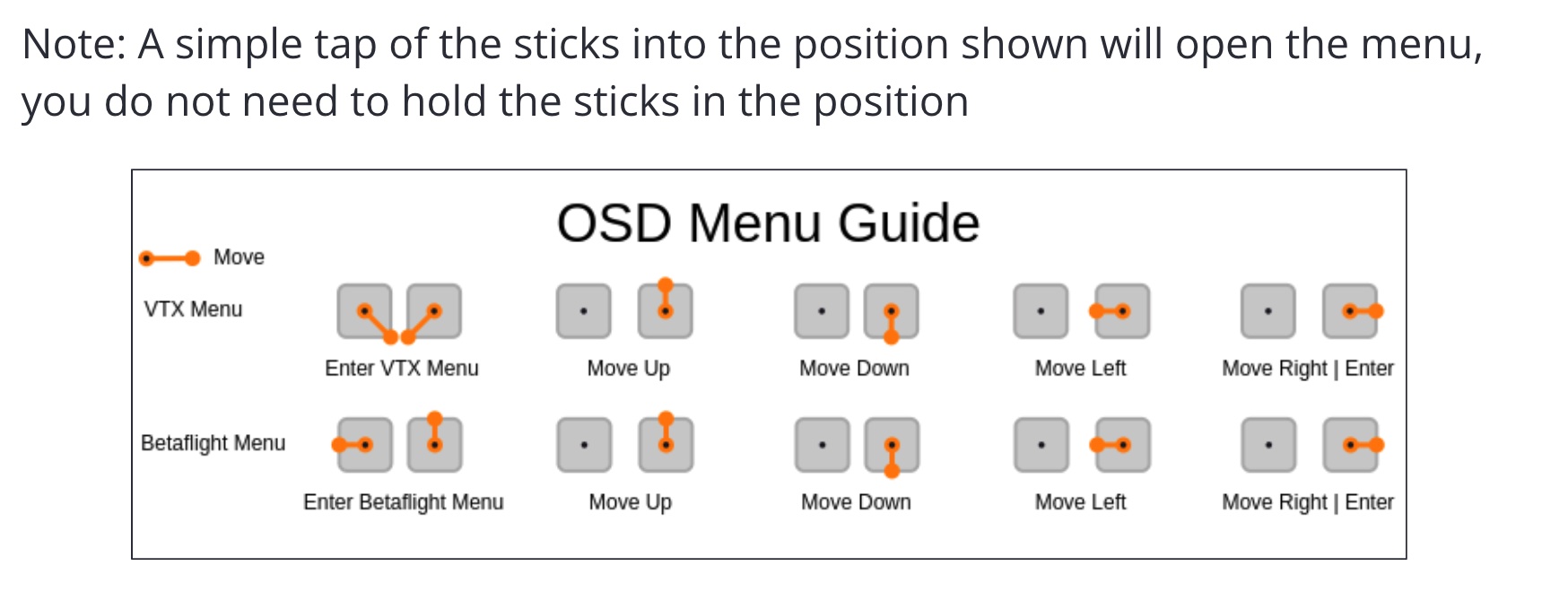
- Pitch up and down moves the cursor. Hold to keep scrolling.
- Roll left and right changes the value on the selected row or enters a submenu.
- Submenus end with BACK, EXIT (discard changes) and SAVE AND EXIT.
Some changes ask for confirmation in a pop-up before they are applied, and the pop-up lists what will happen.
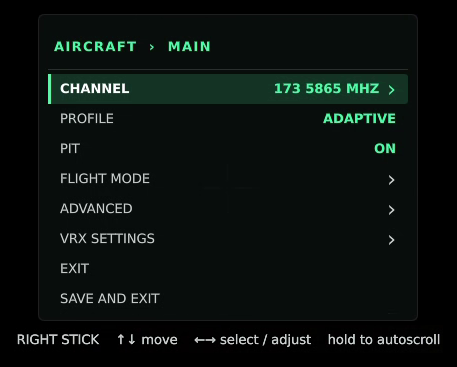
Drone menu
| Row | What it does |
|---|---|
| CHANNEL | Opens the channel list, or the frequency hopping setup. See Channels, Bandwidth & Power and Frequency Hopping. |
| PROFILE | Picks the active video profile. See Video Profiles & Adaptive Link. |
| PIT | Turns pit mode on or off. |
| FLIGHT MODE | Assigns PX4 flight modes to your transmitter’s mode switch. PX4 drones only. |
| ADVANCED | Opens the advanced settings below. |
| VRX SETTINGS | Hands the sticks to the VRX’s own menu. |
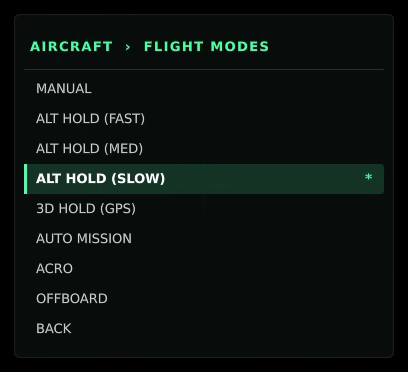
ADVANCED holds:
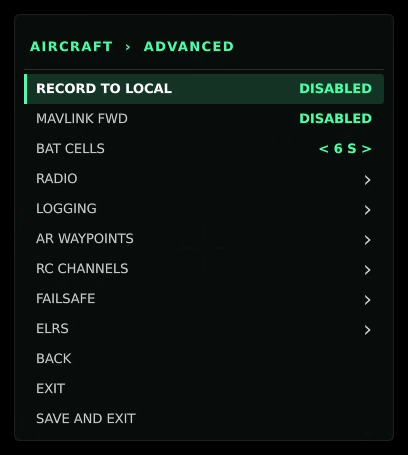
| Row | What it does |
|---|---|
| RECORD TO LOCAL | Lets the VRX record to its internal storage when no USB drive is inserted. |
| MAVLINK FWD | Turns forwarding of drone telemetry to the VRX on or off. |
| BAT CELLS | The drone battery’s cell count, so the OSD can show per-cell voltage. |
| RADIO | BANDWIDTH of the link; on Silvus and DTC links also DRONE POWER and GCS POWER. |
| LOGGING | VOXL-LOGGER-AUTO (record a voxl-logger session on each arm), DEBUG LOG (the link’s flight log: DISABLED, ENABLED or ON ARM), and on PX4 drones PX4 LOGGING. |
| AR WAYPOINTS | Augmented-reality markers on the video. |
| RC CHANNELS | A live view of every RC channel. |
| FAILSAFE | PX4 RC-loss and GCS-loss failsafe settings. PX4 drones only. |
| ELRS | ELRS receiver options. |
Turning PX4 LOGGING on or off shows a pop-up that says whether the drone needs a reboot. Turning it off also erases saved PX4 logs and missions on the next boot.
VRX SETTINGS menu
Select VRX SETTINGS in the drone menu. Stick input then goes to the VRX: pitch moves the cursor, roll selects or changes a value. BACK returns to the drone menu. The menu footer shows the SDK versions of the drone (T-SDK) and the VRX (R-SDK).
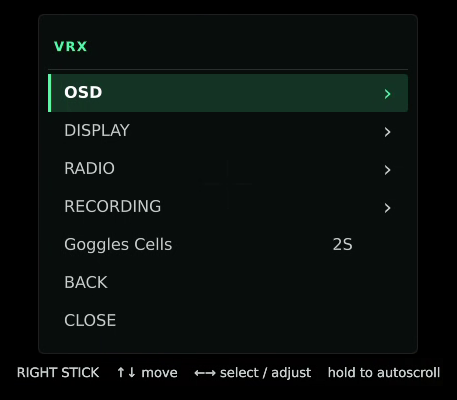
| Row | Settings |
|---|---|
| OSD | Font, Theme (Day Green or Night Red), Opacity (25 to 100%), and on/off for each OSD element: Video Stats, RF Stats, VTX CPU Stats, Payload, Crosshair, Attitude, Telemetry, MGRS, Compass Tape, Home Arrow, Warnings, Link Bar, Link Glow, VIO / Backtrack. |
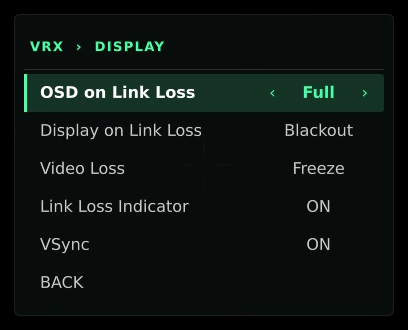
| DISPLAY | OSD on Link Loss (Off, Full, Minimal), Display on Link Loss (Last Frame, Splash, Blackout), Video Loss (Raw, Freeze), Link Loss Indicator, VSync. |
| RADIO | Follow VTX and LQ Response. See Multiple Ground Stations. |
| RECORDING | Video and Log, each Off, On or Arm. Changes apply on SAVE AND EXIT. See Recording, Streaming & Flight Logs. |
| Goggles Cells | The goggles battery’s cell count (1S to 6S), for the per-cell voltage on the OSD. |
Video loss: raw or freeze
DISPLAY > Video Loss sets what the screen shows when some video is lost but the link is still up:
- Raw (default): damaged frames are shown as they arrive. Damage smears across the picture until the next full frame clears it, but motion never stops.
- Freeze: the VRX holds the last good frame until a clean full frame arrives, so you never see damage. A freeze lasts at most
freeze_max_ms(500 ms by default, 50 to 900); after that the damaged picture is shown until the next full frame.
The change applies immediately and is saved to video_loss_mode in /etc/modalai/voxl-vrx.conf.
Link loss and latency settings
- Display on Link Loss sets what fills the screen when the link drops completely: the last frame, a splash screen, or black.
- OSD on Link Loss keeps the full OSD, a minimal OSD, or no OSD on screen while the link is down.
- Link Loss Indicator shows a link-lost warning.
- VSync off draws each frame as soon as it is decoded instead of waiting for the display refresh. That saves up to one frame of latency, but fast motion can show a tear line. VSync is on by default.
Display output
These VRX settings in /etc/modalai/voxl-vrx.conf control the picture on the VRX’s display output. Restart voxl-vrx after editing them.
| Field | Default | Meaning |
|---|---|---|
display_width, display_height | 1280, 720 | Output resolution requested from the display (0 = the display’s preferred mode) |
display_refresh_hz | 0 | Output refresh rate (0 = the highest available at that resolution) |
stretch_to_screen | false | Fill the screen, even if that changes the aspect ratio |
sharpen_amount | 1.5 | Sharpening strength: 0.0 off, 0.5 subtle, 1.0 to 2.0 moderate, 3.0 and above strong |
sharpen_threshold | 0.0 | Minimum edge contrast before sharpening applies; raise it to avoid sharpening noise |
Goggles that have been tested with the VRX, and the cables they need, are listed in VRX Goggles Compatibility.