
MVX Multiple Ground Stations
Watch one drone from several VRXs, hand link control between them, and view several drones from one VRX.
Table of contents
- Several VRXs on one drone
- Controller and observers
- Hand over control
- Keep a VRX on its channel
- View several drones from one VRX
Several VRXs on one drone
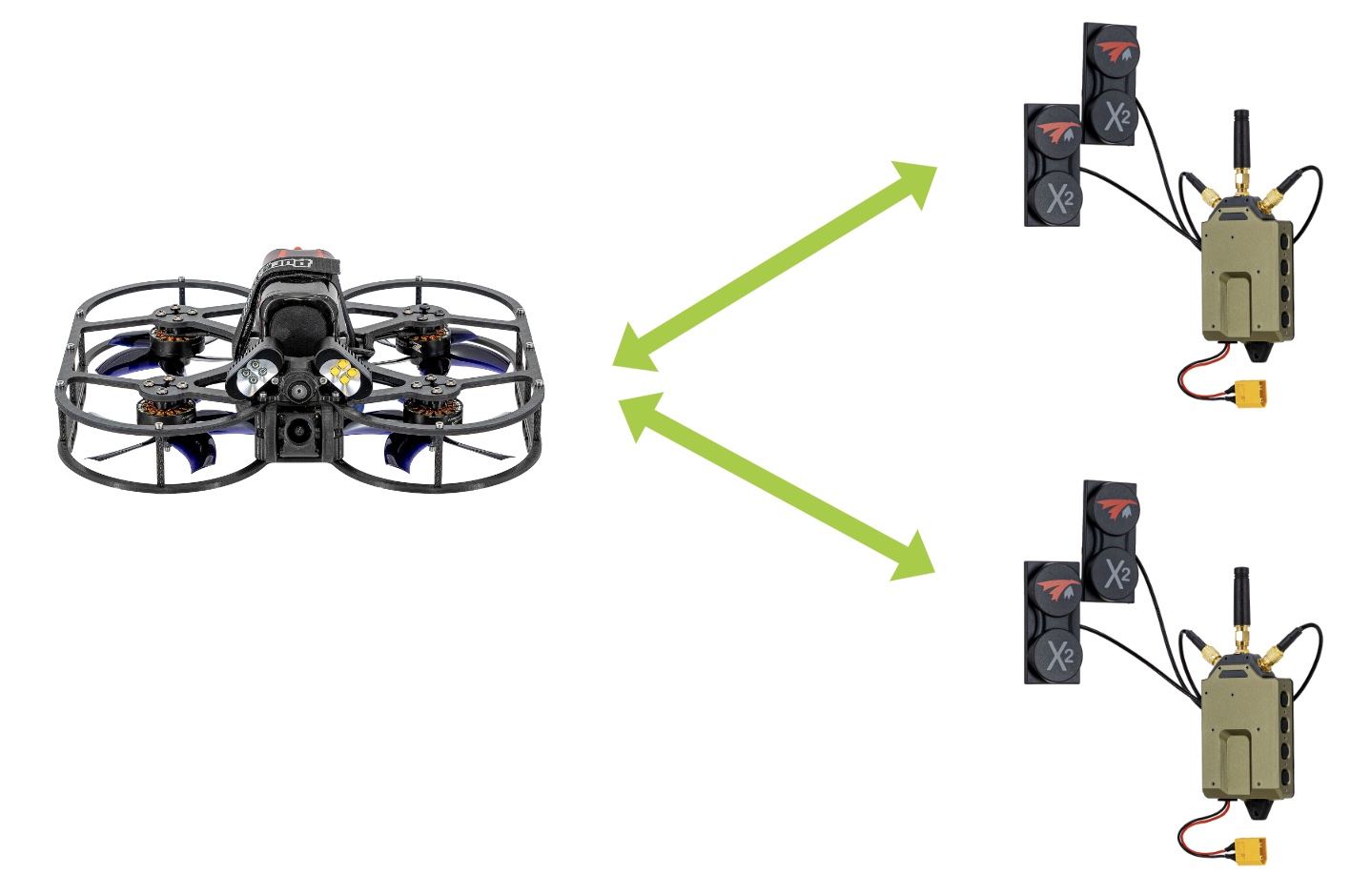
Any number of VRXs can show the same drone, as long as they hold the drone’s encryption key (see Pairing & Encryption Keys) and are on its channel. Every VRX shows the full video and OSD.
Controller and observers
One VRX controls the link and the others observe. The drone adapts the link to what the controlling VRX reports: adaptive link, RF-to-IP fallback, and the hop set when frequency hopping with jamming avoidance is on. Observers receive the same video but do not steer the link, so a second VRX far from the pilot cannot pull the link to its own conditions.
- The first VRX the drone hears with LQ Response on becomes the controller. Normally that is the first VRX powered on near the drone.
An observer shows an OBSERVER tab on its link bar.
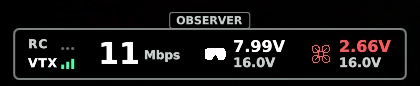
- A VRX with LQ Response off (VRX SETTINGS > RADIO) only ever observes.
- If the controller is not heard for 10 seconds, for example because it was switched off, control is released and the next VRX the drone hears takes over.
Hand over control
An observer can ask for control, and the controlling VRX decides.
- On the observer, double-tap button 3 (Function). Alternatively run
voxl-send-command vrx_latency request_control 1on the observer. The observer’s OSD shows LINK CONTROL REQUESTED. The controller’s OSD shows a LINK CONTROL REQUEST pop-up with a 10-second countdown and DOUBLE TAP FUNC TO ACCEPT.
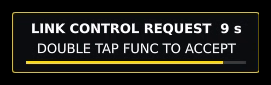
- To accept, double-tap button 3 on the controller (or run
voxl-send-command vrx_latency grant_control 1). To decline, let the countdown run out (or runvoxl-send-command vrx_latency decline_control 1).
The result appears on both VRXs:
| Message | Shown on | Meaning |
|---|---|---|
| YOU HAVE LINK CONTROL | Requesting VRX | The request was accepted. |
| LINK CONTROL HANDED OVER | Previous controller | This VRX is now an observer. |
| LINK CONTROL REQUEST DECLINED | Requesting VRX | The controller declined or did not answer in time. Wait 10 seconds before asking again. |
| YOU ALREADY HAVE LINK CONTROL | Requesting VRX | This VRX is already the controller. |
| NO LINK CONTROLLER YET | Requesting VRX | No VRX controls the link yet; this VRX takes control as soon as the drone hears it with LQ Response on. |
| LINK CONTROL: DRONE DID NOT ANSWER | Requesting VRX | The request did not reach the drone. Check that the VRX is receiving video and try again. |
Keep a VRX on its channel
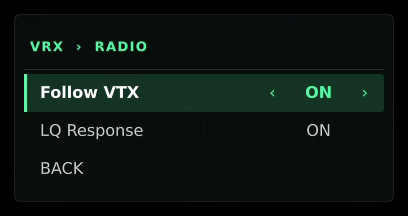
When the drone changes channel from its OSD menu, every VRX follows by default. To keep a VRX where it is, for example a ground station that should stay on a fixed channel, turn off Follow VTX in VRX SETTINGS > RADIO (follow_vtx_channel in /etc/modalai/voxl-vrx.conf). A channel change that this VRX asked for itself is still followed.
View several drones from one VRX
To watch several drones from one VRX, give them the same encryption key and put each one on its own channel, then step between them with the VRX’s channel buttons.
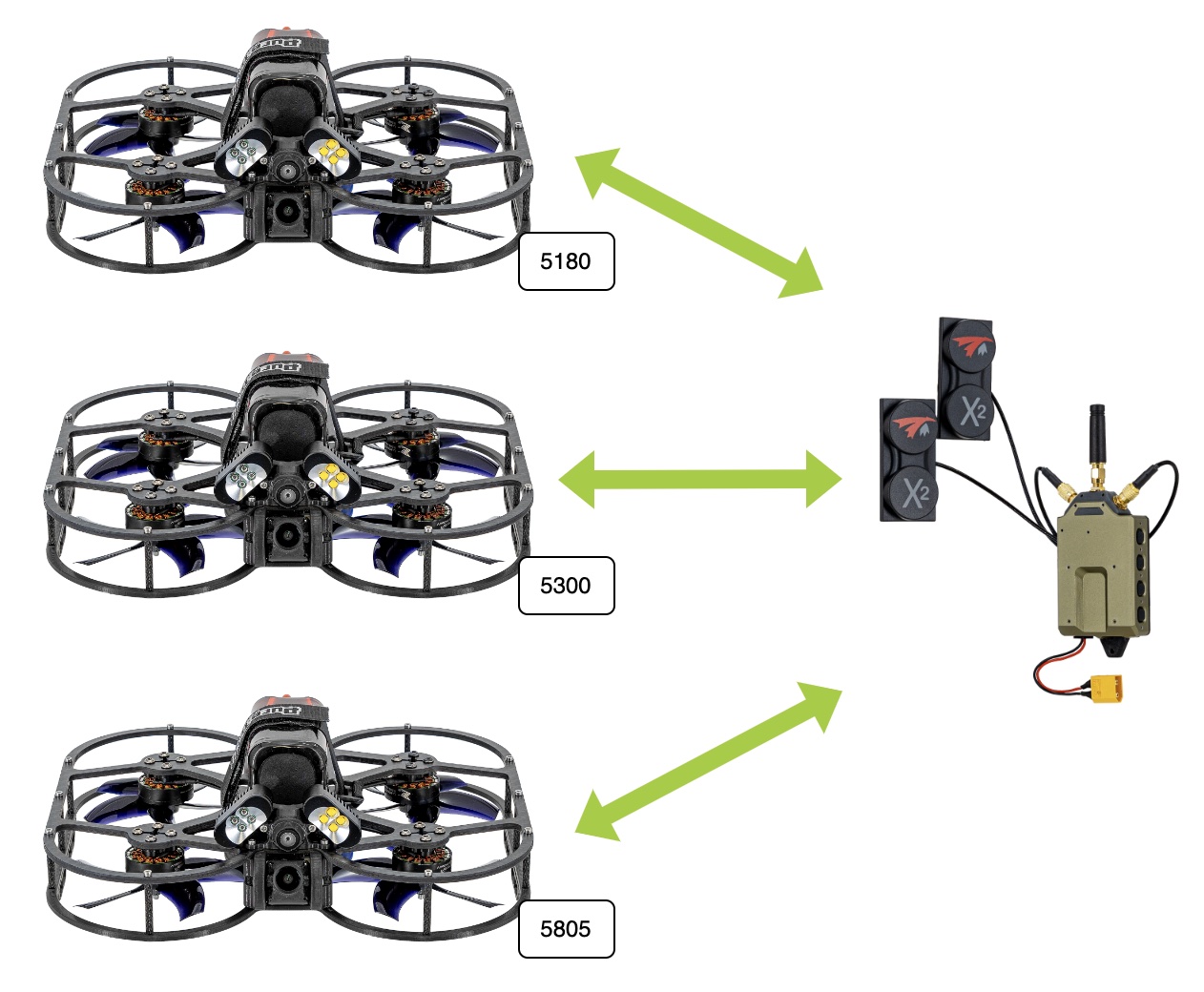
Setup:
- Make sure every drone and the VRX hold the same encryption key.
- Power on one drone at a time and change its channel from the OSD menu (see Channels, Bandwidth & Power). The VRX follows it to the new channel.
- Power off that drone and step the VRX back to the next drone’s channel (5805 MHz for a drone with factory settings).
- Repeat for each drone, giving each its own channel.
In use, power on all the drones and use buttons 1 and 4 on the VRX to step between their channels. A double-tap scans continuously until the next press. Once the VRX shows a drone, another drone with the same key on that channel cannot take the picture over.