
MVX Recording, Streaming & Flight Logs
Record the pilot's view on the VRX, stream video and telemetry to a ground station or ATAK, and capture flight logs.
Table of contents
- Pilot view
- Record video on the VRX
- Stream to a ground station or ATAK
- Telemetry to a ground station
- Flight logs
Pilot view
The VRX records and streams the pilot view: exactly what the pilot sees in the goggles, video and OSD together. It does this with or without a display attached. When the pilot view is not available, the VRX uses the received camera video without the OSD instead.
The pilot view is H.265 at 4 Mbps by default (pilot_view_mbps in /etc/modalai/voxl-vrx.conf). Its frame rate follows the display refresh, up to 60 fps.
Record video on the VRX
Recordings go to a USB flash drive in the VRX. See USB flash drive requirements before you start.
By hand: press button 2 (Record) to start, and press it again to stop. The OSD shows REC and the elapsed time while recording.

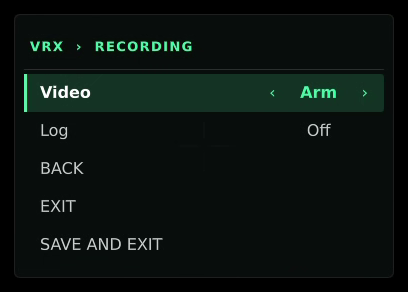
Automatically: set VRX SETTINGS > RECORDING > Video, then SAVE AND EXIT:
- Off: record only by hand (default).
- On: record from when the VRX starts.
- Arm: record while the drone is armed. A recording you started by hand is left alone.
The same setting is record_video (off, on or arm) in /etc/modalai/voxl-vrx.conf.
Files are MP4, saved in a vrx_videos folder on the drive and named vrx_video.mp4, vrx_video_1.mp4, and so on.
Without a USB drive: turn on RECORD TO LOCAL in the drone menu (ADVANCED) to let the VRX record to its internal storage, in /data/video/vrx_videos/. Copy the files off over ADB:
adb pull /data/video/vrx_videos/
Recording messages
| OSD message | Meaning |
|---|---|
| REC DENIED: NO USB DRIVE | No USB drive is mounted and recording to internal storage is off. |
| REC DENIED: DISK FULL | The drive has no free space. |
| REC FAILED: USB ERROR | The drive could not be written, for example because it is read-only or has an unsupported format. |
| REC STOPPED: USB REMOVED | The drive was pulled during a recording. |
| REC STOPPED: DISK FULL | The drive filled up during a recording. |
| REC FAILED TO START | The recording could not start. Try again; if it keeps failing, collect a flight log and contact ModalAI. |
Stream to a ground station or ATAK
MPEG-TS over UDP
The VRX can send the pilot view as an MPEG-TS stream over UDP, which ATAK and most video players can open directly. In /etc/modalai/voxl-vrx.conf:
| Setting | Default | Meaning |
|---|---|---|
en_mpeg_ts_rebroadcast | false | Set true to send the stream. |
gcs_ip | 10.0.0.1 | The device to send it to. |
mpeg_ts_rebroadcast_port | 8901 | The UDP port to send it to. |
telem_tx_ip | 10.0.0.2 | The VRX’s own network address to send from. The stream runs only while this address is up on the VRX. |
Restart the VRX service after editing:
systemctl restart voxl-vrx
On the receiving device, open a UDP stream on port 8901. In ATAK, add a UDP video alias on that port.
RTSP
voxl-streamer runs on the VRX and serves the pilot view over RTSP out of the box at rtsp://<VRX IP>:8900/live, for example rtsp://10.0.0.2:8900/live with the USB-to-Ethernet setup.
To stream the received camera video without the OSD instead, set "input-pipe": "vrx_encoded" in /etc/modalai/voxl-streamer.conf and restart the streamer:
systemctl restart voxl-streamer
The VRX only encodes the pilot view while something uses it (a recording, the MPEG-TS stream, or an RTSP client), so leaving streaming set up costs nothing when nobody is watching.
Headless mode
To use the VRX only as a receiver for your own software, set "headless": true in /etc/modalai/voxl-vrx.conf. The VRX then publishes the received H.264/H.265 video on the vrx_encoded pipe without decoding, displaying or recording it.
Telemetry to a ground station
The VRX passes the drone’s MAVLink telemetry to a ground station or ATAK device on its network, and passes the ground station’s MAVLink (missions, commands) back to the drone. In /etc/modalai/voxl-vrx.conf:
| Setting | Default | Meaning |
|---|---|---|
gcs_ip | 10.0.0.1 | The ground station’s address |
mavlink_gcs_port | 14550 | The MAVLink port on the ground station |
telem_tx_ip | 10.0.0.2 | The VRX’s own network address to send from |
allow_mavlink_forward_while_armed | false | Also pass the ground station’s MAVLink to the drone while it is armed |
ADVANCED > MAVLINK FWD in the drone menu turns telemetry forwarding on or off.
The MVX link carries video, the OSD, telemetry and menu commands. It is not a general-purpose data link, so custom application data between the drone and the ground cannot be sent over it. For that, use an IP link such as an IP radio, LTE, or the VTX radio in WiFi mode.
Flight logs
The drone and the VRX can each record a flight log of the link: video, radio and link-quality data, events and the drone’s MAVLink telemetry. The two logs of one flight share an ID, so they can be lined up. Flight logs are what ModalAI support asks for when you report a link problem.
Turn on from the OSD:
- VRX SETTINGS > RECORDING > Log (Off, On or Arm), then SAVE AND EXIT. This sets logging on the drone and the VRX together.
Or on the drone menu: ADVANCED > LOGGING > DEBUG LOG (DISABLED, ENABLED, ON ARM).
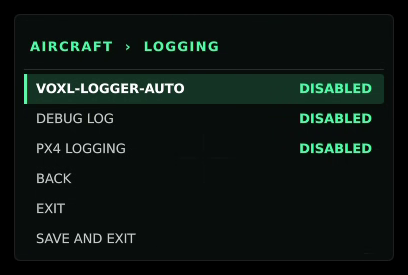
Or in the config files: debug_log (off, on or arm) in /etc/modalai/voxl-vtx.conf on the drone and /etc/modalai/voxl-vrx.conf on the VRX.
armstarts one log per flight, from arm to disarm.onlogs from service start.log_formatchoosesulog,csvorboth(default). ULog files open in PlotJuggler.- Logging stops when free space drops below
log_min_free_mb(500 MB by default).
Logs are saved on each unit, one folder per flight:
| Unit | Folder |
|---|---|
| Drone | /data/mvx/vtx/logs/flight_NNNN_<id>/ |
| VRX | /data/mvx/vrx/logs/flight_NNNN_<id>/ |
Copy them off over ADB, for example from the VRX:
adb pull /data/mvx/vrx/logs/