
Stinger Vision FPV User Manual
Operating the Stinger: setup, flight modes, battery, and maintenance.
Table of contents
- Overview
- Safety
- Hardware Overview
- RC Controller
- Flight Modes
- On-Screen Display
- Video Link and Encryption
- Software
- Troubleshooting
Overview
Stinger Vision FPV is a Blue UAS-cleared, NDAA-compliant digital FPV drone with onboard VIO-assisted flight, built on VOXL 2 Mini. It streams encrypted, low-latency video to the VRX Ground Unit and offers multiple FPV views — EO, downward, and thermal — plus assisted flight modes and Backtrack.
New to Stinger? Start with the Quick Start Guide, which walks first-time setup with videos. This manual is the ongoing operating reference.
Safety
Never power on the vehicle without VTX antennas attached — transmitting without antennas permanently damages the video transmitter.
Remove propellers before bench work, configuration, or firmware updates whenever possible, and always treat an armed vehicle as live.
Hardware Overview
Sensors and Interfaces
FPV sensors:
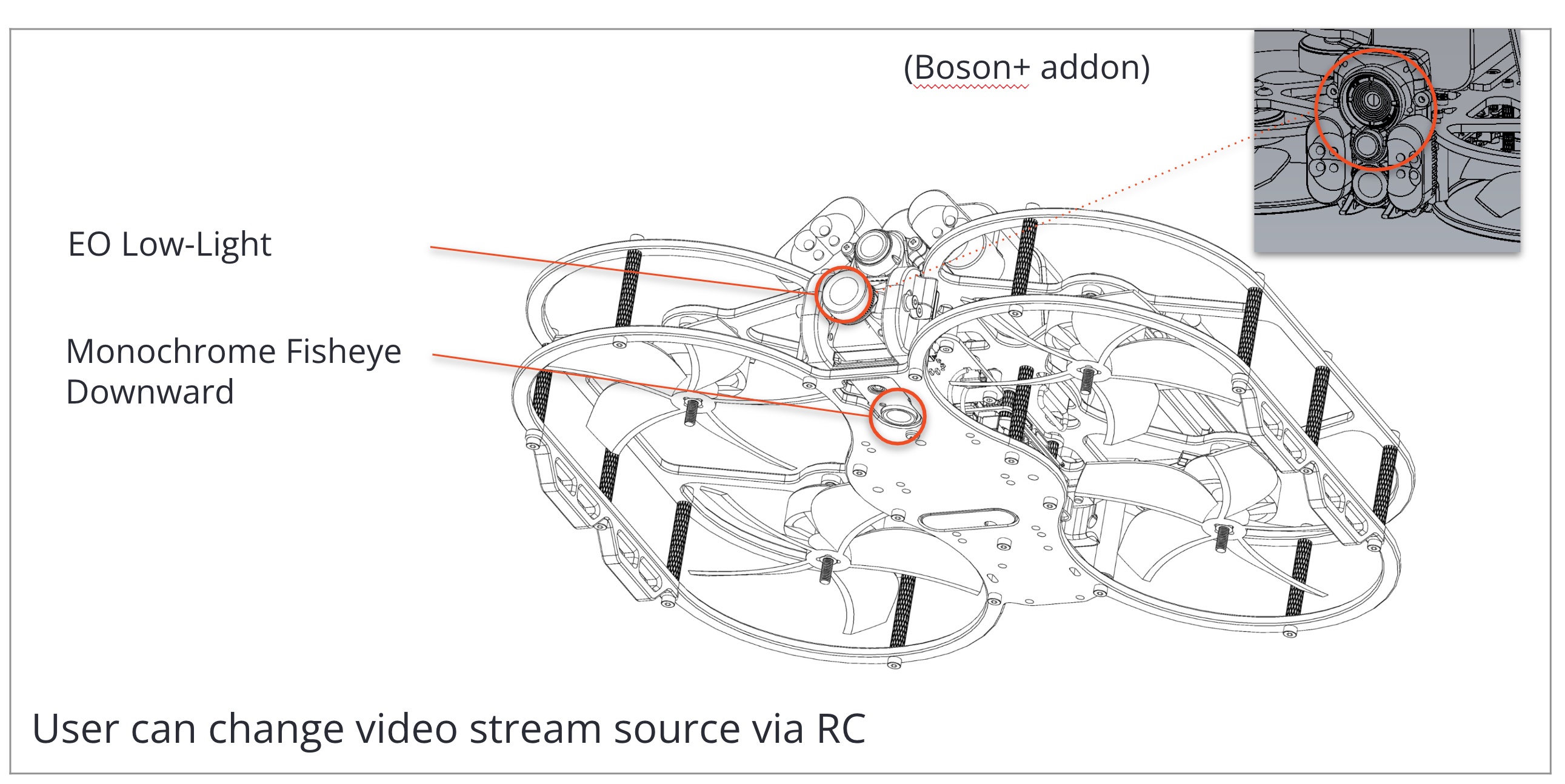
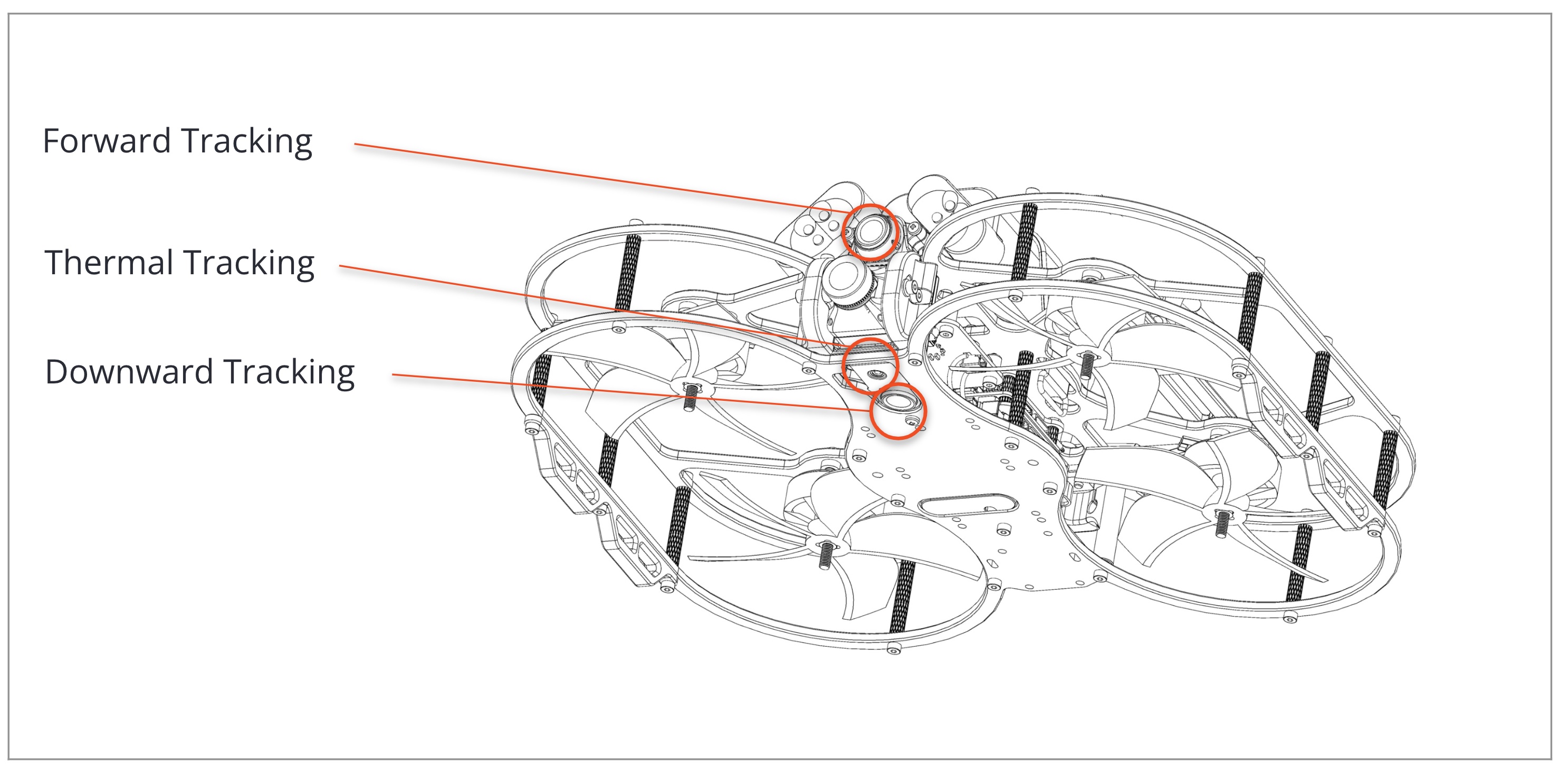
Computer vision sensors:
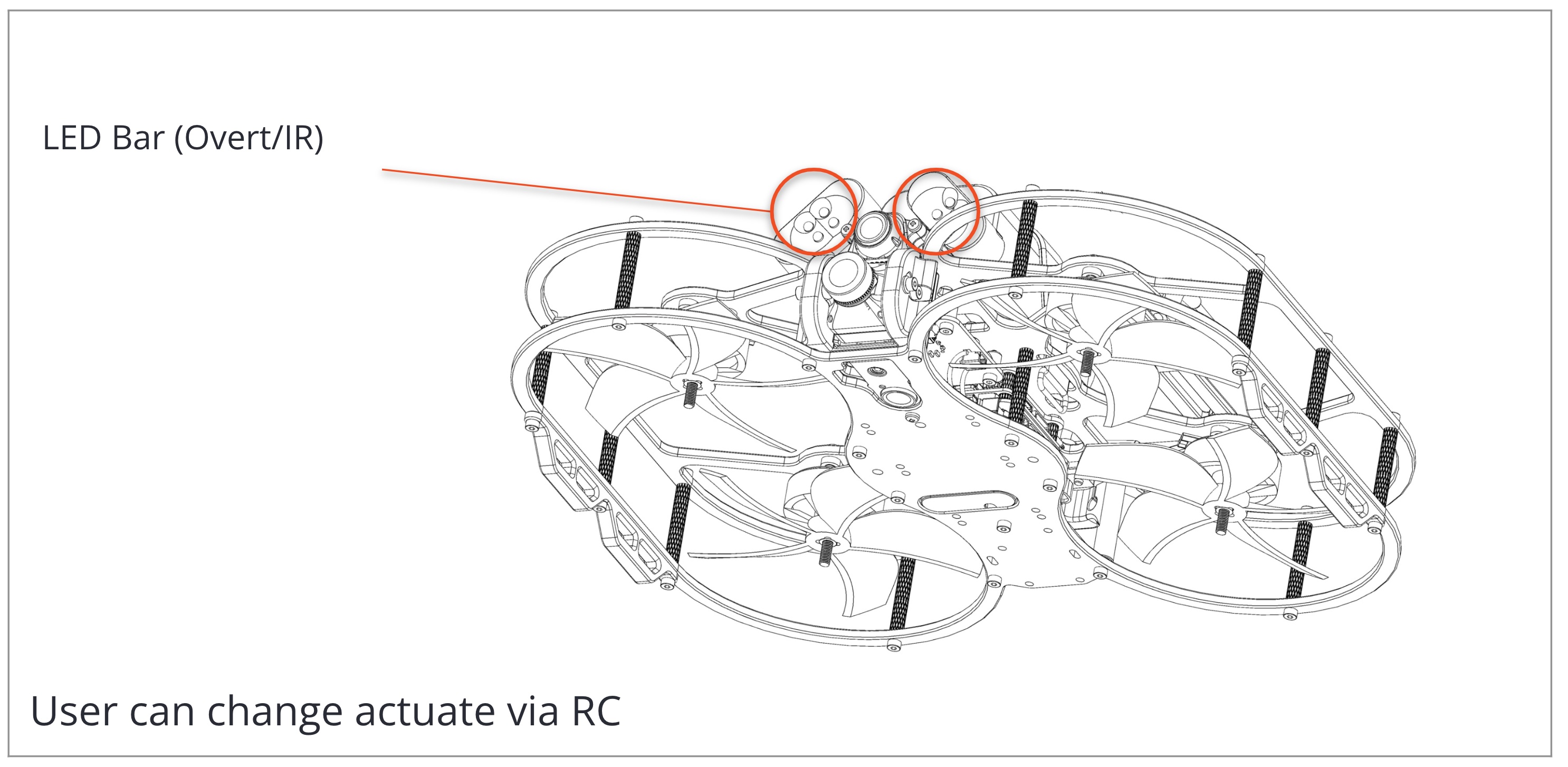
Actuators:
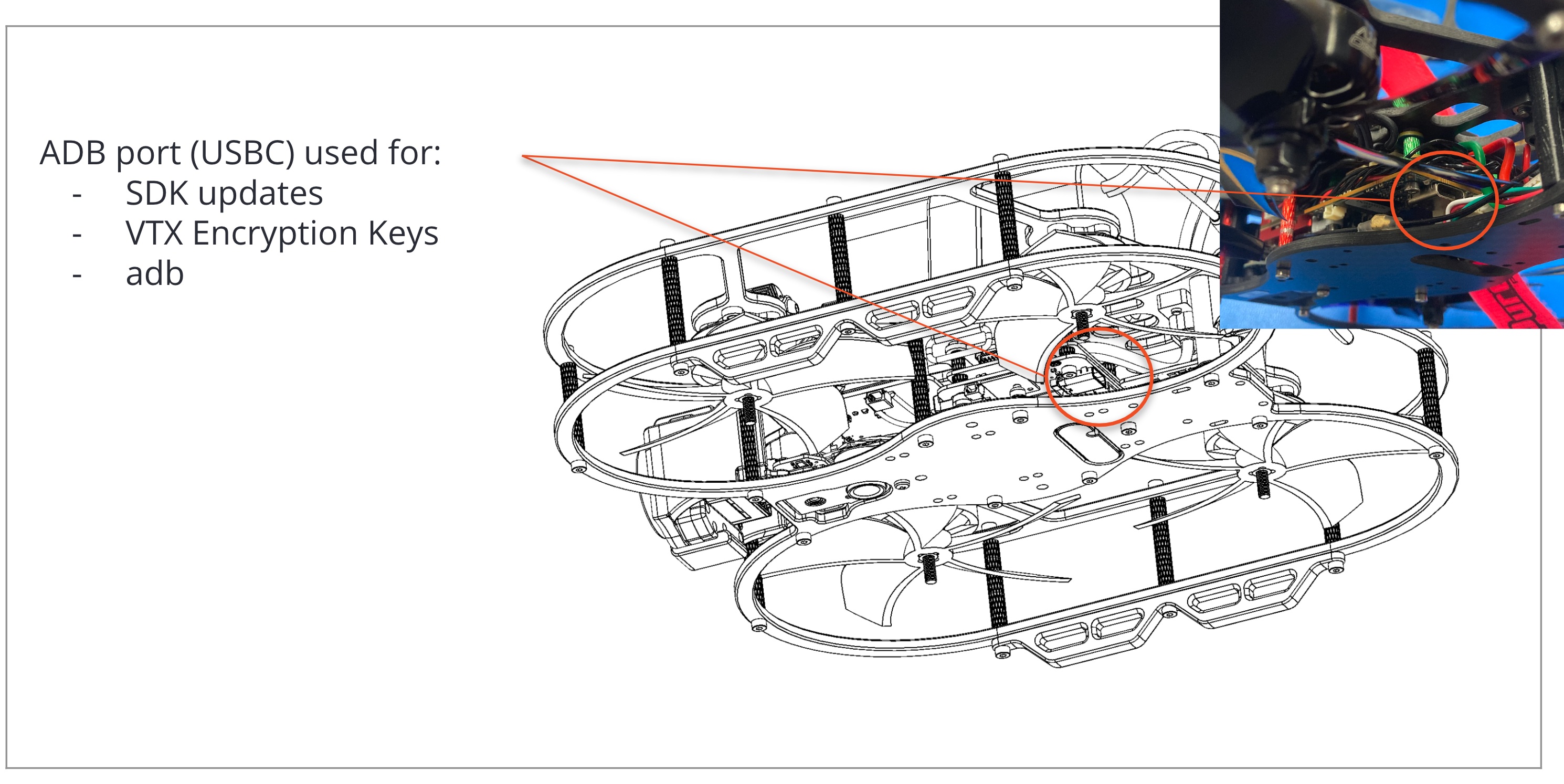
Utility port (USB-C — encryption key updates, ADB access):
For connector-level details, see the Stinger Datasheet.
Battery and Propellers
Recommended:
M10001000- Upgrade Energy 3000mAh 4S 14.4V P30B Lithium-Ion Battery - XT60M10000999- GemFan D90 3.5” 5 Blade Prop Set
Prop and battery install videos are in the Quick Start Guide.
RC Controller
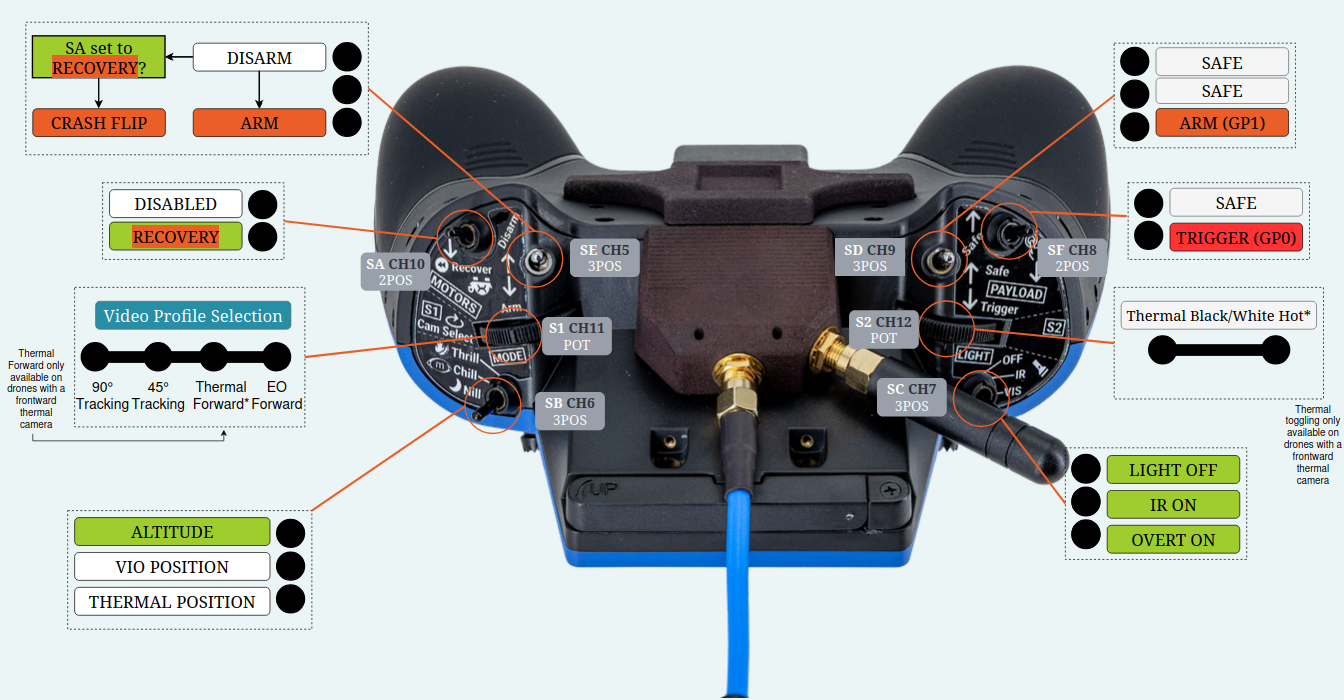
Stinger uses an ELRS 915 MHz control link. The controller layout below is for the Zorro Blue:
Arming
Ensure all switches are away from you, then flip the arm switch (top left) toward you to arm. Disarm by flipping it back.
Binding
Bind a new transmitter using the physical bind button on the underside of the frame — see Stinger Binding Details for the button location and procedure, plus a video walkthrough.
Flight Modes
The flight mode switch selects between three assisted modes (provided by the onboard VFC — see the Software Guide for what runs under the hood):
- Altitude — the most responsive mode: altitude is held, position is up to you.
- Position — VIO position hold using the tracking cameras; no GPS required. Best in well-lit areas; watch for the VIO indicator in the top left of the OSD to be green.
- Thermal Flow — position hold backed by thermal optical flow; use it in dark environments where VIO struggles.
Turtle Mode
If the drone flips upside down: disarm, flip the recovery switch toward you to enter crash-flip (turtle) mode, arm, then use the right stick to flip the drone upright. To fly again: disarm, disengage the recovery switch, re-arm.
Backtrack
Backtrack autonomously retraces the drone’s recent motion — useful for recovering a lost video link. Flip the recovery switch while in the air to trigger it; disengage the switch at any time to regain manual control.
On-Screen Display
Video appears in your goggles or on the VRX display when the drone powers on. If it doesn’t, scan channels from the VRX (buttons guide).
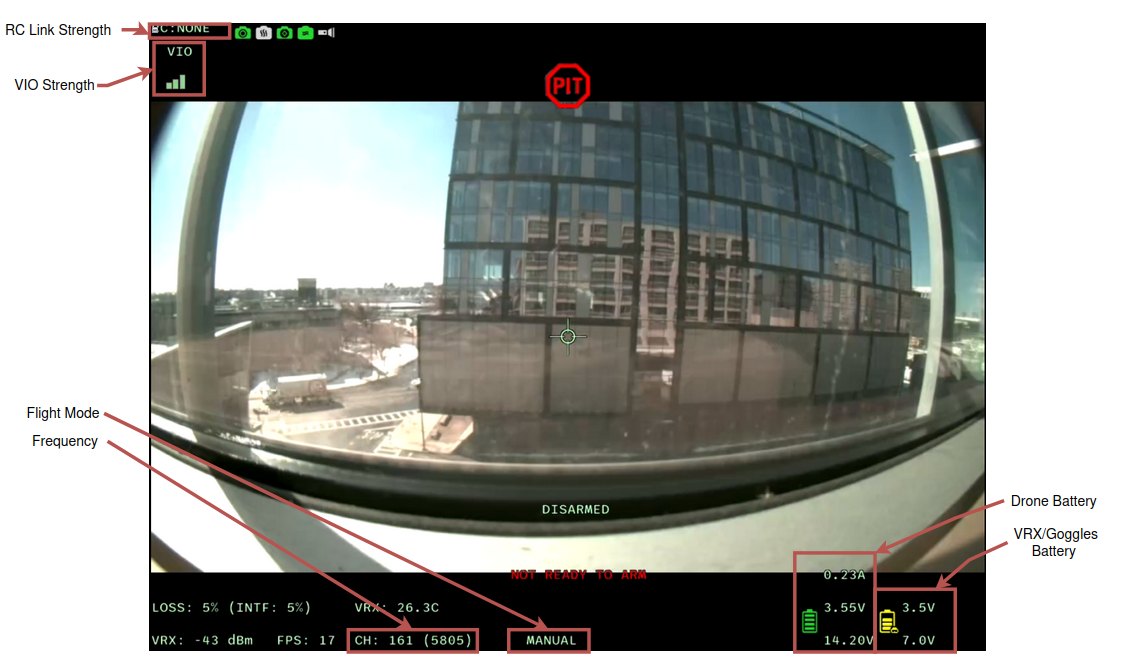
To change flight modes, channel, video profile, and more, open the OSD menu while disarmed by pushing both sticks down and inward, then navigate with the right stick. See the VTX Air Unit Software Guide for everything the menu can do.
Video Link and Encryption
- VTX and VRX pair automatically out of the box (default frequency 5.805 GHz, shared default encryption key).
- To use your own encryption key: generate one on the VRX (see Generating New Encryption Keys), then insert the provisioned USB flash drive into Stinger’s utility port and power cycle.
- Channel changes, video profiles, and TX power are managed from the OSD menu or
voxl-vtxconfiguration — see the VTX Air Unit Software Guide.
Software
Stinger runs the standard VOXL SDK. The Stinger Software Guide covers which services run, how to update the SDK, ADB access, AI detection, and how to reset the configuration to factory state.
Troubleshooting
- No video in goggles — confirm the VRX is on the same channel (scan with the VRX buttons) and both units share an encryption key.
- Position mode drifts or refuses to engage — check the VIO indicator in the OSD; improve lighting or switch to Thermal Flow / Altitude mode.
- Transmitter won’t connect — re-bind following Stinger Binding Details.
- Services misbehaving after experimentation — reset to factory configuration with
voxl-configure-mpa(see the Software Guide). - Still stuck? Ask in the Stinger forum category.