Calibrate Barometer
The barometer on VOXL 2 is sensitive to temperature drift. The barometer temperature calibration process measures pressure readings across a range of temperatures and fits a polynomial compensation curve to correct for this drift. This results in more stable and accurate altitude estimates.
Calibration data is saved to /data/px4/param/parameters_baro_tc.cal.
Table of contents
Overview
The calibration process works by:
- Stressing the CPU cores to heat up the board
- Collecting barometer pressure and temperature samples as the board heats
- Fitting a polynomial curve to compensate for temperature-induced pressure drift
- Saving the thermal compensation parameters for PX4
The calibration can be performed either through the VOXL Portal web interface or directly from the command line.
Method 1: VOXL Portal
Step 1 - Open the Portal
Navigate to the VOXL Portal in your web browser by going to http://<voxl-ip-address>. If you do not have a WiFi connection to VOXL, see Accessing VOXL Portal via ADB.
Step 2 - Navigate to Barometer Calibration
In the top navigation bar, open the Debug dropdown menu and click Barometer Calibration.

Step 3 - Click Calibrate Barometer
Click the Calibrate Barometer button to begin the process.
Step 4 - Cool the Board
If the board is above 35C, the portal will display the current temperature and prompt you to cool the board with a fan. Once the temperature drops below 35C, turn the fan off and click Continue to start the calibration.
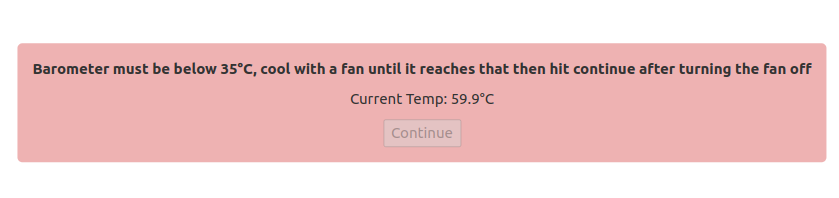
Tip: If you are having trouble getting the board cool enough, try stopping resource-intensive services before starting the calibration:
voxl2:/$ systemctl stop voxl-open-vins-server
voxl2:/$ systemctl stop voxl-camera-server
Step 5 - Wait for Calibration to Complete
The portal will stress the CPU and collect barometer samples. A progress percentage will be displayed while the calibration runs. Wait for it to reach 100%.
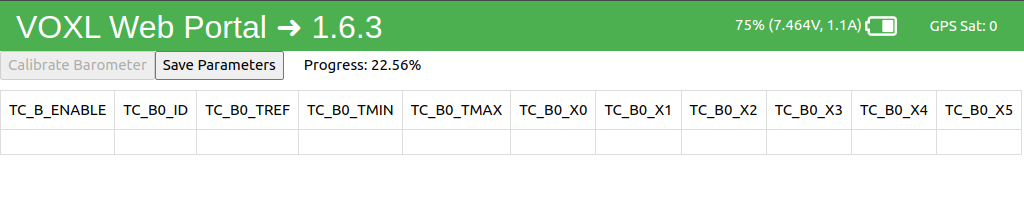
Step 6 - Save Parameters
Once the calibration completes, the parameter table will populate with the computed values. Click Save Parameters to apply the calibration data to PX4.
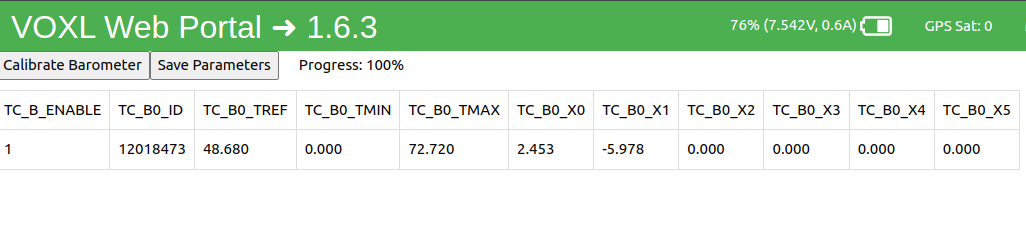
Method 2: Command Line
Step 1
ADB or SSH into VOXL.
Step 2
Run the barometer temperature calibration script:
voxl2:/$ baro_temp_cal
This will use the default settings (1250 samples, 7 CPU cores stressed, 1 iteration). You can also customize the behavior with optional arguments:
| Flag | Description | Default |
|---|---|---|
-n | Number of samples to collect | 1250 |
-c | Number of CPU cores to stress for heating | 7 |
-i | Number of iterations | 1 |
-f | Force calibration (disable temperature range checks) | off |
-s | Sleep interval between samples (ms) | 300 |
-p | Log output path | /data/baro_cal_logs/ |
For example, to run with 4 CPU cores stressed (slower, more gradual heating):
voxl2:/$ baro_temp_cal -c 4
Step 3
If the board is above 35C, the script will ask you to cool it down before proceeding. Once the board is cool enough, turn off the fan and press Enter:
Barometer temperature calibration process starting
Starting iteration #0

Baro too hot [ 35.1C] cool the VOXL with a fan until <35C
Please turn the fan OFF, then press Enter to continue.
The script will then stress the CPU and begin collecting samples. You will see output showing the sample count, pressure, and temperature as it progresses:
Starting stress tasks
Starting data capture
(   1) P:100175.2Pa T: 30.5C
(   2) P:100175.5Pa T: 30.4C
(   3) P:100175.1Pa T: 30.4C
...
(1248) P: 99997.2Pa T: 61.7C
(1249) P: 99996.4Pa T: 61.7C
(1250) P: 99997.1Pa T: 61.7C
Finished collecting data
Step 4
Once data collection is complete, the script will automatically fit the polynomial curve, save the calibration to /data/px4/param/parameters_baro_tc.cal, and load the new parameters into PX4:
Poly Fit:
[-5.36099897  3.40355239]
param set TC_B_ENABLE 1
param set TC_B0_ID    12018473
param set TC_B0_TREF  45.94
param set TC_B0_TMIN  0.00
param set TC_B0_TMAX  71.69
param set TC_B0_X0    3.40355
param set TC_B0_X1    -5.36100
param set TC_B0_X2    0.00000
param set TC_B0_X3    0.00000
param set TC_B0_X4    0.00000
param set TC_B0_X5    0.00000

Loading new params to PX4
[INFO] Voxl-px4 process found and active.
[INFO] Loading file: /data/px4/param/parameters_baro_tc.cal
[INFO] Setting params...
[INFO] PX4 parameter configuration successful!
Barometer temperature calibration process ending
No manual parameter loading step is needed — the script handles it automatically.
Verifying Calibration
After calibration, you can confirm the baro calibration file is present and that the parameters were loaded correctly.
First, run voxl-check-calibration to verify the calibration file exists:
voxl2:/$ voxl-check-calibration
You can also verify the baro thermal compensation parameters are loaded in PX4:
voxl2:/$ px4-param show | grep TC_B
This should show the TC_B0_* parameters (enable, ID, TREF, TMIN, TMAX, X0-X5) that were generated during calibration.